
Create Document Zip Archives in Salesforce Flow


Three key elements play a crucial role in managing and organizing files in Salesforce: Files, Attachments, and Documents. Files in Salesforce are part of a system that allows users to upload, share, and manage their documents within the cloud environment. Attachments refer to files that are associated with specific records, providing a straightforward way to attach documents directly to data entries. Documents, on the other hand, are a legacy file storage solution accessible only through Salesforce Classic. Like files, they can be organized into folders for easy access and storage, but they do not allow you to track versions, share with users, or attach to records.

Mastering Salesforce Zip File Creation: A Guide to Managing Files and Using the Compression Namespace
Together, these elements form a foundational part of handling data and documentation in Salesforce, enabling users to maintain a well-organized and accessible digital workspace. And with that, welcome to our guide on using Salesforce’s new Compression Namespace! The Compression Namespace (first introduced in Spring 24) offers admins and developers the ability to create zip archives using an apex class. Once it reaches GA, it will provide nonprofits and small businesses concerned about file storage with a relatively simple, cost-effective way to archive records on platform.
This feature allows administrators and developers to create zip archives via an Apex class, offering a practical solution for file storage concerns, especially for nonprofits and small businesses. In this article, we’ll show you how to utilize Flow to automate the creation of zip archives, providing a straightforward approach to manage file storage. This guide helps you understand and implement this feature, whether you’re new to Salesforce or looking to enhance your existing skills.
Except for this wonderful blog post by Kier Bowden (to whom I am highly indebted), I have seen very little attention brought to this powerful feature. I wanted to showcase how it can be invoked by flow to provide flexible, low-code solutions.
Use Case
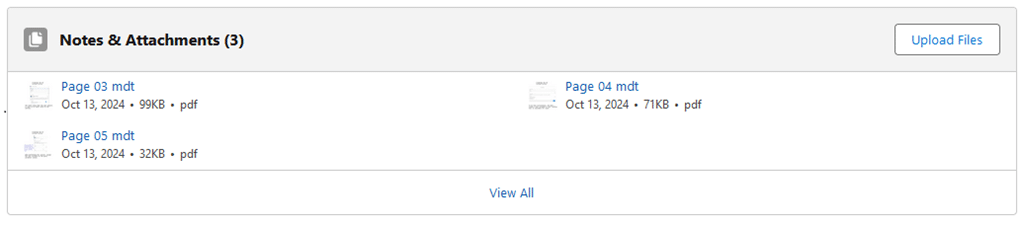

Setup
In a Dev Hub Org, create a new project scratch definition, or edit the “features” line in your definition (typically project-scratch-def.json) to include “ZipSupportInApex” as shown below:
"features": ["EnableSetPasswordInApi","ZipSupportInApex"],

If you have not created a scratch org before, I encourage you to complete this Trailhead module. Once you have done this, create a new Apex class using the following code:
public class ZipInvocable {

public class ZipVariable{

@InvocableVariable(label='Files To Zip' description='A collection of content documents to zip')

//InvocableVariable must be added to all Apex Classes in order to be used in flow
public List<ContentVersion> filesToZip;

}

@InvocableMethod

public static List<ContentVersion> ZipAttachments(List<ZipVariable> contentVersionList){

List <ContentVersion> contentVersionsToReturn = new List<ContentVersion>();

//The completed zip archive will be added to this empty list

Compression.ZipWriter writer = new Compression.ZipWriter();

//ZipWriter is the method used to create the Zip archive.

datetime d = system.now();

string dateTimeVariable = d.format('yyyy-MM-ddh:mma');

for(ZipVariable contentVersionSingle: contentVersionList){

list<ContentVersion> versionsFromFlow = contentVersionSingle.filesToZip;

for(ContentVersion cv: versionsFromFlow){

writer.AddEntry(cv.Title, cv.VersionData);

}

//Adds all content versions from the flow to the ZipWriter

blob newZipArchive = writer.getArchive();

//Assigns the zipped data to a 'blob' that will be used to make the content version for the system.

ContentVersion zipContentVersion = new ContentVersion(

VersionData = newZipArchive,

Title = 'ArchivedFiles'+ dateTimeVariable +'.zip',

Description = 'Files zipped from flow',

PathOnClient = '/ArchivedFiles' + dateTimeVariable + '.zip');

contentVersionsToReturn.add(zipContentVersion);

}

return contentVersionsToReturn;

}

}
Unlike many apex classes, ZipInvocable contains an invocable method which is designed to be called from flow.
The Flow
The flow will accept the following input:
-
Contact Id: RecordId


To understand the steps, it may help to review the Object Reference articles on Content Documents. Each File or Attachment on a Salesforce record is really 3 objects:
- A ContentDocument-An object that ContentVersion and ContentDocumentLink look up to. It stores most of the useful information about the document (i.e. the description and file type).
- A ContentVersion-The actual file (e.g. page 03.mdt) that you would upload and download. Because Salesforce allows you to replace old versions of files with new ones, a single ContentDocument may have multiple ContentVersions.
- A ContentDocumentLink-A junction object used to share the file with a User and/or make the file appear in a related list.
To build the flow, we will need to follow these steps:
- Create a “Get Records” element named “Get Content Document Links” to retrieve all ContentDocumentLinks where the LinkedEntityId equals {!recordId}.
- Create a Transform Element named CreateIdList that transforms all of the Id’s from Get Content Document Links into a text record collection as shown below:

3. Create a Get Records element named Get Content Versions that gets all ContentVersions whose ContentDocumentId is in {!Create_ID_List}.
4. Create an Apex action element named ZipInvocable. Set the input value Files to Zip to equal {!Get_Content_Versions}:

This apex action will create the zip archive as a new content version record variable. Since the variable takes a list of content document records, you can re-use the element in other flows and apex classes. For example, a flow that archives all records created before a certain date.
5. Create a delete records named Delete Content Documents that deletes all ContentDocuments whose ContentDocumentId is in {!Create_ID_List}.
6. Add a Create Records element named Create Content Version. Set record field values from a record variable and select {!Zip_Content_Versions} (the output of the Apex class). The zip archive will now be created.
7. To make the document appear in the notes and attachments or files related list, we need to create a ContentDocumentLink. This link will be between the Contact and the ContentDocument. When we created the zip file, it also created a ContentDocument. To access its ID, we need to create another “Get Records” element called “Get Content Version.” Get a ContentVersion whose Id Equals {!Zip_Content_Versions.Id}. This will get all the fields (including the zip archive’s ContentDocumentId).
8. Finally, we will as a ContentDocumentLink Create Records element. As shown below, we will set the fields manually and set the ContentDocumentId to equal {!Get_Content_Version.ContentDocumentId}. The LinkedEntityId will equal {!recordId}.

Conclusion
The compression namespace provides a powerful example of how you can combine invocable Apex with Flow to accomplish tasks that Flow alone cannot complete, even though it is not yet in Beta or GA. New features like data table action buttons provide extra opportunities to extend its functionality. All developers and admins should familiarize themselves with it in preparation for its release.
Explore related content:
How to Use the Repeater Component in Screen Flow
Integrating the New Flow Action Button From Summer ’24
How To Attach Files Using the Flow Email Action in Salesforce


One Comment