
Supercharge Your Approvals with Salesforce Flow Approval Processes


Are you finding that as your company grows, the complexity of your approval workflows grows along with it? What once might have been a simple sign-off from a single manager can quickly transform into a multi-step process involving input from multiple departments, stakeholders, and even external partners. This complexity often leads to delays, inefficiencies, and frustration as approvals get stuck in bottlenecks or lost in email chains.

Does this sound familiar? Read on for a new solution! 👇🏼
Introducing: Salesforce Flow Approval Processes
With Salesforce Spring 25 release, discover a revamped feature designed to automate even the most intricate approval workflows. With Flow Approval Processes, you can create approval orchestrations (multi-step processes that interact with multiple users and systems) ensuring that approvals are handled efficiently, no matter how complex they become.
In this blog post, we’ll discover Flow Approval Processes, exploring how they work, when to use them, and how to get started. We’ll also cover key concepts, best practices, and troubleshooting tips to help you make the most of this feature.
What Are Flow Approval Processes?
Flow Approval Processes are part of Salesforce’s Flow Orchestrator, a tool that allows you to automate complex business processes. An approval orchestration is a sequence of stages, each containing one or more steps, designed to review and approve a specified record. These stages can include:
- Approval Steps: Assign approval tasks to users, groups, or queues.
2. Background Steps: Automate actions related to the approval process without requiring user interaction.

I know that orchestrations are consumption based paid automation solutions that offer a free limited tier. FLow approval processes based on Orchestrations are entirely free. If you have access to legacy approvals, you can use this new tool at no additional cost.
A new vendor contract needs approval from the legal team, the finance department, and an external partner. With Flow Approval Processes, you can create an orchestration that automatically routes the contract to each stakeholder in the correct order, sends reminders, and updates the record once all approvals are complete.
Key Features and Benefits of Flow Approval Processes
1. Multi-Level, Multi-User Approvals
Flow Approval Processes are ideal for workflows that require input from multiple people across different departments or even outside your organization. Whether it’s a budget approval, a marketing campaign, or a new product launch, you can design an orchestration that ensures every stakeholder has their say.
2. Integration with External Systems
This functionality aids in automating business processes by enabling integration between Salesforce orchestrations and external systems, ensuring that complex workflows can pause, wait for external input, and then resume automatically.
3. Dynamic Logic and Decision-Making
Not all approvals follow the same path. Flow Approval Processes allow you to use decision elements to create conditional paths based on specific criteria. For example, if a contract exceeds a certain dollar amount, it might require additional approvals from senior management.
4. Email Notifications and Work Guides
Approvers receive email notifications with links to the records they need to review. They can either click the link to access the Work Guide in Salesforce or reply directly to the email with keywords like “Approve” or “Reject” to complete their action.
5. Scalability and Flexibility
Whether you’re a small business or a global enterprise, Flow Approval Processes scale with your needs. They’re available in Enterprise, Performance, Unlimited, and Developer Editions, as well as in Government Cloud and Government Cloud Plus.
6. Brand New UI and Audit Trail
Flow Approval Process brings a new lightning app to your Org titled Approvals. Every Step and Stage are well documented in the new data model that comes with the new functionality using objects, such as Approval Submissions, Approval Submission Details, Approval Requests and Approval Work Items.

When to Use Flow Approval Processes
Flow Approval Processes are particularly useful in scenarios where:
- Multiple Approvers Are Involved: When approvals require input from several people in a specific order.
2. External Stakeholders Are Part of the Process: When approvals involve partners, vendors, or customers outside your organization.
3. Complex Logic Is Required: When different conditions or criteria determine the approval path.
4. Time Zones and Availability Are a Factor: When approvers are located in different regions or have varying schedules.
Get Started with Flow Approval Processes
✅ Step 1: Understand the Requirements
Before getting into building an approval orchestration, it’s essential to consult with stakeholders to understand the approval workflow’s requirements. What steps do you need to take? Who needs to approve what? Are there any conditional paths or external systems to consider?
✅ Step 2: Build the Approval Orchestration
Using Salesforce Flow, you can create an approval orchestration by defining stages and steps.
Each stage can include:
Approval Steps: Assign tasks to users, groups, or queues.
Background Steps: Automate actions like updating records or sending notifications.
You can also use decision elements to create conditional paths based on specific criteria.
✅ Step 3: Add the Work Guide Component
Before activating your approval orchestration, an admin adds the Flow Orchestration Work Guide Lightning App Builder component to the page layout for the record type under review. This component provides approvers with a centralized interface to view and complete their tasks.
✅ Step 4: Test and Activate
Once you build your orchestration, thoroughly test it to ensure it works as expected. After testing, activate the orchestration to make it available for use.
Key Concepts to Know
- Approval Orchestration: A sequence of stages and steps designed to review and approve a record.
- Approval Submission: The process of submitting a record for approval, which triggers the associated approval orchestration.
- Approval Work Item: Task assigned to an approver as part of an approval step.
- Orchestration Run: An approval orchestration executes for a specific record.=
Build a Simple Flow Approval Example
A multinational company uses Flow Approval Processes to manage opportunities with an amount larger than $10 million, ensuring that the high amount opportunities are checked and approved by management. This ensures that proper reviews are completed before the sales and forecast reports are distorted with unrealistic sales pipeline items. Create a task related to the opportunity that shows the record has been approved.
Orchestrations are automations that stitch together flows. Therefore you need to prepare your flows first.
- Create the approval screen flow that will be displayed on the lightning record page work item component. Use the Approvals Workflow: Evaluate Approval Requests flow template in your Org to create your flow. You can leave the design mostly unchanged. Give your flow a label and save and activate. If you create your own modified version, you will need to create and populate these standard output variables:
- approvalDecision – A text output variable populated with ‘Approve’ or ‘Reject’ depending on the outcome.
- approvalComments – A text output variable that will hold the freeform comment entry by the user.

- Create an autolaunched flow that will create the task. Define two input variables, save and activate your flow:
- Opportunity Id Variable – Opportunity Id for the record that triggered the orchestration for the approval
- Description Variable – The input variable to assign a value to the task description. You can pass the approval comments into this variable.
- Build a Record-Triggered Approval Orchestration from scratch. Trigger your orchestration when a new opportunity record is created with an amount greater than $10 million. Remember to keep the checkbox set to true for record locking. You can choose to customize the email communication that goes to the users. Your orchestration should look as follows.

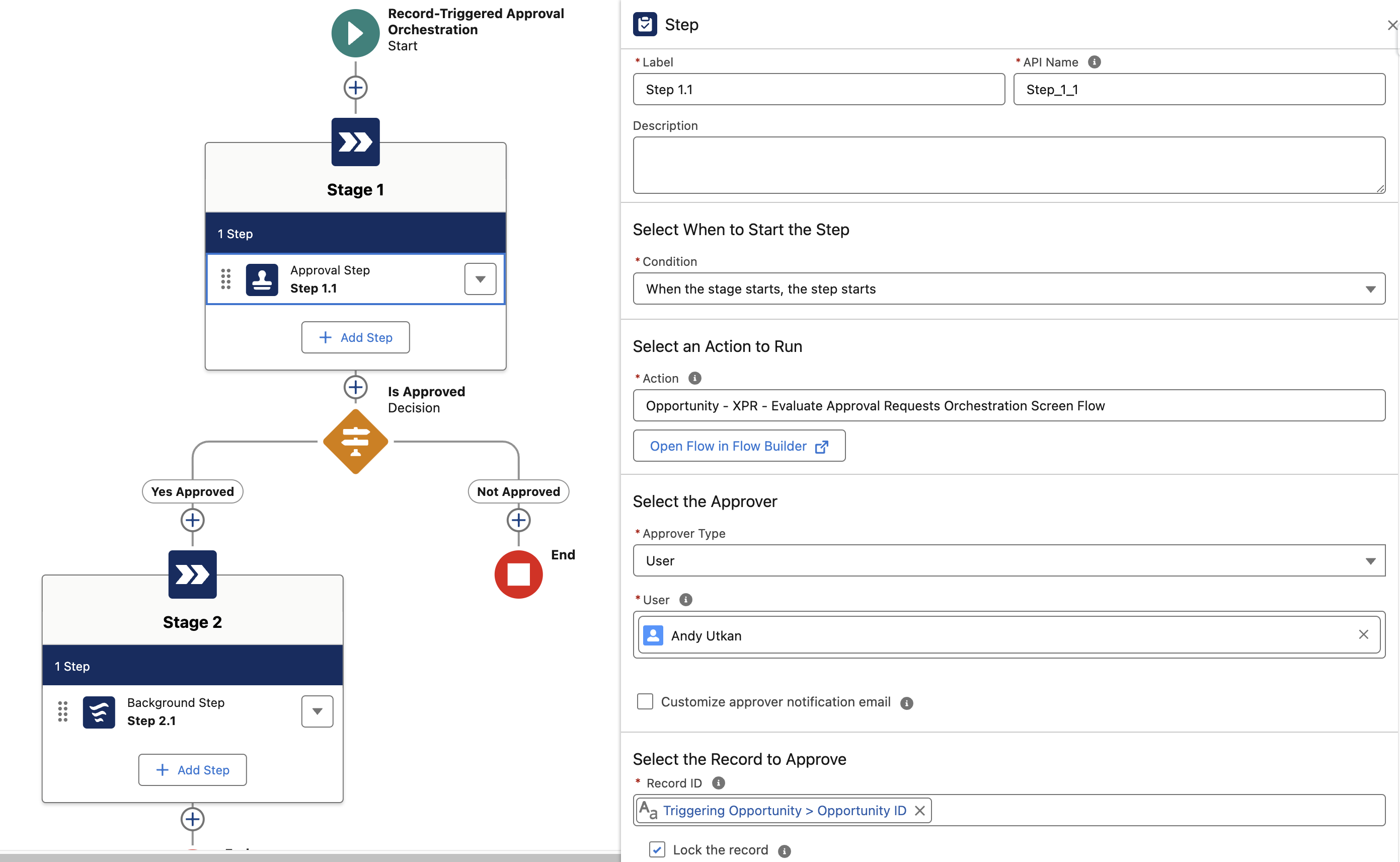
Save and activate your orchestration and test it in your sandbox environment before full deployment.
Here are a few screenshots that show how the approval looks in your Org.
Troubleshooting and Management
Handling Failed Submissions
If an approval submission fails, the associated orchestration run also fails, and the system sends a fault email. To troubleshoot, review the details in the fault email and check the orchestration run logs.
Managing Submissions and Work Items
Use list views to manage approval submissions and work items. You can recall a running submission or reassign incomplete work items to another user.
Deploying Your Approval Orchestration
After designing and testing your approval orchestration, deploy it. Inform all stakeholders about the new process and provide training if needed. Monitor the orchestration’s performance and make adjustments as needed to optimize efficiency.
Conclusion
Salesforce Flow Approval Processes are a game-changer for businesses looking to improve their approval workflows. By automating multi-step, multi-user processes, you save time, reduce errors, and handle approvals consistently and efficiently.
Additionally, whether you’re managing vendor contracts, employee expenses, or marketing campaigns, Flow Approval Processes provide the flexibility and scalability you need to keep up with your growing business.
Ready to get started? Explore this Flow Approval Processes link to learn more about the limitations and capabilities in Salesforce’s official release documentation. Looking for a course on the subject? Flow Canvas Academy opened a NEW Flow Approvals Crash Course. Check it out HERE.
Watch the demo on the Salesforce Break YouTube channel 👇
Explore related content:
Transform Element Now Supports Join Collections
Top 7 Salesforce Spring 25 Flow Features
How To Use Custom Permissions In Salesforce Flow


As we know one of the limitations for the current approval process structure is that approval responses in emails are only accepted when there is one recipient. Will this process allow an email to be sent to a Queue and its members where 1 person from the group can respond with “Approve” and update the approval step? Or is that part of this update still only achievable when the approval step is assigned to a single user?
I have not tried the queue or the public group option with approvals yet. I have not tried the email response approval yet, either. I will report if and when I do. Try it. Report back if you do.
Update: I could not get email reply approvals to work, yet. Public Group approval assignment works, I could not test the queue, yet, because the Object in my use case is not a queueable object (Opportunity).
Email approvals work. You need to activate them under Process Automation settings. I tested when the approval step was assigned to a public group and it still worked when the member responded to the email.
Will the email go to the group with all the recipients included or will it go to each recipient as its own individual email? Our use case is that the group would get the email, discuss the approval via email, then reply with the key word once a decision is reached. Is that possible with this feature?
I am not sure what you mean by that. The email will be delivered to all group members’ emails at the same time. Any of them can approve. If you have approve by email on, then any member can approve by email.
One of the nice things about the current Approval Process is the requestors’ ability to recall and Approval Request. Does this new method have a recall option?
Hello, Amanda. Under the Approvals Lightning App, you can go to Manage My Approval Submissions. This will show you a list view. There under the chevron menu on the right, next to the item, you have the recall menu choice.
Hi Andy,
I can recall the approval request from Manage My Approval Submissions. But can we automate this process through Apex or Flow?
You can recall an approval request inside a screen flow. There is a flow action called Recall Approval Submission. Does that help?
Yes, that’s helpful information — thanks! However, based on the current requirement, we need to automate the recall process, and unfortunately, the “Recall Approval Submission” action isn’t supported in autolaunched flows, which limits our ability to do it without user interaction.
Do you know of any workaround to trigger a recall action programmatically, such as via Apex, Process Builder, or Flow + Apex combo, to avoid manual intervention?
Also, I have one more question: when using the approval screen flow, the outcome picklist only supports the standard options “Approve” or “Reject”. I’m trying to add custom values to the picklist (e.g., more than just Approve/Reject), but during orchestration runtime, it throws an error.
Is it even feasible to handle multiple custom outcome values in the approval step, or is it strictly limited to those two standard outcomes?
Thank you for the article, Andy!
How do you evaluate the approval request outcome in the Decision element – whether it has been approved or rejected?
I just realized that there is a video with much more information, thanks!
No worries, may be I need to add some more detail to the post, too. I will check. In summary there are two standard text output variables that carry that information to the Orchestration. You can use these in a decision inside your Orchestration.
I had a couple of questions as I was reviewing it. One step in our approval process is looking for first approval from multiple approvers. I’m assuming this would work based on what you said above about public groups. If one person approves it should clear the step, right? On the decision step I’m assuming you use ApprovalDecision equals Approve? or is it equals True?
Also, Where do you use the create task flows – are those used as background actions in one of the stages? Or, do they just get created automatically as part of the orchestration?
Finally, once a quote (we’re approving quotes not opptys) is fully approved, is there a way to create a step that updates fields on the Quote itself? Currently we use one record type for Quotes that need approval but once they are approved we ‘flip’ them to an approved record type that contains additional buttons. I didn’t see anywhere in that orchestration to do field updates like that.
Hello, Great questions. Here are my answers:
If you are dealing with an object that is not queueable, then a public group is the way to do that. In most cases, this is the best option for multiple approvers. The notification will go to all simultaneously, and the work item will be visible for all members. When the first member approves, the approval step is approved. And that means the ApprovalDecision = ‘Approve’.
The task creation is my addition to the Orchestration. It is optional. It is achieved by adding a background step and running an autolaunched flow that simply creates a completed task for the activity timeline related to the triggering record.
Your final point: This is where the beauty of the Orchestration comes in. You can add as many background steps as needed and create/update records including the triggering record.
Check back in a day or so, I will add more screenshots either to the body of the post or into the slideshow component on the bottom. Check out the video. You can also join us here for interactive support: https://salesforcebreak.com/flow-support-slack/
Hello, great post summarizing this new salesforce approvals functionality. I have 3 questions:
1. have you tried to create an Approval Chain in the flow orchestration? how does it work in this scenario when we don’t have the approval chain object? I am confused on how to create the variable.
2. can we see a preview of the approval process before the record is submitted for approval so the rep knows who the record goes to during the approval?
3. Where are the submission comments from the flow orchestration visible? I don’t see any fields on the approval work item to show this value to the Approvers.
Let me know if you have any insights on the above. Thanks.
1. I don’t know what you mean with approval chain. Please explain.
2. No
3. Approval Work Item/Comments field captures the approval comments.
Thanks for replying. The Approval Chain in the Flow Orchestration Approval Step located just underneath the email and record information. Trying to figure out how to utilize it. The Approval Work Item captures the comment from the Approver, my question was how to capture the comment from the Submitter and display in the Approval Work Item.
I know this is old but I was wondering if you ever figure out how to show the Submission Comments from the submitter….i cant get them to actually show in a user friendly way to the approver
This is stored in Approval WorkItem –> Approval Submission –> Comments.
You can use the screen flow for the approver to show the submission comment by querying the above.
Thanks for the response and the suggestion. Other alternatives: Post a completed task with the comments and get it on the activity timeline. Or write it into a field on the same record (I am not sure this will work in the locked record scenario, though).
Hi,
Can we achieve dynamic Queue Assignment ? Like can we get output from Apex actions ?
Yes, please see this page: https://help.salesforce.com/s/articleView?id=platform.automate_automated_approvals_build_create_step_to_interact_with_reviewers.htm&type=5 .It says “To specify a resource that contains a queue’s API name when the approval orchestration runs, select Queue Resource.” If you output a queue resource value from a flow, that value can be used to determine the queue provided that the object you are working with is queueable.
I was trying autolaunched flow approval and I am facing this error – Info Error Occurred: Failed to create Approval Submission, SubmittedById is missing. can you please help me how to add this in my flow and I was trying to invoke autolaunched flow from custom button – and included it like this – /flow/Autolaunched_Coin_Approval?recordId={!Case.Id}&submitter={!User.Id}
Example syntax is as follows: /flow/Contract_Approval?recordId={!Contract.Id}&submitter={!$User.Id}&retURL={!Contract.Id} . The last parameter is not required. So, your syntax seems to be correct, which makes me think, you may have not used the screen flow template for the approval step. You may be missing the required variables. Link: https://help.salesforce.com/s/articleView?id=platform.automate_automated_approvals_deploy_create_button_for_autolaunched_approval_orchestration.htm&type=5
Hi Andy , I added screen flow in approval step also but still I am getting the same error , Can you pls help me how can SubmittedById be assigned and how to solve the error
I need more detail, you may want to come here: https://salesforcebreak.com/flow-support-slack/
Here is more information. I added a new post and a video: https://salesforcebreak.com/2025/03/18/start-autolaunched-flow-approvals-from-a-button/
Hi Andy,
I implemented this functionality following your excellent examples / tutelage in this article. So far it appears to be working great but I did get some feedback from my users and I was wondering if you’ve learned of any solutions that will solve these issues:
1. They are worried about their insight into their approvals. They say the email that goes out to them appears to be delayed so they don’t know if something has been approved as soon as it is. I know I can add a background task to send an email but then we may have a new problem where they are getting double emails about the same approval.
2. They used to check the “Approval History” related list to see the status of their approvals. These new types of approvals do not show up in that related list.
3. The Work Item box on the right of the Quote screen (we’re using this new process for Quote approvals) disappears after it’s been approved so you cannot see any record / history there.
4. We’ve suggested they use the Orchestration Work Item list view but nothing populates there for the users – only SysAdmins.
5. For the Managers – they used to have a component on their home tab for “Items to Approve”. They miss being able to check there to see which items are waiting for approval. I cannot find anywhere to add the list of Work Items to the Home tab.
If you have any ideas on how to provide greater visibility to the reps that are submitting the quotes and the managers who are tasked with approving the quotes I would love to hear them.
Thank you again for this helpful article!
HD
1. I don’t think that should happen. Open a ticket with Salesforce, please. Let me know what they say.
2. Yes, this part of the functionality is not developed well. I am afraid, it won’t ever work the same way as the legacy approvals. Have you seen my latest post and the approval trace lightning component? Alternatively you can leverage a report table or a read-only screen flow data table to show some info on the Orchestration side. Here is the link: https://salesforcebreak.com/2025/03/18/start-autolaunched-flow-approvals-from-a-button/
3. Yes, it will disappear. You can see it on the approval trace component view. See above.
4. If you have access issues displaying info that the user normally cannot see, try the read-only data table in a screen flow that has been elevated to run in system context without sharing. Launch the flow either from a quick action button or assign it to a tab: Approval detail.
5. You could make a screen flow and add it to home I guess, but they should learn to go to the Approvals Lightning App instead ideally.
Thank you for your engagement. Seems like you have gotten far with this. Please share our content and recommend to others.
Hi Andy,
i am looking for a way to vie my users the possible to recall an submission. Unfortunately i don’t know which permission the user needs to recall their own requests. Maybe you can help me out?
Even better would be s solution like an autolaunched flow or sth similar.
kind regards,
Tom
With the latest release you get to determine what happens when a user recalls an approval request. There should be a flow action for this as well. I don’t think there is a separate permission, users should be able to recall an approval request.
How can we add Time based alerts, like reminders to this if the record is not approved say for 1 day?
Have you considered a record-triggered flow with a scheduled path on the Approval Submission or the Approval Work Item object?
How can we Reject the new Approval Process flow in an apex method as the old Approval Process
I am not sure what you need here. Why would you reject an approval request programmatically. Would you not prevent the approval request in the first place? Or you can recall it via a flow action I guess.
Hi Andy,
Can we have any other decision than “Approve” or “Reject”? For example, “Conditionally Approve”. I tried adding this 3rd option, but the flow is failing.
You could add additional options in your flow. But the only values you can pass back to your Orchestrations are Approve or Reject. Before you complete your flow, you would have to catch additional values via a decision and perform whatever you want to do that way. Remember that Orchestrations will give you additional capabilities for screen interactions but they are not free. Therefore the free approval screen interaction (UI step) is limited in functionality.
Thanks Andy, I fixed the error with your help. I understood that, due to system limitations, we cannot/should not change the Decision literal from “Accept” to anything else like “Accepted”/”Conditionally Accepted” etc.
Perfect. And thanks for your response to the other question below the same article.
Is it possible with a flow based approval process to only resubmit to those Approvers that rejected instead of starting the whole process over? We have a situation where 5 people have to approve unanimously. If 3 approve and 2 reject, can I only send to the 2 people that rejected upon resubmission? I can’t find the answer to this anywhere.
What you could do is stamp the record with the users who already approved in your orchestration using an Autolaunched flow (maybe even within the screen flow). You would add in your approval orchestration decisions before each approval step allowing you to skip that step if the user is included in the field already. However, remember the record has been modified, therefore the people who already approved before, have approved a different version.
Hi Andy,
I added a decision after stage 1 to check if the step was rejected or approved and I have the flow end if it was rejected. but when I test this , it seems to move on to the next approval stage instead of ending.
In my decision I’ve tried referencing the stage > > step1 > output > approvalDecision equals “Rejected”