
How to Set Up Automated Email Alerts in Salesforce Flow


Email alerts sent from Salesforce Flow offer a highly customizable solution for many use cases. They can notify internal users when a record is updated, send next steps to customers when a deal closes, and more.

There are currently two approaches to sending email alerts from Flow
- Send Email Alert: This older method requires an Email Template that is referenced as part of a Workflow Rule-based Email Alert action.
- Send Email: This action is configured entirely from Flow where you set the body, recipients, and other required information within the element screen.

Choosing the Right Email Method
How do you decide which approach to use? This often boils down to personal preference, but there are a few considerations to keep in mind for each method:
- As of the Spring ‘24 release, the setup page for each Email Alert shows you all Flow Versions that reference this alert. If you ever need to track down the automation causing a given email alert to fire, this feature can really save you time and frustration.
- If you want to pull in fields from other objects or include formulas, you’ll need to use the newer, Flow-based Send Email Alert action that allows you to use any Flow resource in an email template.
- When using rich text formatting, I’ve found the editing interface in the Flow-based email alerts much easier to use compared to HTML email templates in either Classic or Lightning.
Here’s a more detailed breakdown of the pros & cons of each if you’re wondering about which method to use:
|
Consideration |
Standard Email Alerts 
|
Flow-Based Email Alerts |
|
Maintenance |
Updates to recipients and template do not require automation changes |
Any adjustment to the email alert requires a new Flow version, unless you also leverage a Custom Metadata Type |
|
Template Customization |
Limited to merge fields on the object defined in the Email Alert |
Full access to any Flow resource, including formulas and related records |
|
User Interface for Admins |
HTML templates can be clunky, especially in Classic; harder to preview |
Rich text editor in Flow is more intuitive and user-friendly |
|
Recipient Options |
Limited to certain relationships (related user, record owner, etc.) or hard-coding up to 5 other email addresses |
Can specify recipients dynamically using Flow variables and logic |
|
Debugging |
Easy to trace from the Email Alert setup page |
Must open each Flow to view or update email logic |
|
Error Handling |
Blank email fields are ignored and do not cause Flow errors |
Blank email fields can cause the action triggering a Record-Triggered Flow to fail |
Email Alert
Create an Email Template
- First, you’ll need to set up an email template. I’ve found that even in orgs that are using Lightning Experience for everything else, most admins end up using Classic Email Templates. To start, search for the Classic Email Templates tab in Setup, then click New Template.

- You’ll be prompted to select the template type. In this walkthrough, I will use Text to demonstrate my most common use case for Flow-based email alerts: notifying admins or other internal users about record changes. (If you’re emailing customers, you can use HTML and set up Classic Letterhead to leverage custom formatting.)


Complete all required fields on the Classic Email Template:
-
- Ideally, you can file each template into a specific Folder; otherwise, it will default to “Unfiled Public Classic Email Templates.”
- Make sure to check Available for Use so that you can select this when configuring your Email Alert.
- Add an Email Template Name and Salesforce will auto-generate the Template Unique Name.
- You can leave Encoding set to the default.
- Add a Subject and Email Body, which can pull in specific merge fields using the field selection option above the template configuration:

Note: If you would like users to be able to configure their own email templates, Lightning Email Templates are a better choice. Rather than creating these in Setup, you must search “Email Template” in the App Launcher:

As with Classic Email Templates, Lightning Email Templates will prompt you to add required fields when you click New Email Template.
- Add an Email Template Name.
- You also need to specify the Related Entity Type: the object this template will reference.
- You can optionally add a Description and change the Folder.
- Add a Subject.
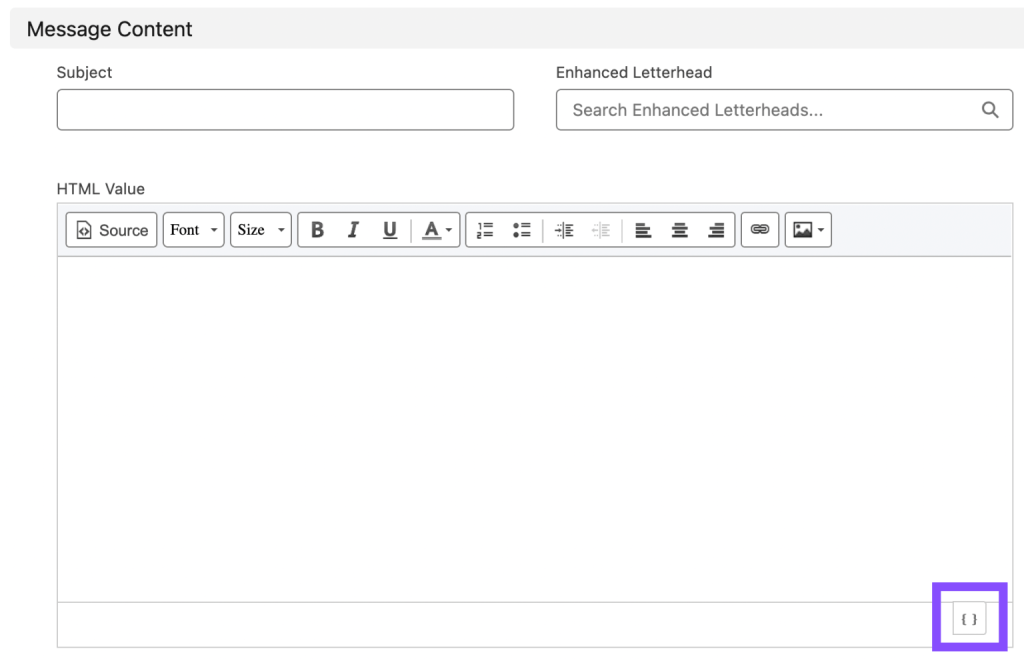
- You can use Enhanced Letterhead if you’d like (and again, I’d recommend this for branding when emailing customers).
- The email body is automatically configured to rich text formatting, so it’s labeled as HTML Value. At the bottom right of this screen, a tiny merge field button is hiding, which you can use to insert record fields as with Classic templates.

Create an Email Alert
Open Setup and find the Email Alert tab under the Process Automation section. Click New Email Alert and add the required fields:


- Write a Description, which really acts as the name field for this setup page. Salesforce will automatically generate a Unique Name.
- Specify the Object that this Email Alert relates to.
- Link to the Email Template that you just created. In the Lookup screen that pops up, you can choose either Classic or Lightning Email Templates and search by name within each folder.
- Select the relevant Recipient Type. You can select multiple Recipients across different Recipient Type categories: Account Owner, Case Team, Creator, Email Field, Owner, Public Groups, Related Contact, Related Lead or Contact Owner, Related User, Role, Role and Subordinates, User.
- You can search by name and use the multi-select picklist functionality to add multiple recipients.

Note: If you would like to notify an email alias or someone who doesn’t have a user account in Salesforce, you can manually add up to five other email addresses to the Additional Emails section and these will be copied on the email in addition to the Recipients you’ve specified.
- Lastly, specify the Sender Email Address. You can either choose to use “Current User’s Email Address” or use an Organization-Wide Email address. (If you haven’t yet set up an Org-Wide Email Address, check out this great step-by-step guide from Salesforce Ben.)

Use the Send Email Alert Action in Flow
- From Flow Builder, add a new component and find Send Email Alert, which has a letter icon.
- A search screen will pop up so that you can select the relevant alert.
- From there, add a Label, which Salesforce will use to generate the API Name, and an optional Description. You’ll be asked to specify the Record Id, which you can select via the Triggering record resource category for Record-Triggered Flows or by using the recordId variable in Screen Flows.
 If you’re ever troubleshooting email send actions in a Flow, you can see the name of the Email Alert in the body of this component.

- Once you save your Flow, you can now leverage the most powerful feature of the older method of sending email alerts: a list of all Workflow Rules, Approval Processes, Entitlement Processes, and Flow versions that use an Email Alert.

Flow-Based Email Alerts
If you want to leverage the newer, entirely Flow-based approach to sending emails, this section will walk you through creating standalone alerts in Flow builder for sending simple notifications to internal users. If you’d like to reuse Classic or Lightning Templates instead, you can reference the Use Email Templates in the Send Email Action documentation from Salesforce.
- To start, add a new component to your Flow and select “Send Email” (the option with the lightning bolt icon).


- As with all Flow elements, you’ll need to add a Label, API Name, and optional Description.
- The rest of the configuration options can look daunting at first. You can create very advanced and highly customized email alerts using this component. I won’t cover all of the options, but let’s go over the core functionality you’ll need to use for the Send Email action.
- While the Body resource is technically not required, you will almost always want to include one, so toggle on this option. In the lookup bar, click New Resource.
- On this screen, select “Text Template.”

- On this template creation screen, you can either stick with “View as Rich Text” if you plan to add formatting, such as in a customer-facing alert. If you choose Rich Text, you also need to set Rich-Text-Formatted Body to “True.”


- If you don’t plan to add formatting to your alert, you must select “View as Plain Text.” Otherwise, Salesforce will automatically add HTML tags to your email template.
- Regardless of whether you use Rich Text or Plain Text, you can leverage the full customization potential of Flow-based email alerts by using merge fields from other records or including formulas.
Note: You’ll also need to specify a Subject, which can either be plain text or include a merge field from the record.
Selecting Recipients
Lastly, you must specify at least one recipient email address. Do this either by using a collection variable in Recipient Address Collection or a comma-separated list in Recipient Address List. You can also use Flow resources like record fields or formulas in this section.


Note: when using the Send Email action, you must ensure that there is always at least one email address provided. If you don’t account for this and there are zero recipients, the Flow will throw an unhandled error. This will cause the entire record update that Triggers the Flow to fail. For example, in this case, I’m referencing an email field but didn’t add anything to the RevOps Lead Email field on my Opportunity record, which caused an unhandled error when attempting to update the Stage value. To avoid this, you can add a Decision element to check for a value in the email field. Exit that element if the email is missing.
You could also consider using a Custom Metadata Type design to avoid hard-coding email recipients in each Flow version. To accomplish this, you create a CMT object, add custom fields, add a record with your comma-separated recipient list string. Then use a Get element within the Flow to fetch that new CMT object, then reference that Get element in your Recipient Address List selection.
Advanced Considerations
There are a few other advanced customization options you can choose to leverage in the Send Email action:
- As Dirk Keaton previously covered for Salesforce Break, you can include attachments.
- If you would like to send from an email alias instead, use an Organization-Wide Email Address and set Sender Type to OrgWideEmailAddress:

- Depending on your email volume, you may prefer using Email Templates instead of one-off templates like we used here. This changes how email sends count against daily governor limits. According to Salesforce, “[u]sing email templates in the Send Email action changes the API called by the action, which changes the daily email send limit to the General Email Limit instead of the Daily Workflow Email Limit.”
Conclusion
Choosing between the standard Email Alert action and the Flow-based Send Email action depends on your specific use case, level of customization, and long-term maintenance strategy. For reusable notifications that reference a single object, standard Email Alerts remain a solid choice. But when you need dynamic logic, complex formatting, or greater control over recipients and content, Flow-based email alerts offer unmatched flexibility. By understanding the strengths and trade-offs of each method, you can design more effective, scalable automations that meet your team’s communication needs.


One Comment