
Send Salesforce Reports and Dashboards to Slack with Flow


Accessing Reports and Dashboards in Salesforce is a routine part of many people’s jobs. But if they’re buried or tucked away where you don’t usually work, they’re easy to overlook. If you spend most of your day in Slack but still need updates from Salesforce, good news: you can now have Reports and Dashboards sent to you automatically via Flow.

You might be wondering: if Salesforce already allows you to email reports through subscriptions, why bother with Slack? For one, not everyone checks their email regularly (I know I don’t). Slack is where the conversation happens—and where you’re more likely to get a response. More importantly, using Flow gives you greater control over when and how reports are delivered. And unlike standard report/dashboard subscriptions, which are capped at 7 per user in Enterprise Edition, sending via Flow doesn’t come with that restriction.
Let’s walk through two use cases: one for sending a Report, and another for sending a Dashboard.
Send the open pipeline report to the sales channel daily at 9am to help motivate the sales team. To do this we will use a Scheduled-Triggered Flow.
Create a Custom Metadata Type to Hold Slack Channels IDs
Slack Channel IDs are needed to tell the Flow where to send the report to. If you haven’t used CMDTs before they are like Custom Objects, except they live inside Setup. I also like them because you can deploy them across environments instead of having to do data loads like you would if you used a Custom Object. The CMDT is very simple, I’ve only created one custom field to hold the Slack Channel ID.


Create a record for each channel to retrieve the ID. The Channel ID can be found by right clicking on the Slack Channel and selecting ‘View channel details.’

Now to Build the Slack Action Flow
Get the Report
-
Use a Get Records element to retrieve the Report by matching on the Developer Name.
-
Find the Developer Name (also known as Report Unique Name) of the Report from the Properties section of the Report.

Validate the Report
Use a Decision element next to make sure that a Report was found. Next, use another Get Records element to find the Custom Metadata Type record that holds the Slack Channel ID that matches the Label.
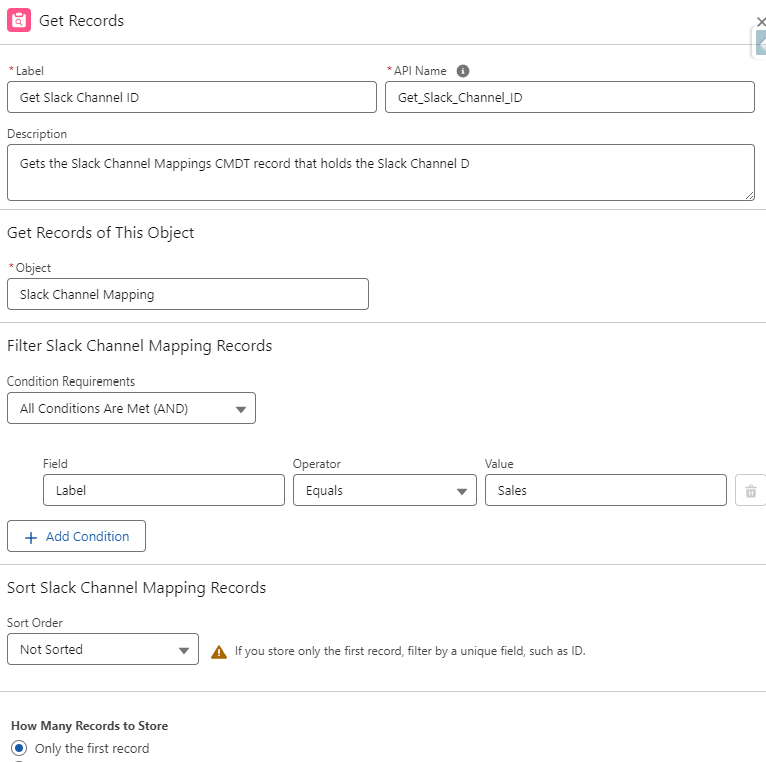
Get Slack Channel Mapping (CMDT)
-
Use another Get Records element to find the Custom Metadata Type record that holds the Slack Channel ID that matches the Label.
- Add another Decision element to verify that a CMDT record was found with the Channel you’re looking for.
Send Slack Message
-
Use a Send Slack Message Action to send the Report.
In the Action:
-
Select which Slack App and Slack Workspace to use.
-
The Slack Conversation ID is the Slack Channel ID retrieved from the CMDT record.
-
The Slack Message is a Text Template in the Flow, which uses a Formula to produce a clickable link.
Within the Action, I’m selecting which Slack App to use and the Slack Workspace. The Slack Conversation ID is the Slack Channel ID retrieved from the CMDT record. The Slack Message is a Text Template in the Flow, which uses a Formula to produce a clickable link. This formula is super useful as it works in all environments, simply add a Record ID to the end.

Here’s the formula if you want to copy and paste it: LEFT({!$Api.Partner_Server_URL_630}, FIND( '/services', {!$Api.Partner_Server_URL_630}))
-
Add
+RecordIDusing the Record ID from one of your Get Records elements. -
Note: The
630in the formula refers to API version 63.0.-
Be sure to update this to match your current version before it expires.
-
Since version changes can require updating many Flows, it’s best to use Subflows to send record links (in emails, Slack messages, Chatter posts, etc.) to reduce maintenance.
-
Note: I did try to use Custom Labels and Custom Metadata Types to hold the formula and reference in the Flows, but both do not work as they evaluate as static text.
I’ve added a fault path that calls a Subflow to create a Custom Object record if the message fails to send. The finished Flow looks like this:

Send the deal desk dashboard to an executive each time an opportunity is won to keep up to date on current bookings.
Record-Triggered Flow Setup
-
Since this is a Record-Triggered Flow, the first step will be to use an Asynchronous Path since this is calling out to an external system.
-
I can’t control how long it may take for the message to get to Slack, and I likely want my Flow to continue doing other things more quickly.
-
In this example, the immediate action of my Flow will be to update the Type field on the Account to
'customer'. -
To set up an Asynchronous Path, I just need to check a box inside the Start element of my Flow at the bottom of the window.
Get the Dashboard
Next I need to get my Dashboard, which I’ll do with a simple Get Records element.
Note: There is no option for using the API name of the Dashboard like there is for Reports because there is no where in UI to actually see it (this is annoying), so be very careful how to do this. The Title field is what you would use to match on the name of the Dashboard.

Get the User and Slack User ID
Now I need to get the User to whom I am sending the Dashboard. I’ve added a Custom Field to the User Object for the Slack User ID, which I will need later. This ID can be found by viewing the Slack Profile (Copy member ID) and you need to manually add into the Custom Field on the User record.

Check Slack Access
Use the Check If User Is In Slack Workspace action to make sure the User has access to the Workspace.

A Decision element is then used to see if the output for the previous action is True.

A Send Slack Message action will @mention the User and provide the link to the Dashboard. This message will use a Text Template that holds the information that needs to be sent.
I will use the same formula as in the first example, and add the Dashboard ID to create a clickable link. The syntax the I will use to @mention the User within the message is: <@{!Get_User.Slack_User_ID__c}>

Final Send & Fault Path
-
When the message is sent, the Slack Conversation ID is the Slack User ID from the Custom Field on the User record.
-
The Slack Message is the Text Template that I created.
Send Slack Dashboard Message
-
I’ve again added a fault path that calls a Subflow to create a Custom Object record if the message fails to send.
-
The finished Flow looks like this:

Conclusion
Whether you’re automating daily pipeline updates or triggering executive notifications in real time, sending Salesforce Reports and Dashboards to Slack using Flow gives you a level of control and flexibility that outpaces standard subscriptions. These two use cases show how easily you can weave Slack into your business rhythms so that insights actually reach the people who need them, where they’re already working.
You get to define exactly when, how, and to whom data is delivered, and you’re not stuck with arbitrary limits or rigid schedules. Plus, with reusable Subflows, clickable record links, and support for @mentions, this approach scales smoothly across teams and environments. If you’re ready to go even deeper, check out my related post on pulling Reports into Slack using native integration (no Flow required) over on Reportforce.blog.
Explore related content:
Enabling Slack Webhook Workflows
How To Build Flex and Field Generation Prompt Templates in the Prompt Builder
Can You Start With a Decision Inside Your Record-Triggered Flow?
Unleashing Visual Insights: Uncover the Power of Embedded Charts in Salesforce


4 Comments