
Profiles and Permissions in Salesforce: The Simple Guide for Admins


Ever built the perfect flow, only to find your users can’t even see it? That’s not a flow problem. That’s a permissions problem.
If you’re new to Salesforce admin work, user access can feel confusing. Between Profiles, Permission Sets, Roles, and sharing settings, it seems like there are a lot of knobs to turn. But once you understand the logic behind how Salesforce decides who can do what, it all starts to click.
User management is the foundation of every Salesforce org. It determines what your users can see, what they can change, and which records they can interact with. Get it right, and your team will work smoothly. Get it wrong, and you’ll spend your week answering “I can’t access this” messages.
In this post, we’ll walk through the essentials: Profiles, Permission Sets, Permission Set Groups, and Roles. You’ll learn how each works, how they fit together, and how to keep your users happy, secure and productive.
What Profiles Do
Every Salesforce user must have a Profile. A Salesforce user is anyone who logs into your Salesforce org with a unique username and license. Each user has their own login credentials, assigned profile, and set of permissions that determine what they can see and do inside Salesforce.
In most organizations, users include sales reps, service agents, managers, and admins. They are anyone who needs access to records, dashboards, or automations to do their job. Every user’s experience is shaped by the access you give them through their profile, permission sets, and role.
It’s the first piece of the access puzzle, and every user has exactly one Profile.
You can think of a Profile as a job description. It defines what that user’s role in the system allows them to do, what data they can see, and even when or where they can log in. For example, your “Sales User” profile might let people create and edit Opportunities but not change Account ownership.
Profiles control several key categories of access:
- Object permissions: Create, Read, Edit, Delete (known as CRED).
- Field-level security: Which specific fields are visible or editable.
- Login hours and IP ranges: When and from where a user can log in.
- Page layouts and record types: What the interface looks like for that profile.
Profiles are the baseline. They establish the minimum level of access a user will ever have. If something is not allowed in the profile, it doesn’t matter how many permission sets you add later. The profile still rules the foundation.
This means you should design your profiles around broad roles, such as Sales, Service, or Marketing. You don’t want one for every tiny variation; that’s where permission sets come in.
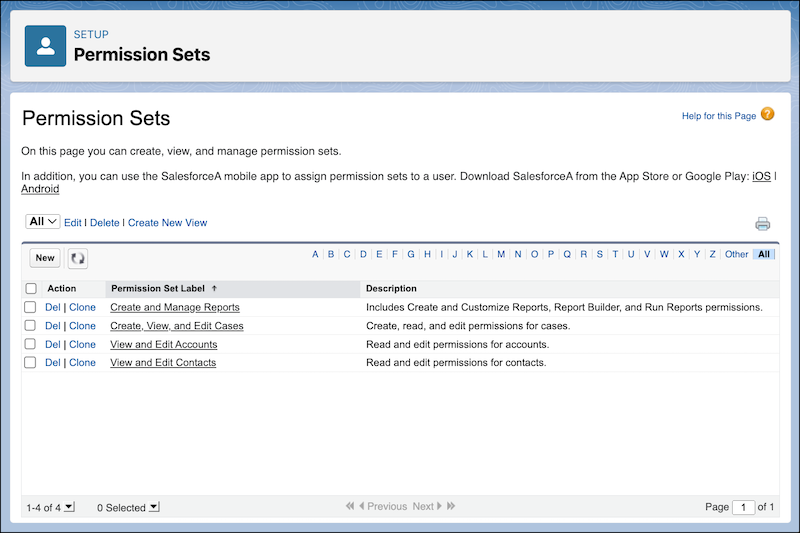
Please note that while assigning profiles to personas used to be the general practice, Salesforce recommends differentiating personas at the permission set group level now.
What Permission Sets Do
If a Profile is a job description, a Permission Set is an extra skill. It gives a user more capabilities without changing their primary role.
Permission sets are additive. You can assign as many as you want to the same user, and they all stack on top of their existing profile. This makes your security setup far more flexible.
For instance:
- Everyone in Sales has the “Sales User” profile.
- Only sales managers need access to approval processes and forecasting.
- Instead of creating a brand-new “Sales Manager” profile, you can simply assign a “Manager Access” permission set to those few users.
This keeps your org clean. You don’t end up with ten versions of nearly identical profiles. And when someone changes roles, you can add or remove a permission set in seconds.
Common use cases for permission sets include:
- Granting access to new objects, like a custom “Project” object.
- Allowing edit access to fields that most users can only read.
- Enabling new features, such as flow, Forecasting, or Reports and Dashboards.
Access Management: Permission Set Groups
Salesforce now recommends using Permission Set Groups instead of relying heavily on complex profiles. The modern best practice is to assign users a minimum access profile and then layer additional access through permission sets and permission set groups.
A permission set group lets you bundle multiple permission sets into one logical collection. For example, you might create a “Sales Manager Access” group that includes permission sets for Reports, Forecasting, and flow Management. This approach keeps your org more organized and flexible while reducing the number of profiles you need to maintain. You can still manage access at the profile level, but Salesforce’s long-term direction favors permission sets and groups as the more scalable and secure model. Salesforce also allows admins to mute specific permissions within a permission set group, which lets you remove or limit certain access without editing the original permission sets.
Role Hierarchy: Who Sees What?
Profiles and permission sets define what users can do. Roles define whose records they can see when the object sharing model is private, not public.
Salesforce’s Role Hierarchy is like an organizational chart. It mirrors your company’s reporting structure. Higher roles in the hierarchy can usually view records owned by users below them.
For example:
- A sales rep only sees their own Opportunities.
- A regional sales manager can see all Opportunities owned by their team.
- A VP of Sales can see everything beneath all regional managers.
The Role Hierarchy is critical for record-level security. It ensures managers can oversee their teams without exposing unnecessary data to everyone else. Combined with sharing rules, it gives Salesforce fine-grained control over visibility.

How This Affects Your Flows
This is where it ties directly into your flow work. Permissions are one of the biggest hidden reasons Screen flows fail.
If a flow works for you but not for another user, it usually means their profile or permission sets are missing something. Before rebuilding the flow, check these three things:
- Object access: Does the user have permission to create, read, or update the object the flow touches?
- Record access: Does the user have read/edit/delete rights on the record?
- Field access: Can they see or edit the fields the flow references?
- Flow access: Has the user been granted permission to run flows?
Many admins waste time debugging perfectly good automation when the real issue is access. Once you verify permissions first, you’ll troubleshoot faster and build more reliable automations.
While in the past flow access was granted to the user using run/manage flows system permission, you as the admin can override that on the flow setup screen. When you open Setup → Flows, you’ll notice a small chevron icon next to each flow row. Selecting Edit Access lets you choose which profiles or permission sets can run or edit that specific flow. The feature is still evolving, and the interface can feel a bit unintuitive, but it represents an important step toward more granular control. With this option, admins can fine-tune who sees and runs each flow without relying only on global system permissions.
It is also worth mentioning how flows respect the running user’s context. Some flows, especially those that run in system context, execute with specific privileges. This means they can update or view data even if the user who triggered the flow does not normally have that level of access. Others run in user context, meaning they only perform actions the user could do manually.
Understanding which context your flow runs in helps prevent security gaps and unintended data exposure. While this topic itself deserves its own post, remember that a flow’s running context directly affects how permissions are enforced behind the scenes. If you want more information on the topic, read up on Salesforce’s literature here.
Quick Reference: Profiles vs Permission Sets
| Feature | Profiles | Permission Sets |
| Assigned to | One per user | Many per user |
| Controls | Baseline access | Additional access |
| Includes | Object, field, and system permissions | Same, but additive |
| Common use | Define job roles | Handle exceptions |
| Example | “Sales User” | “Discount Approvals Access” |
Use this table as your cheat sheet when assigning access in your org.
Best Practices for Admins
Even experienced admins make mistakes with user access. Here are a few guidelines to help you keep things simple and secure:
- Start with standard profiles. Salesforce’s out-of-the-box profiles cover most basic needs. Clone and tweak them when necessary.
- Use permission sets for flexibility. Add access for small groups of users without creating dozens of profiles.
- Group permissions logically. Name permission sets after what they do (“Marketing Campaign Access”) rather than who they’re for.
- Document changes. Keep a running log of why each permission was added. This saves future confusion when troubleshooting.
- Test your work. Always test with a real user account or use the “Login As” feature before deploying changes org-wide.
When you combine these best practices, your setup stays organized, scalable, and easy to troubleshoot.
Wrapping Up
Understanding Profiles, Permission Sets, Permission Set Groups and Roles is like learning the grammar of Salesforce. Once you speak the language, everything else, from automation to data management, becomes easier.
When you master user management, you stop reacting to access issues and start preventing them. You’ll know exactly why someone can or cannot do something and how to fix it without guesswork.
Next time a flow fails or a user can’t see what they expect, don’t panic. Check their profile, review their permission sets, and confirm their role in the hierarchy. You’ll solve the issue quickly and be the go-to problem solver on your team.
👉 Want to build automations that actually work for your users?
Check out the Salesforce Flow Foundations course at Flow Canvas Academy. It’s the perfect next step once you understand how permissions fit into the picture.
Explore related content:
How To Build Inline Editing for Screen Flow Data Tables in Salesforce
Automate Permissions in Salesforce with User Access Policies
When Your DMLs Have Criteria Conditions Other Than Id
How To Use Custom Permissions In Salesforce Flow


3 Comments