
Add Salesforce Files and Attachments to Multiple Related Lists On Content Document Trigger


Flow builders, rejoice! Now with the Spring 26 Release you can trigger your flow automations on ContentDocument and ContentVersion Flow objects for Files and Attachments. Salesforce had delivered a new event type in the previous release that supported flow triggers for standard object files and attachments. The functionality was limited. In this release, Salesforce gave us the ability to trigger on all new files/attachments and their updates for all objects.

You could easily expand this use case to add additional sharing to the uploaded file, which is also a common pain point in many organizations. I will leave out this use case for now which you can easily explore by expanding the functionality of this flow.
Objects that are involved when you upload a file
In Salesforce, three objects work together to manage files: ContentDocument, ContentVersion and ContentDocumentLink.
Think of them as a hierarchy that separates the file record, the actual data, and the location where it is shared. The definition for these three core objects are:
ContentDocument: Represents the “shell” or the permanent ID of a file. It doesn’t store the data itself but acts as a parent container that remains constant even if you upload new versions.
ContentVersion: This is where the actual file data (the “meat”) lives. Every time you upload a new version of a file, a new ContentVersion record is created. It tracks the size, extension, and the binary data.
ContentDocumentLink: This is a junction object that links a file to other records (like an Account, Opportunity, or Case) or users. It defines who can see the file and what their permissions are.
Object Relationships:
The relationship is structured to allow for version control and many-to-many sharing:
ContentDocument > ContentVersion: One-to-Many. One document can have many versions, but only one is the “Latest Published Version.
ContentDocument > ContentDocumentLink: One-to-Many. One document can be linked to many different records or users simultaneously.

ContentDocumentLink is a junction object that does not allow duplicates. If you attempt to create the relationship between a linked entity and the content document when it already exists, your attempt will fail.
What happens when a file is uploaded to the files related list under an object?
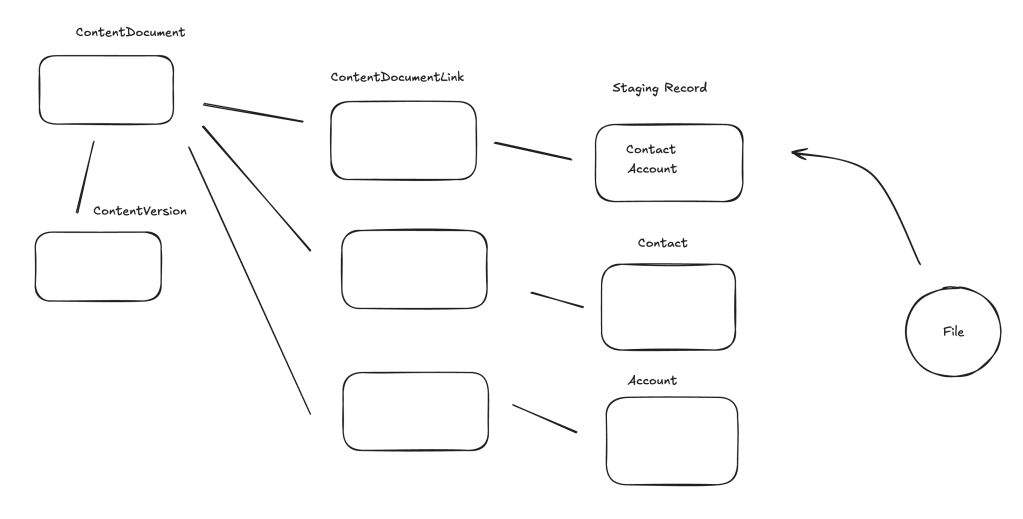
Salesforce creates the ContentDocument and ContentVersion records. Salesforce will also create the necessary ContentDocumentLink records; often one for the object record relationship, one for the user who uploaded the file.
For each new file (not a new version of the same file) a new ContentDocument record will be created. You can trigger your automation based on this record being created, and then create additional ContentDocumentLink records to expand relationships and sharing.
Building Blocks of the Content Document Triggered Automation
For this use case I used a custom object named Staging Record which has dedicated fields for Contact and Account (both lookups). This method of uploading new documents and updating new field values to a custom record is often used when dealing with integrations and digital experience users. You can easily build a similar automation if a ContentDocumentLink for the Account needs to be created when the file is uploaded to a standard object like Contact.
Follow these steps to build your flow:
- Trigger your record-triggered flow when a ContentDocument record is created (no criteria)
- Add a scheduled path to your flow and set it up to execute with 0 min delay. Under advanced settings, set up the batch size as 1. Async seems to work, as well. I will explain the reason for this at the end of the post.
- Get all ContentDocumentLink records for the ContentDocument
- Check null for the get in the previous step (may not be necessary, but for good measure)
- If not null, use a collection filter to filter for all records where the LinkedEntity Id starts with the prefix of your custom object record (I pasted the 3 character prefix into a constant and referenced it). Here is the formula I used:
LEFT({!currentItem_Filter_Staging.LinkedEntityId},3)= {!ObjectPrefixConstant} - Loop through the filtered records. There should be only one max. You have to loop, because the collection filter element creates a collection as an output even for one record.
- Inside the loop, get the staging record. I know, it is a get inside the loop, but this will execute once. You can add a counter and a decision to execute it only in the first iteration if you want.
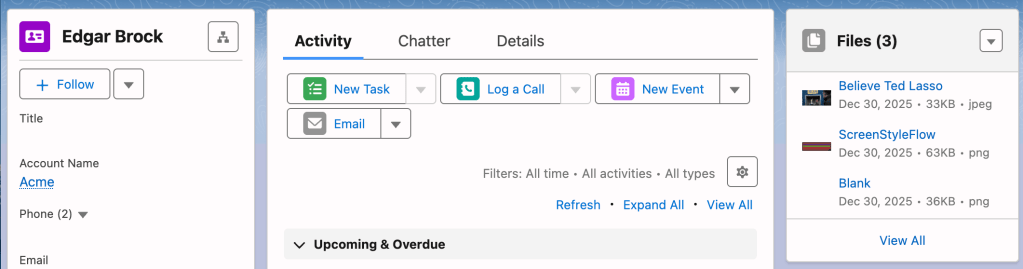
- Build two ContentDocumentLink records using an assignment. One between the ContentDocument and the Contact on the staging record, the other one between the ContentDocument and the Account. You could add additional records here for sharing.
- Add your ContentDocumentLink records to a collection.
- Exit the loop and create the ContentDocumentLink records using the collection you built in one shot.
Here is a screenshot of the resulting flow.

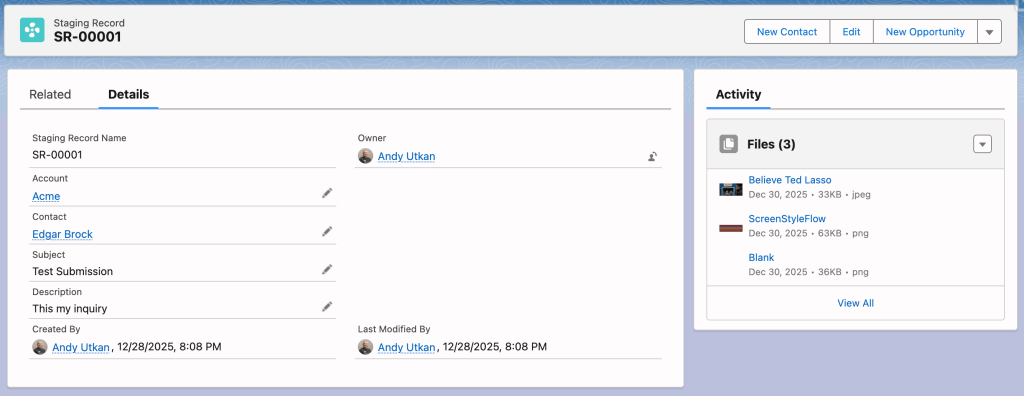
Here is what happens when you create a staging record and upload a file to Salesforce using the related list under this record.

Here is the resulting view on the Contact and Account records.

Why is the Scheduled Path or Async Path Necessary?
When a file is uploaded, a ContentDocument record and a ContenDocumentVersion record are created. The junction object for the ContentDocumentLink record will need to be created after these records are created, because the relationship is established by populating these Ids on this record. When you build the automation on the immediate path, your get will not find the ContentDocumentLink record. To ensure Salesforce flow can find the record, use either async path or scheduled path.
When you build the automation on the immediate path, the ContentDocumentLink records are not created. You don’t receive a fault email, either, although the automation runs well in debug mode. I wanted to observe this behavior in detail, and therefore I set up a user trace to log the steps involved. This is the message I have found that is stopping the flow from executing:
(248995872)|FLOW_BULK_ELEMENT_NOT_SUPPORTED|FlowRecordLookup|Get_Contact_Document_Links|ContentDocumentLink
According to this the get step for ContentDocumentLink records cannot be bulkified, and therefore the flow cannot execute. Flow engine attempts to always bulkify gets. There is nothing fancy about the get criteria here. What must give us trouble is the unique nature of the ContentDocumentLink object.
The async path seems to bypass this issue. However, if you want to ensure this element is never executed in bulk, the better approach is to use a scheduled path with zero delay and set the batch size to one record in advanced settings. I have communicated this message to the product team.
Please note that the scheduled path takes a minute to execute in my preview org. Be patient and check back if you don’t initially see the new ContentDocumentLink records.
Conclusion
In the past, handling file uploads gave flow builders a lot of trouble, because the related objects did not support flow triggers.
Now that we have this functionality rolling out in the latest release, the opportunities are pretty much limitless. The functionality still has its quirks as you can see above.
I would recommend that you set up a custom metadata kill switch for this automation so that it can easily be turned off for bulk upload scenarios.
Watch the video on our YouTube channel.
Explore related content:
Top Spring 26 Salesforce Flow Features
Should You Use Fault Paths in Salesforce Flows?
How to Use Custom Metadata Types in Flow
See the Spring 26 Release Notes HERE.


“Trigger your record-triggered flow when a ContentDocument record is created (no criteria)”
Any idea why we can’t use criteria?
I’d built a Flow almost identical to yours, but was perplexed as to why and found your YouTube video and thought the solution was that ContentDocumentLink records cannot be bulkified (thanks!) but adding the batch size of 1 still wouldn’t run.
But after removing the criteria everything works as I expected.
Testing it seems that any criteria I try adding means the flow doesn’t trigger :/
When a ContentDocument is created, it is not linked to anything yet. On create, ContentDocument will get an Id assigned. Only after this step, you could create a ContentDocumentLink record that has a lookup field with the value of that ContentDocument object record id. You could have criteria in your automation, but the criteria will have to be very limited. You could only rely on field values on the ContentDocument object record. You could trigger on ContentDocumentLink. In some cases, that would make sense. By the way, async path also works, you don’t really have to use a scheduled patch with batch size 1.