Unleashing the Power of Editable Data Tables in Salesforce Screen Flows


For a long time, the native Salesforce Data Table component had a few “achilles heels” that kept many admins tethered to custom solutions like the UnofficialSF version. The most significant complaint? The lack of editable fields.

If you wanted a user to update multiple records at once, you were often stuck in a clunky loop: select a row, go to the next screen, edit, save, and return to the list. That “toggle tax” slowed down users and made for a frustrating UX. Modifying multiple row values could also be done on the same screen with an action button, depending on the use case, but it was not the same as editing multiple rows on the data table.
With the latest Salesforce release, those days are over. Not only does the out-of-the-box Data Table introduce sortable columns, but it also supports editable fields for multiple field types including text, email, phone, number, and currency.
In this tutorial, we are going to recreate the Opportunity Line Item (OLI) experience using a Screen Flow. This use case is perfect because it requires users to view existing products, edit quantities or prices on the same screen, and even add new products on the fly.
The New Data Table Features: What’s Changed?
Before we get into the “how-to,” let’s look at the “what.” The native Data Table component now supports:
Inline Editing: Change values for Boolean, Text, Email, Phone, Number, and Currency fields directly in the table cells.

Column Sorting: Users can click headers to sort data dynamically.
The “Edited Rows” Output: A brand new output collection that contains only the records the user modified.
Use Case: Edit Opportunity to Modify Line Items and Add New
Initialize the Flow and Get Data
Our flow starts by gathering the necessary context. We need to know which Opportunity we are working on and what products are currently related to it.
Create a Screen Flow: Start with a new Screen Flow.
Input Variable: Create a variable called recordId (Text, Available for Input) to capture the Opportunity ID.
Get Opportunity: Use a Get Records element to fetch the Opportunity fields (or define your recordId as an opportunity record variable saving this get).
Get Opportunity Products: Add another Get Records element to fetch all OpportunityLineItem records where the OpportunityId matches your recordId.
Configure the Editable Data Table
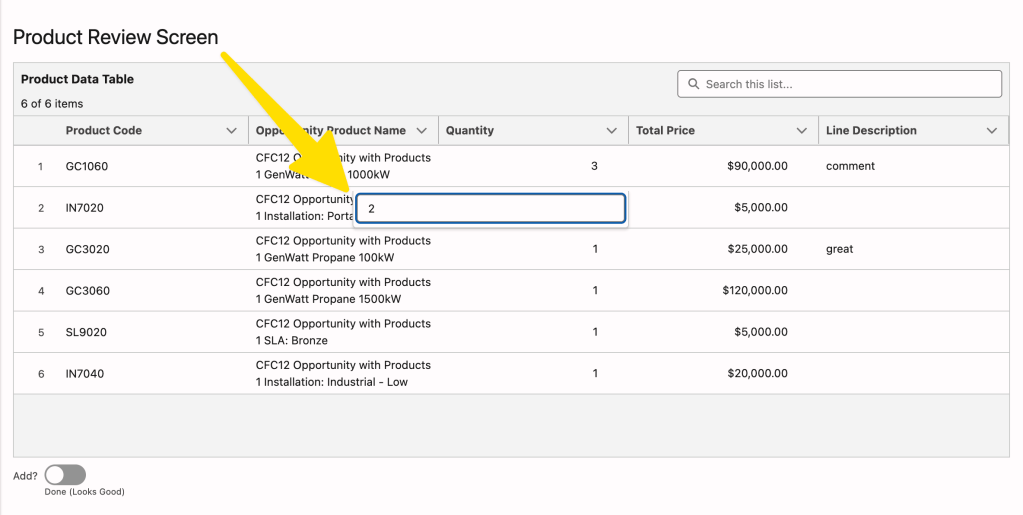
This is where the new functionality shines. We will place a Data Table on a screen to let users review and edit current products.
Add a Screen Element: Label it “Review Product Selection.”
Drag the Data Table Component: Use the collection from your “Get Opportunity Products” step as source.
Row Selection Mode: Here is a trick: set this to View Only. While it sounds counterintuitive, “View Only” simply means the user isn’t selecting rows. You can still make individual fields editable.
Configure Columns: Add columns for Product Name (Read-only), Quantity, and Total Price.
For Quantity, Price and Line Description, check the boxes for “Allow Sorting” and “Allow Editing.”
Pro Tip: When you enable editing, the Data Table produces a specific output called Edited Rows. This is a collection of the records that were changed, including their new updated values.
Committing the Changes
Once the user is done making changes, you need to save those edits to the database.
Update Records Element: Add an Update Records element immediately after the screen.
How to Find Records: Select “Use the IDs and all field values from a record or record collection.”
Record Collection: Point this to the [Data_Table_Name].editedRows output.
This is incredibly efficient because Salesforce only sends the records that actually changed to the database, rather than re-updating every single line item.
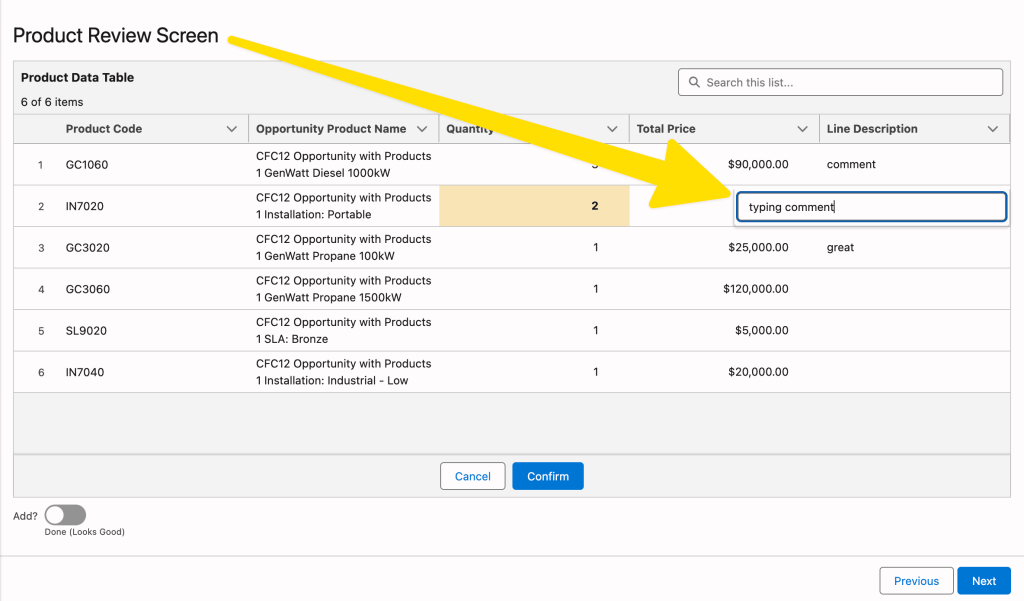
The Add Decision: Add a “Yes/No” toggle: “Would you like to add more products?”
Decision Element: If Yes, route the flow to the “Add Products” screen.
If No, finish up your flow and route to a Success Screen.
Adding New Products (The “Number Field” Trick)
A common requirement is allowing users to add new products that aren’t yet on the Opportunity. To do this, we pull from the Price Book Entry object. However, there’s a catch: Price Book Entries don’t have a “Quantity” field because they are just price list items.
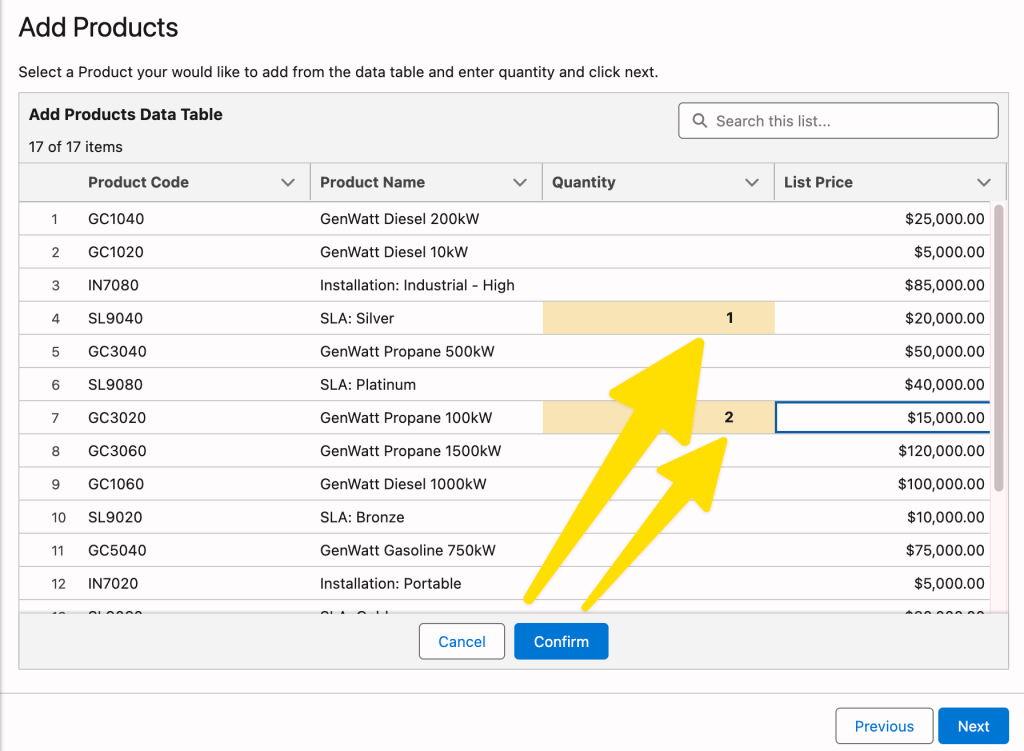
The Workaround: Custom Fields as Placeholders
To capture the user’s desired quantity for a new item within the Data Table:
Create a “dummy” custom field on the Price Book Entry object (e.g., Number_1__c).
In the Data Table, display this field but use the Custom Label feature in the component to rename it to “Quantity” for the user.
This allows the user to type a number into the table cell, which we will later map to the actual Opportunity Line Item.
Transforming Data for Creation
After the user selects new products from the Price Book and enters quantities, we have a collection of Price Book Entries. We can’t save these directly as Opportunity Line Items; we have to transform them.
Use the Transform Element: This is a powerful new tool in Flow.
Source: Map from your Price Book Entry edited rows.
Target: Map to a record collection of Opportunity Line Items (Opportunity Products).

The Final Review and “Add More” Loop
To make the UX professional, You could add a final review screen and a decision element.
Create Records: Use the transformed collection to create the new OpportunityLineItem records.
Review Screen (optional): Show a final Data Table of the newly created items. This table should point to the collection after the Create Records step so that IDs are populated.

UI Challenges to Watch For
While these updates are huge, there are a couple of “tricks” regarding user behavior:
Edit vs. Select: If you allow both row selection and inline editing, users might edit a row but forget to “select” it (or vice versa). In our Opportunity use case, we avoided this by setting the table to “View Only” mode and relying purely on the Edited Rows output.
Unique IDs: Every Data Table requires a unique ID for each row. If you are trying to show records before they are saved to Salesforce, they won’t have an ID yet. You may need to assign temporary IDs or save the records before displaying them in a final “Review” table.
Conclusion
The ability to sort and edit directly within the native Salesforce Data Table makes managing records much faster and easier. It allows us to build lean experiences that were previously only possible with custom Lightning Web Components or complex third-party add-ons.
By using the Edited Rows output and the Transform element, you can build a seamless Opportunity management tool that keeps your sales reps happy and your data clean.
Explore related content:
Solve the Flow Picklist Record Type Gap with Vibe Coding
How To Build Inline Editing for Screen Flow Data Tables in Salesforce
Automate Permissions in Salesforce with User Access Policies