
Connect Slack and Salesforce and Get More Out of Both Platforms

The Slack platform has never limited itself to the communication platform category, and in fact has positioned itself as a Work Operating System in recent months. What does this mean for its users? Slack isn’t just a place to talk about work, it’s a place to get work done. Slack leads with the power of automation across platforms that keeps key stakeholders informed and enhances business processes. With a connection to Salesforce, you can bring Slack conversations into Salesforce and bring Salesforce data, approvals and agents into Slack. This combination allows your users to save time and energy, keeps systems up to date, and meets your users where they work best by offering multiple options to get work done.

Slack and Salesforce Administrators: Splitting the Work
Both Slack and Salesforce Admins have work to do to enable the connection between systems and ensure users have the correct permissions.
Salesforce Administrators will start the connection process in Salesforce, enable needed Slack Apps in Salesforce and assign permissions to users.
Slack Administrators (Org Owners, Org Admins, Workspace Owners or Workspace Admins) will need to request and activate Salesforce connections and work through user mapping to enable Slack features like Agentforce and Salesforce Channels.
Both Salesforce and Slack Administrators will need to determine how users should be mapped across systems, either automatically or manually.
Your Slack App Options: What You See is What You Paid For
The following are the Slack App options for Salesforce, subject to your current subscriptions:

-
-
- Sales Cloud for Slack
- Partner Relationship Management for Slack
- Service Cloud for Slack
- Intelligence Insights for Slack (Datorama)
- CRM Analytics for Slack
- Tableau for Slack
- Tableau Next for Slack
- Financial Services Cloud for Slack
- Student Success Alerts for Slack
- Trailhead for Slack
-
Find more details on each here: Salesforce Slack Apps
Connect Salesforce and Slack with Slack Apps
Enable Slack in Salesforce with Slack Apps
Head to Setup, search for Slack Apps, and select Slack Apps Setup in the left-hand navigation. You will need to accept the Terms of Use, where you are acknowledging and accepting that the Salesforce Slack integration uses Hyperforce and is subject to Trust & Compliance standards.
Review the list of available Slack Apps for your Org, and determine which you would like to enable. Most of the Apps have their toggle on the main setup screen, while others will link you out to additional setup areas like Service Cloud for Slack or CRM Analytics for Slack.

Enable Slack Permissions for your Users
Next up, you will need to add Permission Sets for your users to access the Slack Apps they need. There will either be a permission set available to add for users, or notes on what permissions users should have to access the app and use its functionality.

Then, you will need to ensure users have access to the records they may receive notifications for, or understand the experience if they do not have access to objects or records.
Note: You can customize record block security as well as link unfurling behavior.
Install the Slack Apps in Slack
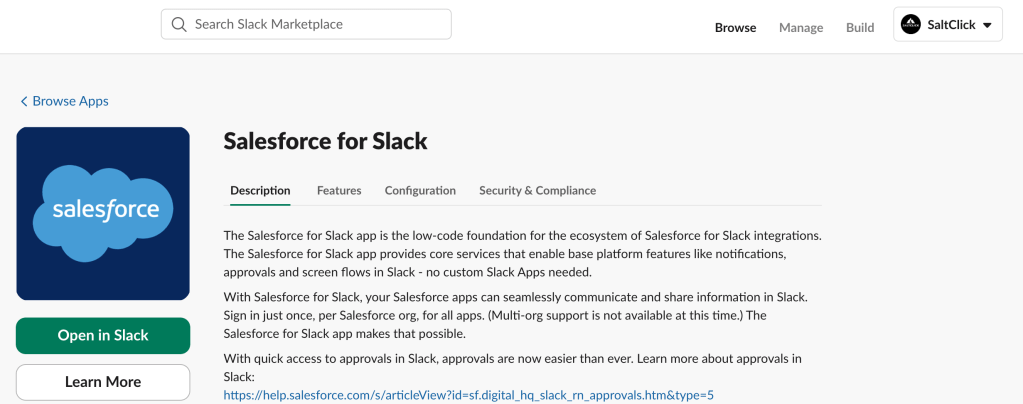
Access the Slack App listing, and install the apps you would like to access from Slack.

In the upper right-hand corner, MAKE SURE the Slack Workspace you want to install the app in is selected in the drop-down, and then click the ‘Add to Slack” button. You will then be prompted to connect and allow the connection by verifying your Salesforce Production or sandbox credentials.
Repeat this for all of the apps you want to install.
Complete Any Additional Setup for Your Slack Apps
Based on the Slack Apps you enabled, there might be additional required or optional steps available.
The Service Cloud for Slack App has a swarming feature that can be enabled. The Sales Cloud for Slack App has all kinds of fun features like closed won deal channels to celebrate wins and notifications you can clone and adjust or start using right away.
See this article to explore all Slack Apps and available features: Salesforce Slack Apps
Note: Don’t forget to review field-level security for your users so that they can not only view record previews, but edit and save records in Slack if needed for their role.
Slack App Adoption
You are almost done, now comes the fun part: Change management and user adoption! Train your users on these new apps so they know how to use them and what to expect from the experience. Users will also need to know how to search for the Slack apps in their Slack sidebar and then connect with their Salesforce login so that they can benefit from your hard work.
User adoption is not a set-it-and-forget-it process. Remember to check in with your users regularly to see if they need help or have suggestions for improvements.
Connect Salesforce and Slack for Slack Features
Create a Salesforce Integration User to Connect Systems
Create a dedicated user with the Standard User Profile to set the connection between Slack and Salesforce. This user will need the System Permission “View All Data” to ensure visibility to objects you will want accessible in Slack. You can create a permission set for this and assign it to the user you create.
Note: While Slack suggests View All Data at a System Permission level, you can setup View All Data at an Object level to further control visibility across systems.
Generate the Salesforce Slack Connection
In Slack, head to Admin Settings, and then Workspace Settings and select Salesforce Connections on the left hand navigation in the new window that opens. Click the Get Started button or the Connect a Salesforce Org button, enter your Salesforce URL, decide how you want to map Salesforce and Slack Users and click the Request Connection button.
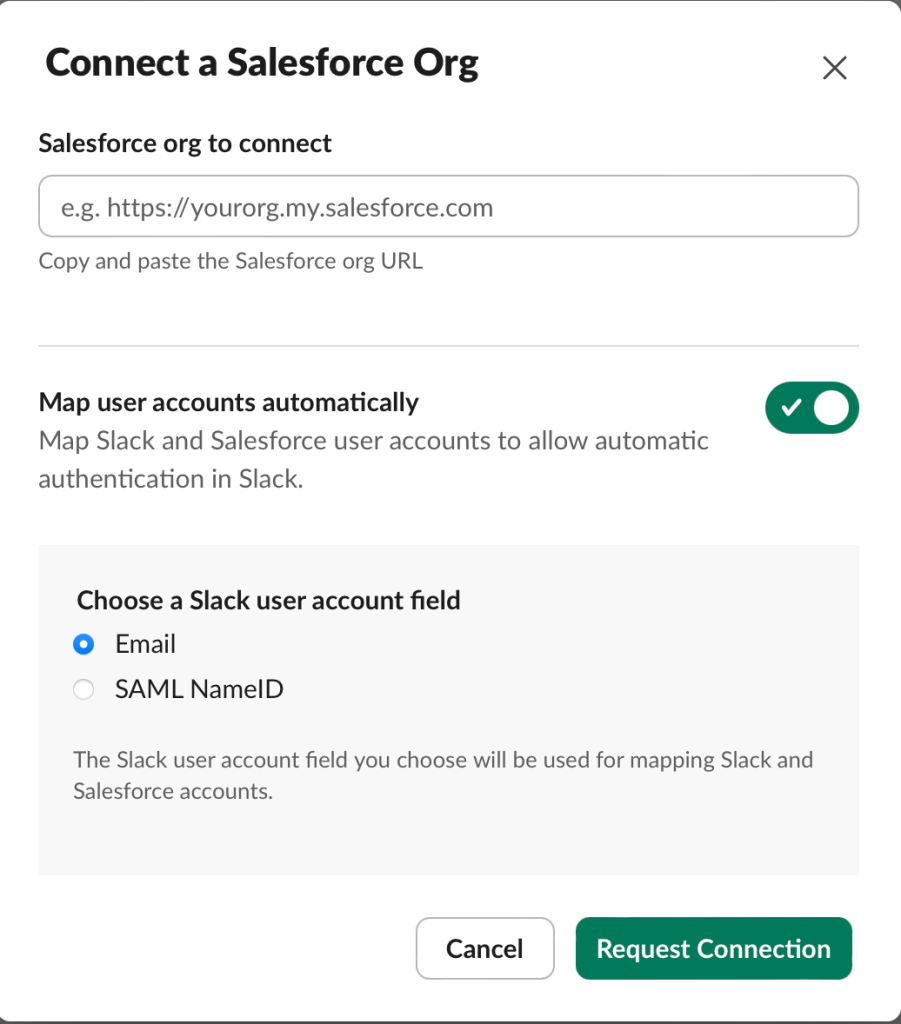
Note: If you choose to automatically map members by Email or SAML NameID, then you can skip step 3. Think of mapping like relating Salesforce users to Slack as members.
Next, head to Salesforce Setup, search for Slack and select Manage Slack Connection. Choose a mapping field for User Configuration, choose the user you created in the previous step as the Integration User and agree to the Terms & Conditions.
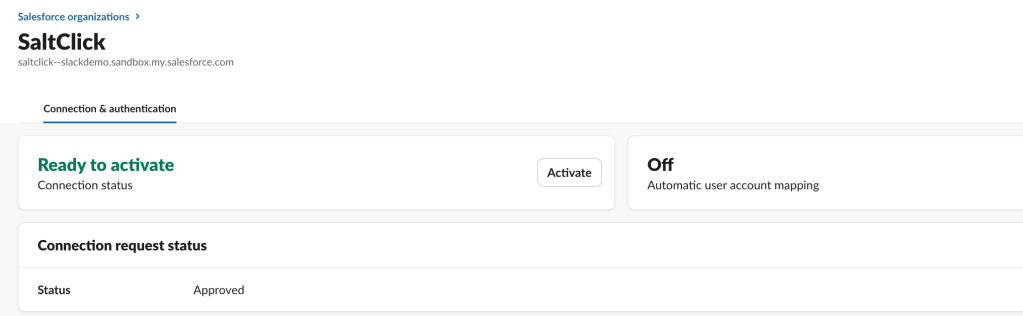
Finally, go back to Slack, head back to Admin Settings and choose Manage Salesforce Organizations. In the new window that opens, select the pending activation in the list from your Salesforce Org.

You can review the connection details and then click Activate!
Map Salesforce and Slack Users
If you didn’t automatically map Slack Members to Salesforce users, you will be able to manually map them in Slack.
After you have completed the connection steps mentioned above, a Users tab will show for your connected Salesforce Org. From Users, you can map or add individual users, add Users by CSV and export existing users to review mappings.

Note: Once you map members, they will be asked to authenticate with Salesforce to complete their Salesforce to Slack connection.
Assign Permissions for Slack <> Salesforce Features
Now that the Slack and Salesforce integration is complete and user mapping is in place, the next step is to configure permissions. This will enable access to key Slack features connected to Salesforce, including Salesforce Channels and Agentforce.
Adding permissions for Salesforce and Slack connected features happens through a permission set in Salesforce called Sales Elevate User. Locate the permission set and add it to any Salesforce users that will need access in Slack.
You did it! Ready to expand on your use cases? Check out the next section to get your wheels turning.
Get Inspired with these Use Cases
Here are a few ideas where connecting Salesforce and Slack could be useful:
- Service Case Updates
- Alert the support team when a case is escalated, then automate the next steps in both Slack and Salesforce using emoji reactions and field updates.
- Opportunity Approval Processes
- Notify Leadership teams when Opportunities reach a certain stage, surfacing key details in Slack and allowing for approval in channels to update Salesforce records.
- Project Updates
- Automate weekly reporting and updates to internal and external teams, keeping key stakeholders and teams up to date with project metrics and milestone tracking.
- Notifications and Reminders
- Automate daily stand-ups and reminders for recurring tasks in Slack and send event reminders.
Pro Tips
- Create a system user to set the connection through Salesforce and Slack, then make sure they have a user in Slack as well. This prevents the need to reset the connection in the future.
- Test the process with a Salesforce Dev Org and Slack Dev Workspace before using your Production environments for practice.
- When you sign up for a Slack Dev Workspace, you will be asked for credit card information, but you will NOT be charged. You will also be able to create a few free dev workspaces!
- Ready to test workflows in Slack and Salesforce? Create a private Slack workflow test channel so you don’t disrupt anyone’s day with testing notifications or actions.
- Missing Salesforce features in Slack? Reset your Salesforce connection by clicking updates next to the connection in Slack under Manage Salesforce Organizations.
Final Thoughts
Bringing Slack and Salesforce together creates a powerful, integrated workspace where conversations lead directly to action. With thoughtful setup, the right permissions, and intentional user adoption, this connection helps teams work more efficiently, stay aligned, and respond faster using the tools they already rely on. Whether you are managing deals, resolving cases, or tracking progress, the possibilities for collaboration and automation are just beginning.
For a visual step-by-step, check out this YouTube video:
Explore related content:
Send Salesforce Reports and Dashboards to Slack with Flow
Enabling Slack Webhook Workflows
How to Build a Screen Flow to Complete Virtual Standup on Slack


One Comment