
HTTP Callout in Salesforce Summer 23 – POST – 3/3

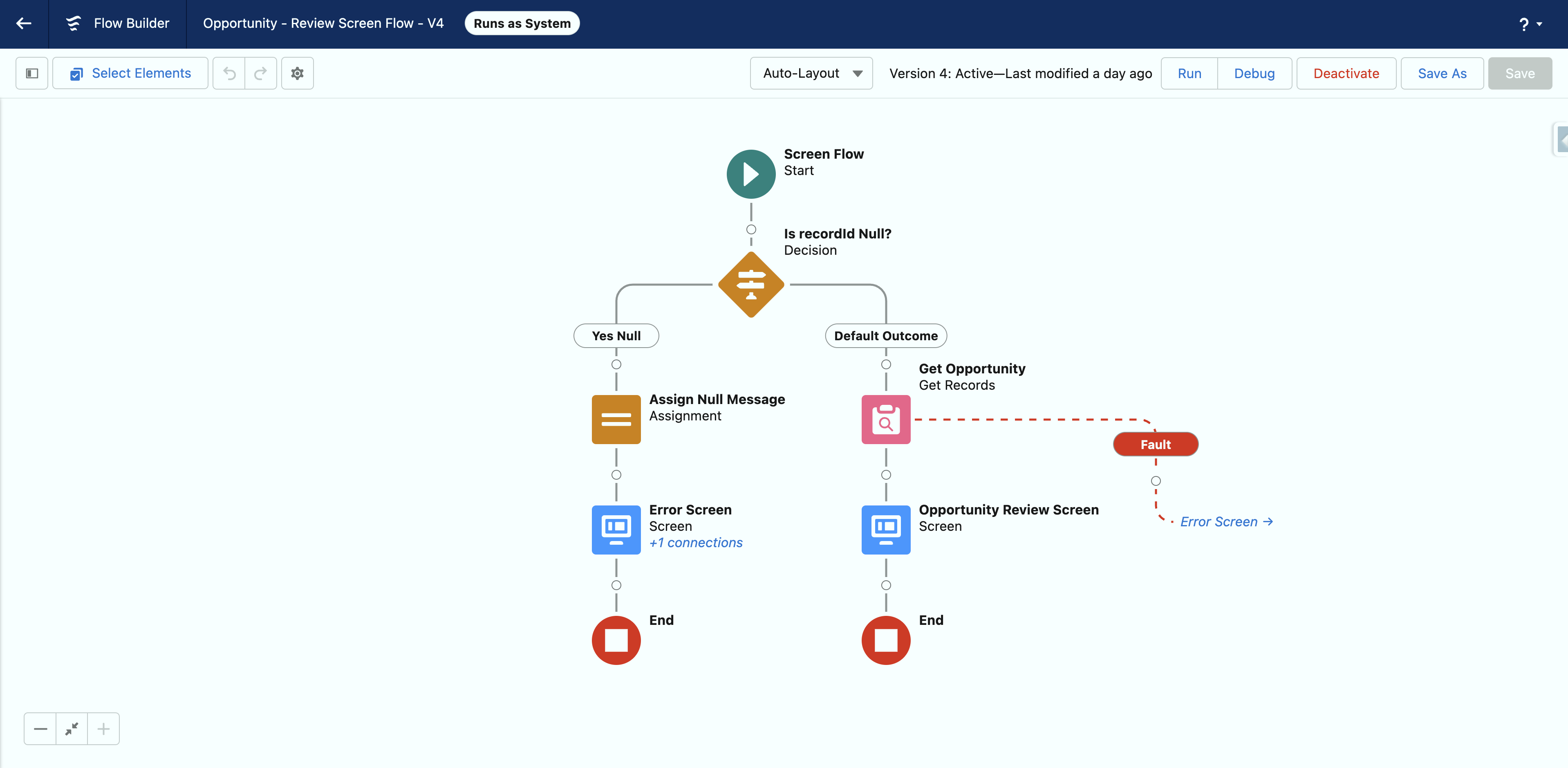
Welcome to the final installment of our three-part series on configuring Salesforce flows within a community site. In this post, we focus on a flow that utilizes HTTP Callout to fetch and display Opportunity details using a record ID. This setup ensures streamlined access to essential data through a user-friendly interface, all running in the System context without sharing for enhanced security.

Join us as we walk you through the integration of this flow into your digital experience, emphasizing the role of URL parameter handling and the utilization of HTTP Callout for secure data retrieval. We’ll also demonstrate how to automate email notifications with dynamic links. We value your feedback—please let us know if you need more detailed information on any of the steps!
Now, you will build the flow you will host on the community (digital experience) site.
Important note: We will set this flow up to run at the System context without sharing under the Advanced Flow settings.

This simple flow gets an opportunity using the record Id as input and displays critical field values on the screen. Note that the system builds a decision to handle cases where the recordId input is missing or invalid.
Here is what the Display Text component looks like in the Screen Element.

Once you complete your flow and activate it, create a public community (digital experience) site and add your flow to the main page. Several steps must be followed to set up guest user access properly. We will not go into these steps in this post. Comment below if you need a follow-up post with detailed steps, please.

Once you set up your community, you can pass the recordId as a URL parameter to your flow to see the Opportunity record field values on your screen. You see the long URL in the browser address bar below.

Now, set up a simple record-triggered flow to populate the URL (long URL) field on the Opportunity record. Here is how you do it.
Now set up another record-triggered flow to send an email with the short URL to the owner of the record.
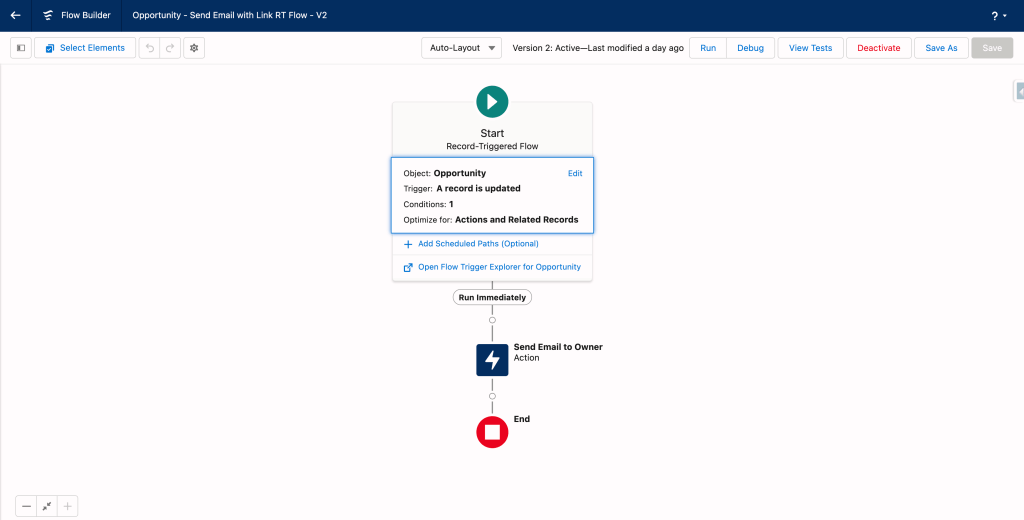
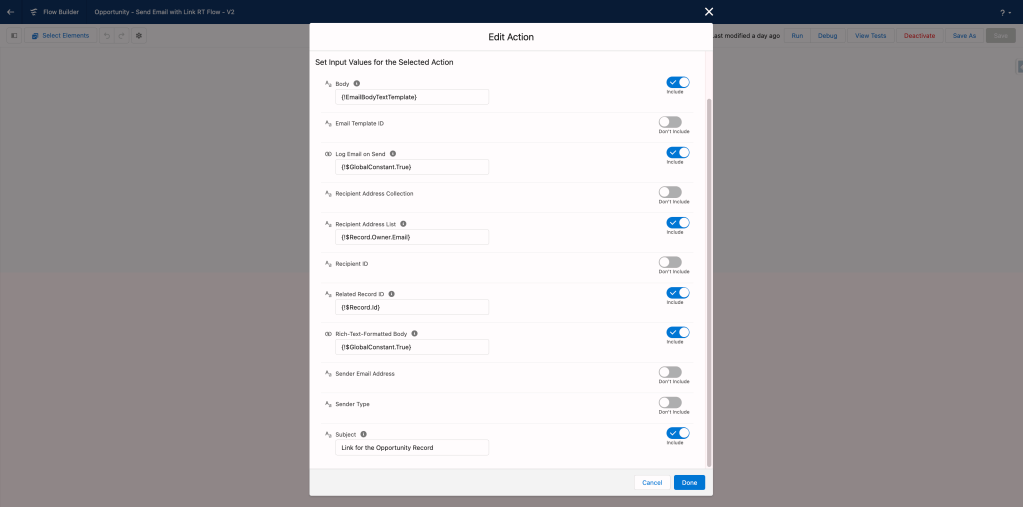
Your email action looks like this in Summer 23 (Yay!).
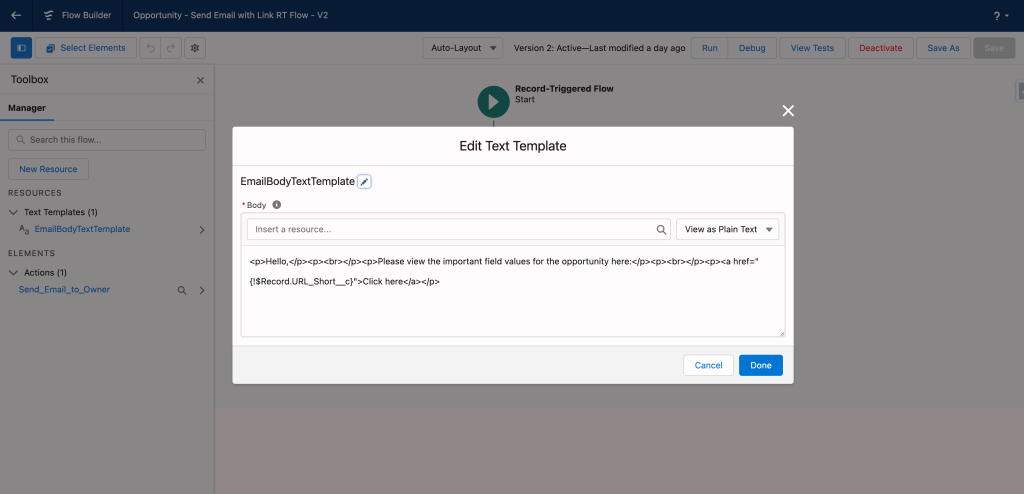
Your email body text template will look like this.
Your email will look can be seen in the image below.
You may think it is silly to shorten the URL by looking at this since we can hide it in an HTML email. That is correct, however, the actual value add is when you need to text (SMS) the link. Short URL looks much better.

After debugging and activating all your flows, you can create a new Opportunity like the one below.
Hint: Cloning and modifying a few field values work well when testing.

Voila: The system has populated your long URL and short URL, and sent the email to the record owner’s email inbox.

Enjoy
Note: These posts were written as a result of a collaboration between Josh Dayment and Andy Engin Utkan. I want to thank Josh Dayment for his relentless efforts and countless trials to get this demo to work.
Explore related content:
Create HTTP Callout – POST 1/3


2 Comments