
How to Use the Data Table Component in Screen Flow


Salesforce introduced the Data Table screen component in the Winter ’23 release. Using a Data Table, you can display Salesforce records in a tabular format, similar to list views. Users can interact with the displayed records, selecting one or multiple records and performing actions based on business requirements. Alternatively, it can be configured as view-only as well.

The Data Table component can display Salesforce records only. Therefore, prior to configuring a Data Table, you have to create a record collection variable in your flow.
Here is how to configure the Data Table component in screen flow.
Data Table Configuration
1- Add a Data Table component to your flow screen and give it a Label and an API Name. Optionally, mark the checkbox to use the Label as the table title.

2- Choose the record collection that you want to display. If you are going to display a large number of records, you can include a search bar to make it easier for the user to find the records.


3- Then, configure the rows of the Data Table. In this step, there are three different options to choose from: allowing multiple record selection, single record selection, or setting the table to view-only mode. If you enable record selection, you can also make it required and set default selections as needed.
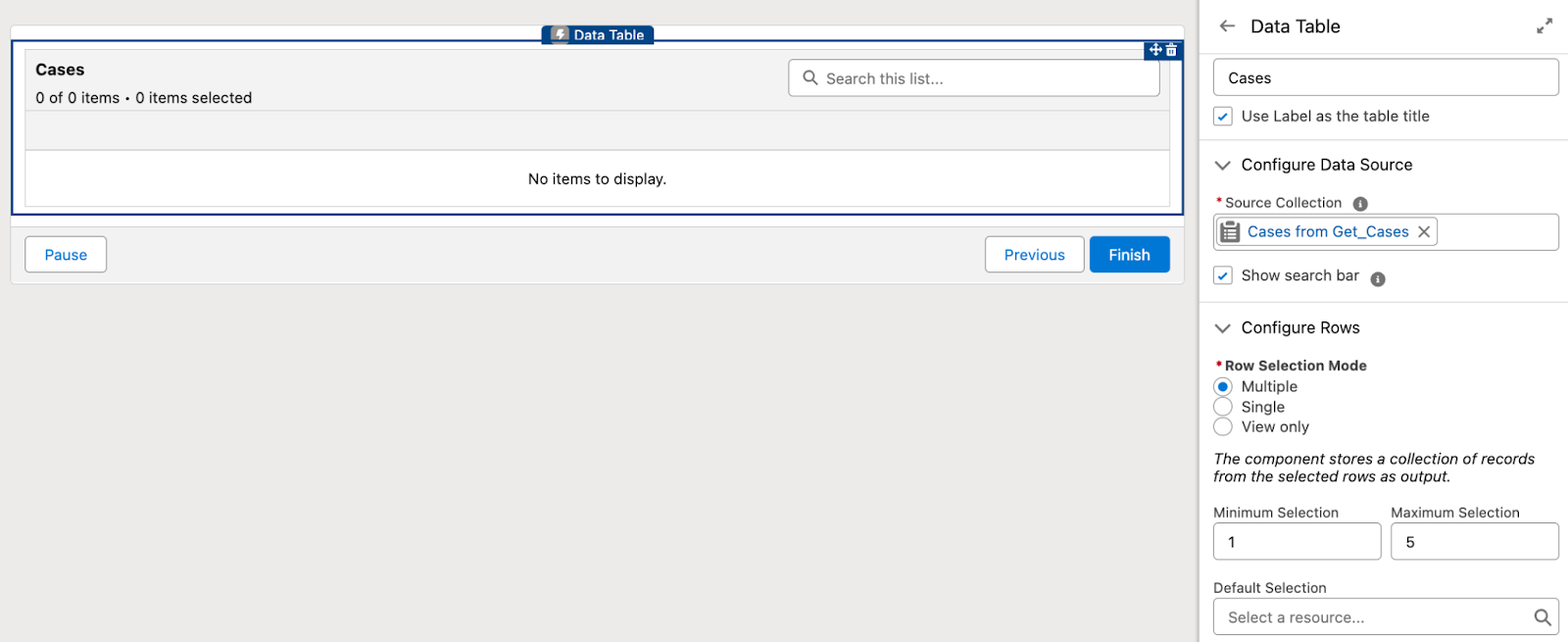
If you allow multiple selection and want to require the user to select a record, you can set the minimum selection as 1.
4- This is the final mandatory step to configure the Data Table. Here, you will need to select the columns (record fields) to display.
You can choose the fields you want to display from the source object. Optionally, you can also change their labels. For instance, in the example below, the Description field is relabeled as Details.

It is important to mention that when you add a lookup or master-detail relationship field as a column, the table will not display the field’s value but rather its ID. To show field values from related records, you can create formula fields on the object.
On the other hand, in order to translate column labels, you can use custom labels as the column titles.
At the end of the configuration, your Data Table will look like this.

Output of the Data Table Component
If record selection is enabled, the Data Table provides two output variables.
First Selected Row is a single record variable that stores the first record that the user selects. If the user selects multiple records, this output stores only the first selected record.
Selected Rows is a record collection variable that stores all the records that the user selects.
Using these output variables, you can perform any action that you want. For instance, it is possible to update the selected records.
Summary
Data Table is a very useful screen component that can be used to display records. Moreover, it is possible to allow record selection and perform actions based on the selected records. This makes the data table one of the most commonly used standard screen components. Although Data Table can be used with Salesforce records only, there are workarounds available to display non-object data. Read this post on Salesforce Time to learn more.
This guest post was penned by Yumi Ibrahimzade, writer and creator for Salesforce Time.
Read up on similar topics:
Datatable Component – Salesforce Screen Flow
Using Custom Metadata Types in Flows Without Get


6 Comments