
How to Improve Your Flows Using the Flow Analyzer


In the Salesforce ecosystem, the king of “clicks-not-code” automation tools is Flow. Flows allow you to create, delete, or modify records, make HTTP callouts, provide complex and seamless user experiences, and much more! That being said, even though flows are clicks, they act like code. For that reason, it helps to have a companion to help you identify and remedy violations of best practices. Thankfully, the Flow Analyzer was introduced in January, 2024 to be that companion!

What is the Flow Analyzer and what does it do?
The Flow Analyzer is a FREE app on the Salesforce AppExchange! The Flow Analyzer scans flow metadata for violations of best practices. The app scans flows for 10 different types of violations. Once the app has identified violations, it can actually be used to help remedy those violations using the flow mechanic feature.
In version 1.4, the flow mechanic feature allows you to remove unused variables in bulk from your flows. However, those capabilities are being expanded in version 1.5, which will add two more capabilities to that feature set; the ability to update old API versions in bulk, and the ability to replace hard-coded RecordType, User, Group, Profile, and Permission Set IDs. No, that was not a typo… the app can actually replace hard-coded IDs in flows!
The app has some additional features and is designed to be used across your development pipeline from a single hub org by connecting to multiple orgs. Key features and other information about the app can be found in the docs.
How do I use the Flow Analyzer?
In the docs, there is a comprehensive user guide, but I will highlight how it can replace hard-coded IDs in this post to show one of it’s most impressive features.
Let’s set the stage:
The Flow Analyzer has identified that you have a couple hard-coded IDs in a flow in an assignment element called “New Assignment” (pictured below). You want to use the flow mechanic to replace the recordTypeId assignment using best practices.


Using the Flow Mechanic Feature
When you run the Flow Analyzer, an Analyzer Run record is created and consolidates all of the results. It is from that record where you can run the flow mechanic feature. Once you’ve navigated to the analyzer run record page for your run, you click the Flow Mechanic button.

The flow mechanic opens and you can select the type of updates you want to make. You select to replace hard-coded IDs.
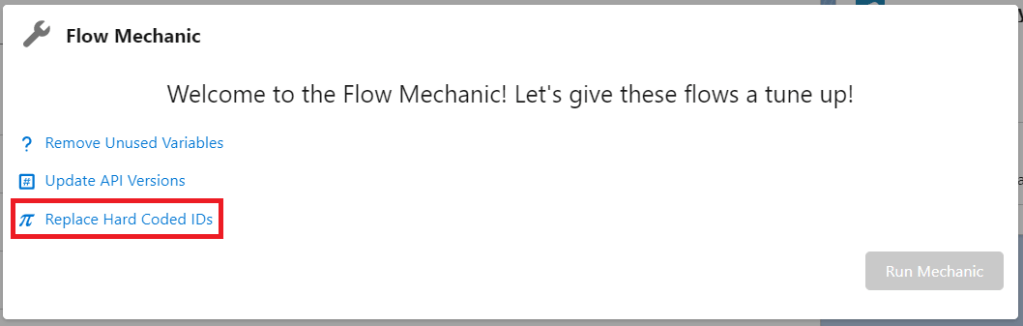
Selecting IDs for Replacement
You are presented with all of the supported hard-coded IDs identified by the app for this particular run. Now, note that the second hard-coded ID in the flow does not show up here. The reason for this is that it does not fall into the objects for which IDs can be replaced. However, we do see our recordTypeId assignment, so we select that and click Add to Request.

Running the Mechanic
You are now redirected back to the flow mechanic main page. Notice that the Run Mechanic button is now enabled. You can, if you wish, add more updates to the request before submitting it, but for this demo, we will simply click Run Mechanic.
Viewing Results
The mechanic will run the job(s) submitted, and once it is done, you will see a message indicating how many successes and failures there were. For any flow for which our update was a success, you can click the name to be taken to the new flow version created by the Flow Analyzer. Our test flow was updated successfully, so let’s check it out!
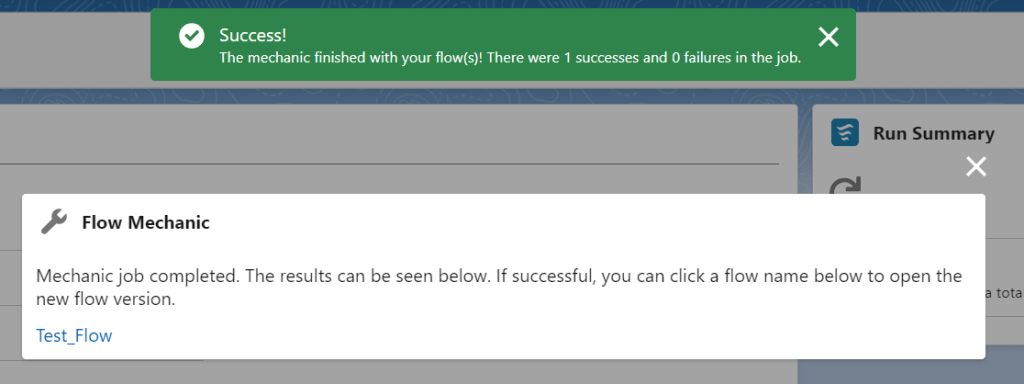
Reviewing the Updated Flow
The first thing you’ll notice about the new flow version is we have a new get records element right at the beginning. The Flow Analyzer identified the important information about the record type ID. It then created a get records element to retrieve the ID instead of having it hard-coded in the flow.

As is described in the element description, if you scroll down, you will see that the element stores the record type ID in a new variable generated by the Flow Analyzer called flwanlzVar_0

Final Verification
The last thing to check is if the app actually replaced your hard-coded ID! Let’s check on the New Assignment assignment element again to see how we’re looking!
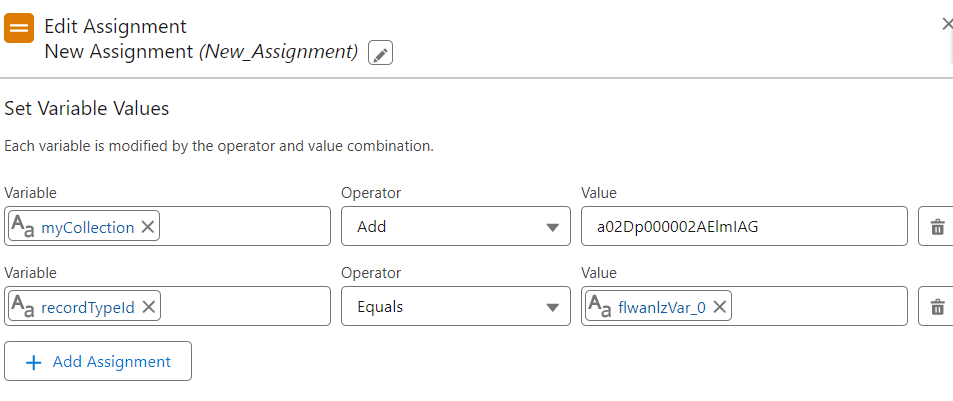
You’re delighted to see that the Flow Analyzer has replaced your hard-coded ID. It now references the variable in which the ID is stored, thanks to your new get records element!
In Conclusion
Flows are powerful, but they can also be dangerous. The Flow Analyzer can be your free companion, helping you identify violations of best practices, and also remedy them! Our example was a single hard-coded ID, so using the Flow Analyzer may feel like overkill. However, imagine a situation where you have hard-coded IDs peppered in many places across multiple flows. The Flow Analyzer gives you a single, concise place to go to fix those issues quickly and in accordance to best practices. Install the app yourself and try it out!
Read related content:
15 Effective Salesforce Flow Debug Strategies
How to Use the Data Table Component in Screen Flow
Streamlining Operational KPI and Trendlines for Optimization


One Comment