
How The Transform Element Saves You Loops


Salesforce Flow Transform Element allows you to reshape data on the fly within your flow. Think of it as a tool that acts like a data transformer that adjusts, formats, and cleans up your data before it moves to the next step in your process. Transform Element gives you the superpower of applying formulas, performing calculations, or converting data into a different format that your flow or subsequent actions require.

With the Winter ’25 release, the transform element now supports primitive data types as well. This means you can start with a record collection, transform data, and update a text or a number collection.
The new functionality opens up a whole new area of applications for the transform element. First and foremost, you no longer need to loop each record in a record collection to extract just one field value.
Let’s say you want to update multiple records in one update element. Salesforce introduced the IN operator that you can use to specify which records will be updated. The use of the IN operator is very powerful, but it accepts a text collection of record Ids. And up until Winter ’25, the only way to populate this text collection from a record collection was by looping. Loops are no longer required.
Another helpful feature you can use is the “Add” operator in the assignment element. With “Add,” you can combine one text collection with another, allowing you to accumulate multiple text collections into one.
A Screen Flow Example
Let’s say you want to use the data table to allow the users to select multiple accounts for which they want to close all the open cases. You want to let them pick from the data table in multiple steps, adding all selected accounts to a single list of selected accounts. Once done and confirmed, you will close all open cases for all selected accounts in one shot.


Transform Instead Of Loop
Before Winter ’25, this solution required either looping or multiple update executions. With the new transform element, you can complete the whole operation in two SOQLs and one DML without looping.
Let’s Build This Flow Together:
- Start your screen flow.
2. Add a get to retrieve all the Accounts in your Org (For this example, I assumed there are less than 50K Accounts in the Org. Also bear in mind the data table limitations.)
3. Add a screen to show the Accounts to the user. Allow multi-selection and activate the search box.
4. Add a transform element and transform the selected records in the record variable to a text variable of Account Ids.

5. Add this text collection to another text collection you created that accumulates the final list of Accounts.

6. Add a screen with a toggle component that asks the user whether they finished selecting.
7. If the user hasn’t finished, send them back to the first screen. If they’re done, move on to the next step.
8. Get all Accounts where the Id is IN the text collection.

9. Show the user the final read-only data table of selected accounts. If they are OK, let them proceed to case closure by clicking next.
10. Add an Update element to close all cases where AccountId is IN the text collection.
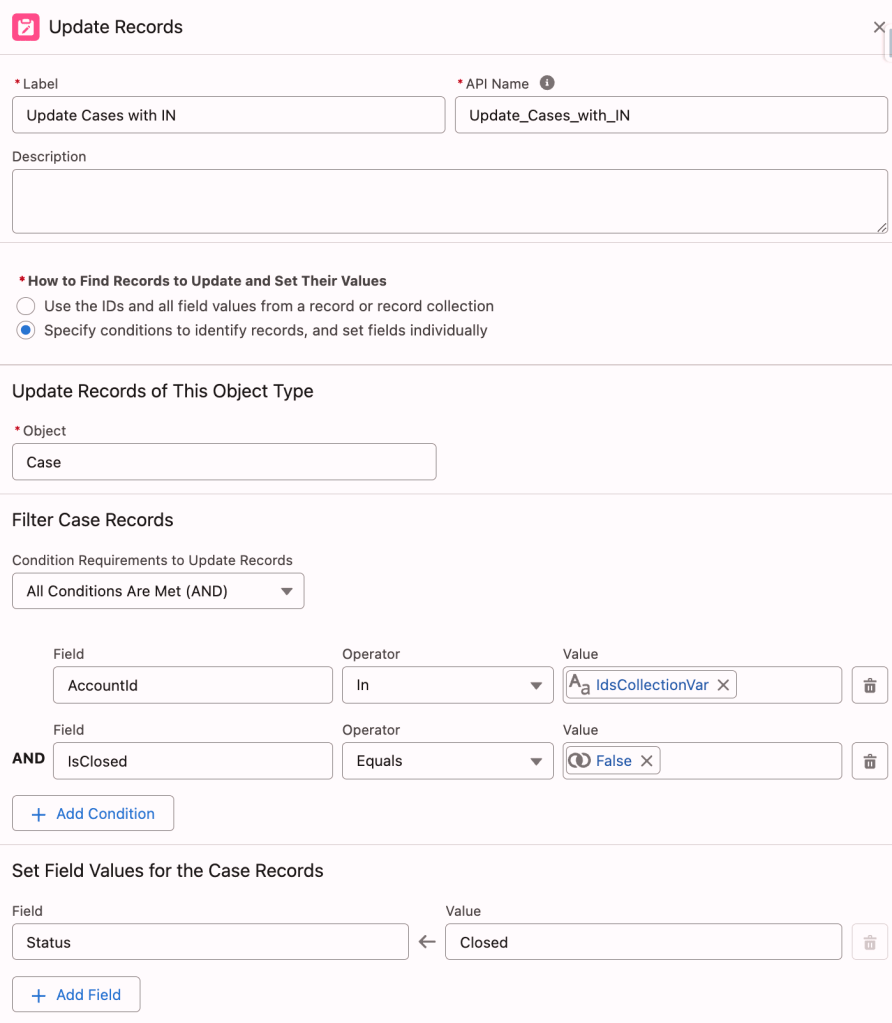
11. Add a success screen to confirm the transaction has been completed.


Conclusion
You have successfully created a very efficient iterative UI experience. This method efficiently minimizes resource usage against Salesforce’s governor limits, making it ideal for record-triggered flows – as well as screen flows – where efficiency is crucial. Additionally, you can apply this approach to a list of cases to accumulate related recordIds without looping, such as with Contacts and Accounts.
If visual learning is more your style, check out this video tutorial 👇🏼
Explore related content:
Can You Use DML or SOQL Inside the Loop?
6 Things You Can Do With The Transform Element


Nice article, Andy.
Q: why do we need the assignment?
Is it to enable user to add accounts multiple times (via the toggle for more screen)?
That’s right. When you are dealing with a text collection, assignment gives you additional tools. You can add one collection to another for example using an assignment. Check the assignment operators Salesforce help page. There are a number of operators reserved for text collections.