
6 Things You Can Do With The Transform Element


Transform element has been around for a while, initially in beta and now in GA. Transform was introduced as a tool to process collections before passing data back and forth for your integrations, in combination with HTTP callouts. With the latest advancements that arrived in Winter 25, the transform element can do much more than that.

Some people need help to relate to what the transform element does. Let me use the metaphor of playing cards to explain the functionality to you.
Let’s say I have three cards lying face down on the table. I need to read what the second card on the bottom says. I will have to flip open the first card and then the second card and read its value, e.g., Five of Spades.
What if I wanted to read the sign on these cards or the total number of values? To find out that the cards are of hearts, diamonds, and spades, or 3, 7, and 5, totaling 15, I would flip them open individually. This act is the looping in Salesforce flow.
Let’s take this analogy one step further. What if I wanted to take a Sharpie pen and modify the numbers on these cards? I may need them to be all ace of spades. Again, I will flip them open and mark the cards individually with the new numbers. That will be achieved by looping.
Transform is the new magic trick in Salesforce flow. You no longer need to flip open the cards individually; you can see and modify them when lying face down on the table. Let me show you how.

🚨 Use Case 👉🏼 How the Transform Element Saves You Loops
Extract a text collection
When you work with a collection in flow, you have to loop to reach the field values in the collection. Salesforce flow get and update elements offer an IN operator you can use in the get element. The IN element takes text collection as input, where all members are record Ids. This feature is handy, but it remained of limited use for the longest time, because the only way you could produce a text collection of Ids from a collection of records was by looping. Not anymore. Now, you can use the transform element to create a text collection of Ids from a record collection. See how you can use that in combination with the data table at this link.

Remove Ids
When you want to send a collection of records to the create element, Salesforce requires that that collection not include any record Ids. The reason is simple. If there were record Ids in the collection, that would mean that the records already exist. Salesforce writes the record IDs for the new records in the relevant field after executing the create element. What if you want to clone the existing records by mapping ten field values, for example? In the past, we had to loop to achieve that. Not anymore. Now, you can use transfer to map these ten field values and wipe out the record IDs using a formula to prepare your collection for the creation element. See the formula below:
SUBSTITUTE({!Get_Tasks[$EachItem].Id}, {!Get_Tasks[$EachItem].Id},"")

Add Ids
What if you want to change the lookup field values before creating multiple records using a collection? You can do that also by using a formula. You have a collection of tasks and want to change the contact and the opportunity they are related to. Simple. Use a formula to add another resource reference for a record Id do that.
Calculate Sum and Count
This is the start of the many functions we will see for the transfer element in the coming releases. You can now sum numbers in the number field of a collection. All without looping. This was not possible before.
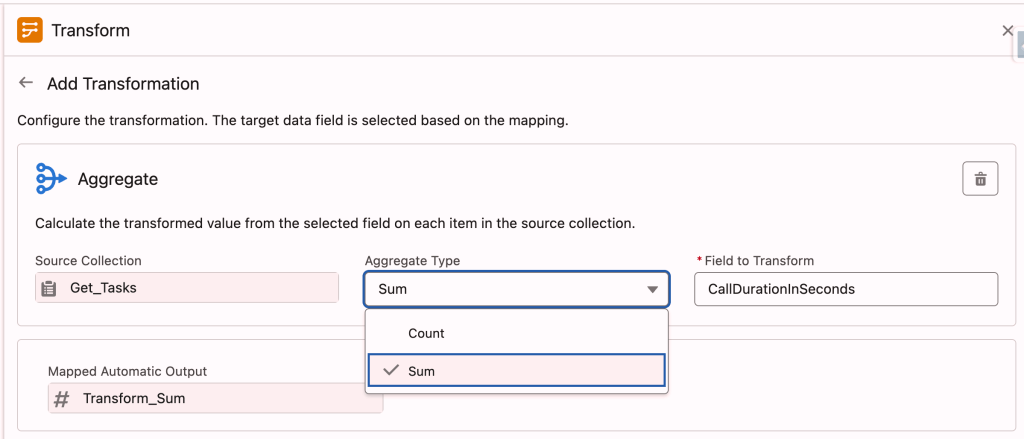
You can also count items in the collection. Remember, we could always do this using an assignment and the equals count operator. I prefer doing that in flows where performance is essential, like record-triggered flows.
Summarize and Build A Title String
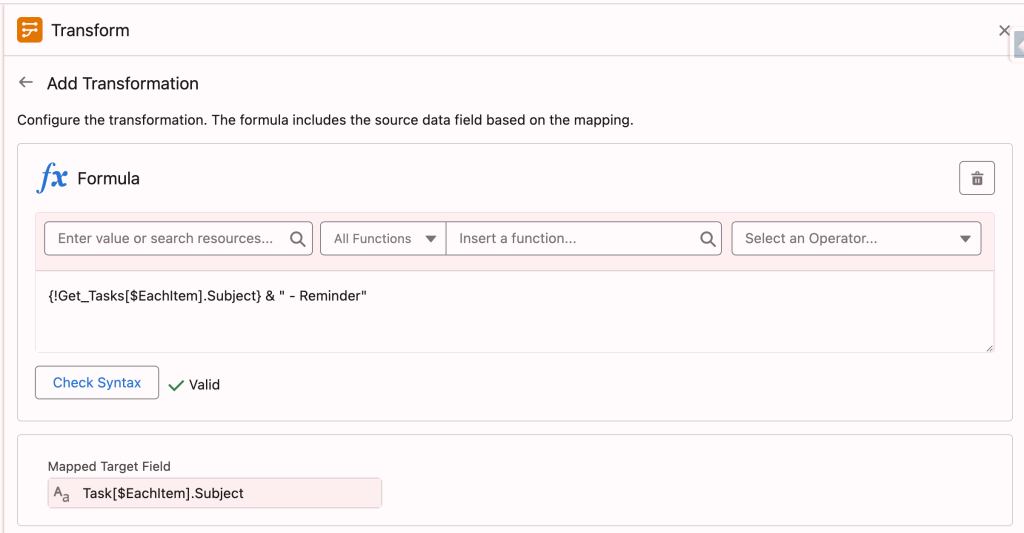
You are preparing a collection for the create element, and you want to combine a couple of field values and pieces of fixed strings to come up with a name or a title. No problem. Create a task title, for example, by using the formula functionality in the transfer element. You can pull in data from the collection itself as well as from the related record fields.
Example formulas:
{!Get_Tasks[$EachItem].Subject} & " - Reminder"
{!OpportunityRecordVar.Name} &" - " & TEXT({!Get_Tasks[$EachItem].ActivityDate})& {!Get_Tasks[$EachItem].Description} &" - Reminder"
Join Collections
Flow builder can now combine source collections from related flow resources into a target collection. This could be particularly useful when you need to combine data from Salesforce with external systems, such as merging order records to create a more comprehensive view of customer transactions. The result? A single, unified dataset that can be used for further processing.
The transform element will now take two source collections and use join keys to produce an inner join. The resulting collection includes field values from both source collections. This functionality is especially useful, when you have an Apex defined collection variable you need to send the data to as an output. This custom variable structure can not be defined and produced within the flow canvas, so far.
Read more here: Transform Element Now Supports Join Collections

Conclusion
The transform element will transform how you build flows. Experiment with this feature early to add this powerful tool to your Salesforce flow arsenal.
When new features are added to new releases, you will be best positioned to add them quickly to your tool set.
Explore related content:
Top 9 Salesforce Winter 25 Flow Features
How to Use the Data Table Component in Screen Flow


One Comment