
Transform Element Now Supports Join Collections


With the Salesforce Spring ’25 release, a new feature has been introduced for flow builders: the ability to join collections using the transform element. This functionality opens up new possibilities for combining related data in flows. It is now easier to analyze and present information in a structured way. For many flow builders, especially those who haven’t worked with joining collections before, this might seem like a complex new tool. But it allows users to merge datasets based on related keys or conditions, without needing to manually write complex logic or loops. Cool, right?

In this blog, we’ll dig into how this new feature works, the types of joins available, and how the transform element simplifies the process of joining collections. As described in the release notes, users can now combine source collections from related flow resources into a target collection. This could be particularly useful when you need to combine data from Salesforce with external systems, such as merging order records to create a more comprehensive view of customer transactions. The result? A single, unified dataset that can be displayed in a flow screen!
To grasp how this functionality works and how it can be applied, we’ll first explain the concept of join collections and what an INNER JOIN means. Then, we’ll explore a practical use case that demonstrates this new functionality in action.
Join Collections
Join functionality in collections allows you to combine data from two or more datasets based on a related key or condition. This makes it easier to analyze and correlate information. The most common types of joins are INNER JOIN, LEFT JOIN, and RIGHT JOIN. An INNER JOIN returns only the records that have matching keys in both collections, focusing solely on the intersection of datasets. A LEFT JOIN returns all records from the left collection and matches from the right collection, filling in NULL for non-matching right-side data. Conversely, a RIGHT JOIN returns all records from the right collection and matched records from the left, with NULL for any unmatched left-side data. This functionality is essential for tasks like merging customer data with transaction records, identifying missing information, and ensuring comprehensive reporting in data processing workflows. For now, the transform element only supports INNER JOIN.
Transform Element
Many of you will remember from my other posts, that the transform element is a welcome recent addition to the flow arsenal. It helps us to save loops, and makes many operations easy.
The transform element is a powerful tool that allows you to map and manipulate data between different data structures without needing complex logic or additional steps. It enables users to take data from one source, such as a record, collection, or variable, and reshape or reformat it to match the structure required by another destination, like a different object or variable. This includes mapping fields directly, applying formulas to modify values, and even handling nested data for more advanced scenarios. By simplifying data manipulation, the transform element reduces the need for multiple assignments or loops. This makes flows more efficient, easier to maintain, and visually streamlined. It’s particularly useful when integrating data between related objects or preparing data before updates or creation in Salesforce.
Essentially, transform element processes one or more collections on the source side. It outputs variables, or collections on the output side. Transform element can also process Apex defined variables, which are custom structures that are similar to custom objects, but can be generated by code or integrations.
The transform element can now take two source collections and use join keys to produce an inner join. This resulting collection includes field values from both source collections. This functionality is especially useful, when you have an Apex defined collection variable you need to send the data to as an output. This custom variable structure can not be defined and produced within the flow canvas, so far.
Combine Collections with Inner Join
Let’s follow a use case to see how this functionality works.
Let’s say I would like to combine Account fields and Contact fields joining the two collections using the AccountId and produce an output similar to person account.
Since I cannot create an output structure using flow builder for this use case, I created a custom object to store the results. In a normal business scenario, this would generally not make sense.
Follow the build for demonstration purposes:
- Create a custom object to hold a few field values from the contact and a few from the account.
- Create an autolaunched or screen flow.
- Add a get element to get the contacts in your dev org.
- Add a get element to get the accounts in your dev org.
- Add a transform element to create the join.
🔥 Bonus
If you have too many accounts (limit = 2,000), add a limit to your gets to avoid error. You could use the assignment element with equals count operator. This will allow you to see the count of records in source and output collections.

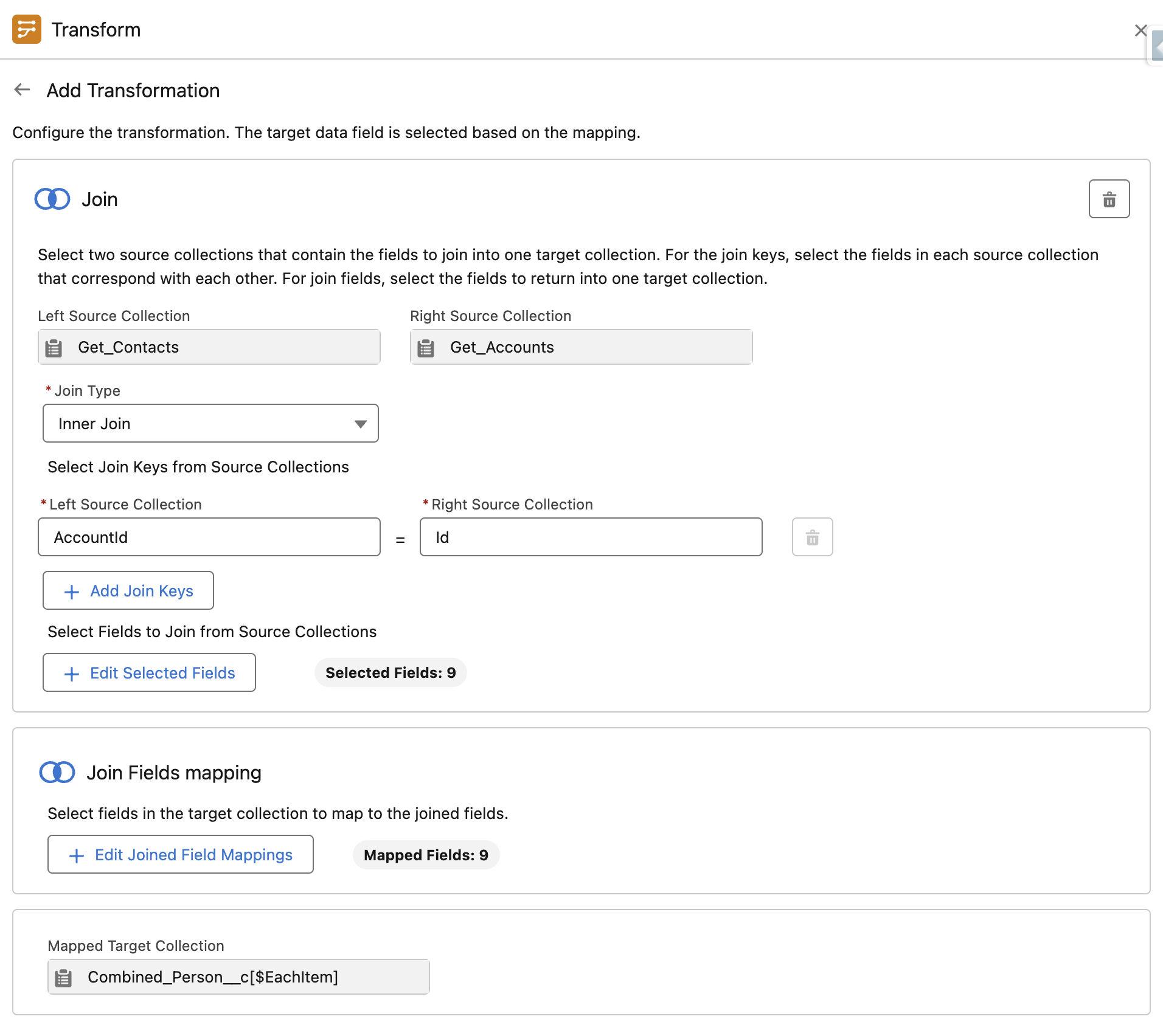
To build out this element, configure the join keys for each source collection (contacts and accounts). Then, select the join fields to return into the target collection (combined person custom object).
An INNER JOIN with multiple keys combines two source collections based on matching key pairs. You must ensure that all specified key pairs match for a record to be included in the result. This is called a composite key join, and it is ideal for complex data relationships. It’s useful when a single key can’t uniquely identify or relate records. In this case, we will use a single key.
Output Collection
Transform element only supports inner joins as this point, so left vs. right source selection doesn’t matter. However, the selection will matter once Salesforce expands the functionality beyond inner joins.
This element will produce one row of data for each contact that has an AccountId in the Account lookup. Output excludes contacts without accounts and accounts without contacts, focusing only on matched records.
Conclusion
This is yet another transform functionality that saves us loops. We can combine field values from two related collections, and output a single collection without having to loop.
The transform element is mainly designed to address integration use cases efficiently. This functionality will be especially useful for processing integration response data that is structured in an Apex-defined variable type.
Explore related content:
6 Things You Can Do With The Transform Element
How The Transform Element Saves You Loops


5 Comments