
Top Spring ’26 Salesforce Flow Features
Did Somebody Work On Screen Flows Behind The Scenes?


What are the new features about? Spring 26 brings new screen, usability and platform enhancement features. Let’s dive into the details.

Top Screen Flow Spring 26 Features
It seems like most of the new features involve screen flows.
I will not go into further detail, but this release introduces yet another file upload component for screen flows: LWR File Upload Component for Experience Cloud.
Here are the rest of the screen flow improvements.
Screen Flow Screen Element and Component Style Enhancements
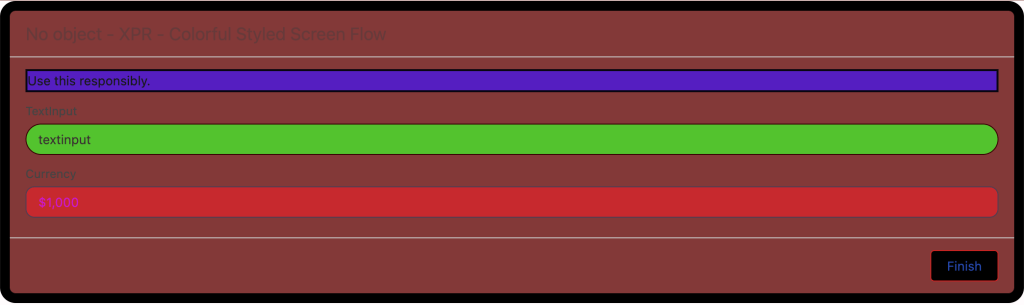
Screen flow screen element gets features that allow you do set the background, text and border colors. Border weight and radius can be adjusted. For input components, in-focus color for text can be differentiated. Flow buttons also get similar adjustments gaining the ability to change colors on hover over.
Any styling changes you set override your org or Experience Cloud site’s default theme.
Remember to keep your color and contrast choices in check for accessibility. Don’t do it as I did below. Go to the WebAIM contrast checker website and plug in your color codes to check whether their contrast is sufficient for accessibility.
Screen Flow Message Element
Screen Flow Message Element leverages the new styling options to display a message on the screen. It has a pulldown that allows you to create an information, success, warning or an error message. These come with standard color sets, which will direct flow developers in using a standard visual language.
This functionality is compliant with A11y for accessibility.
See all the four types on the same screen below.

Screen Flow Kanban Component (Beta)
The new Kanban component allows you to organize records into cards and columns. This is particularly useful for visualizing process phases and managing transitions across your workflow.
Use the new Kanban Board component to show records as cards in columns that represent workflow stages, without custom Lightning implementations. The Kanban Board is read-only, so users can’t drag cards between stages at run time.

Data Table Column Sort and Row Value Edit (TBD)
Now the user can sort the data table by columns and edit text fields in rows. This feature is not available in the preview orgs. The product team is working hard in the background to make this into the Spring 26 release. This functionality is slated to make it to the release at the last minute.

Preview Files Natively in Screen Flows
Elevate document-based processes by enabling your users to review file content directly within a screen flow. The new File Preview screen component removes the requirement to download files externally, ensuring easier document review and approval workflows.
This component seems to be already in production.
Open Screen Flows in Lightning Experience with a URL
Previously, when you opened a flow via URL, it did not launch in lightning experience. Now, it will launch in lightning preserving the experience your user is used to especially when they are working on a customized lightning console app.
I will quote the release notes for this one.
“To open a flow in Lightning Experience, append /lightning/flow/YourFlowNameHere to your URL. To run a specific flow version, append /lightning/flow/YourFlowNameHere/versionId to your URL. Flows that open in Lightning Experience have improved performance because most required Lightning components are already loaded into the browser session. In Lightning console apps, your tabs are preserved when a flow opens, and you can switch to other tabs while the flow is working. Using the new URL format also ensures that your browser behaves consistently, with forward, back, and your browser history working as expected.
To pass data into a flow through its URL, append ?flow__variableIdHere=value to the end of your URL. For example, to pass a case number into a flow, /lightning/flow/YourFlowNameHere?flow__variableIdHereID={!Case.CaseNumber}.
Use & to append multiple variables into a flow. For example, /lightning/flow/YourFlowNameHere?flow__varUserFirst={!$User.FirstName}&flow__varUserLast={!$User.LastName} passes both the user first name and last name into the flow.”
Usability and Platform Features
I listed all of the screen flow features above. The following two items are huge usability improvements that also involves screen management for the flow canvas, not just only for screen flows.
Collapse and Expand Decision and Loop Elements
When your flow gets to big and you need to Marie Kondo (tidy up) your flow canvas, you can collapse the decision and loop elements that take up a lot of real estate. You can always expand them back when needed.
Now you can collapse and expand branching elements with Flow Builder, including Wait, Decision, Loop, Path Experiment, and Async Actions, helping you focus on the key parts of your flow.
This layout is saved automatically and locally in your browser, making it easier to return to your work without changing the view for other users.

Mouse, Trackpad and Keyboard Scroll
Now you don’t have to drag or use the scroll bar to move the flow around on the flow canvas. You can use vertical and horizontal wheels on your mouse, the arrows keys on your keyboard or your trackpad if you have one.
No need to use Salesforce Inspector Reloaded to get this functionality any more. Thanks to Salesforce Inspector Relaoded for filling the gap in the mean time.

Content Document and Content Version Flow Triggers for Files and Attachments (Beta)
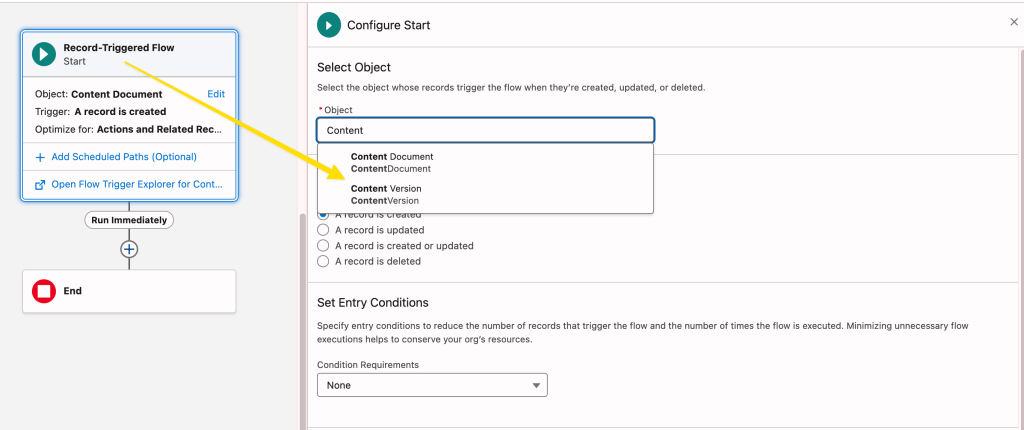
Salesforce delivered a new event type in the last release that could trigger flows for standard object files and attachments. The functionality was limited. In this release, Salesforce gave us the ability to trigger on all new files/attachments and their updates for all objects.
I was told by the product team that this functionality will be released as beta.
Flow Logging
I am not exactly sure what has been improved here. Salesforce had previously announced additional flow logging capabilities leveraging Data Cloud. Now, a new flow logging tab has been added to the Automation Lightning App.
Debug Improvements
The debug in the flow builder will now remember the record that it ran on and the updated field value if it is running in an update scenario. Debug inputs such as triggering record values, debug options, and input variable values now remain set when you save flow changes within your Flow Builder session. The user will need to click a reset button to disassociate the debug run from the input for the last run. This change is intended to make debug reruns faster.
Flow builder will preserve debug configurations when you save changes to your flow. Refreshing your browser or closing Flow Builder clears all debug settings.
Conclusion
Salesforce product teams work hard delivering new features for every release. Spring 26 release brings significant new improvements for the flow builder. I would have liked to see additional capabilities coming for flow types other than screen flows. This release seems to be a lighter release in that area.
Additional bonus features include request for approval component for lightning page layouts (highly-requested feature), compare screen flow versions, and associating flow tests with flow versions.
The release notes are still in preview. And we could still have new functionalities removed or added in the release cycle.
This post will be updated as additional details are made available.
Explore related content:
Salesforce Optimizer Is Retired: Meet Org Check
One Simple Salesforce Flow Hack That Will Change Your Workflow Forever!
Automate Permissions in Salesforce with User Access Policies
Spring ’26 Release Notes: Highlights for Admins and Developers
What Is Vibe Coding? And What’s New in Agentforce Vibes for Developers?


Nice summary Andy. This saved me a lot of work hunting down all this in various release documents, online sources, etc.
Thanks Jeff, nice to “see” you again, virtually.