
Creating Dependent or Filtered Lookups in Flow with Data Fetcher


Often times I find myself either wanting to have a filtered lookup or dependent lookups in my screen flows. I can do this by either using a custom lookup component, dynamic forms in flow, or sometimes I have to split it up across multiple screens and use choice lookup.
Reactivity of Choice Collections in Summer ’24 Release
In the Summer ’24 release for Salesforce, Choice Collections are now reactive. This means that the choices can be updated/changed based on user input in a single screen without the need for the solutions listed above. With Data Fetcher I can stack multiple choice lookup components on one screen giving either filters to the collection based on another choice lookup component selections or other inputs from my users.
Practical Example in Developer Org
Let me show you a simple example I did in my developer org. In my use case I am going to first let the user search for and select an Account. After they have selected an Account I am going to use Data Fetcher to get all of the Contact Records where the AccountId is equal to the Account Id from my first Choice Lookup Component. Then I am going to get Opportunities using another Data Fetcher Component where the AccountId is equal to the Account Id from my first Choice Lookup Component and the Primary_Contact__c is equal to the Contact from my second Choice Lookup Component. I am doing all of this in one screen with three Choice Lookup Components, three Data Fetcher Components and three Choice Collection Variables.
Building the Flow, Step-by-Step
Configuring Data Fetcher for Accounts

In the above screenshot you can see my first Data Fetcher has a fairly simple configuration. I am getting Accounts and my SOQL is going to get the Id and Name for All Accounts. (This is a developer org; in a real org I will want more selective criteria.)
Creating Collection Choice Set for Account Lookup

After I added the Data Fetcher component I need to create a Collection Choice Set to create the choices in my Choice Lookup Component. You can see in the above image I am using the outputs from my getAccounts Data Fetcher as the collection, using the Account Name as the label and the Id as the value for my choices.

Next I’ve added a Choice Lookup Component where I am using the Collection Choice Set I just created as my choices.
Adding Components for Contacts

Next up is our second Data Fetcher component. I am calling this one getContacts because I am using this to get the contacts I need for my next Choice Lookup Component. This time I am using a text template for my SOQL Query String.

Once again my SOQL for the contactQuery is fairly simple. Here I am using a text template; I want to use the Id from the Account Lookup selected value to only get the Contacts where the AccountId is equal to that value.
Creating Choice Sets for Contacts

Now that I have the Contacts I need for my next Choice Lookup Component. I create a new Collection Choice Set for my contactChoices. As you can see I am using the retrieved records from my second Data Fetcher component, and once again to keep it simple I am using the Name as the label and Id as the value since I will need the Id for my final query.
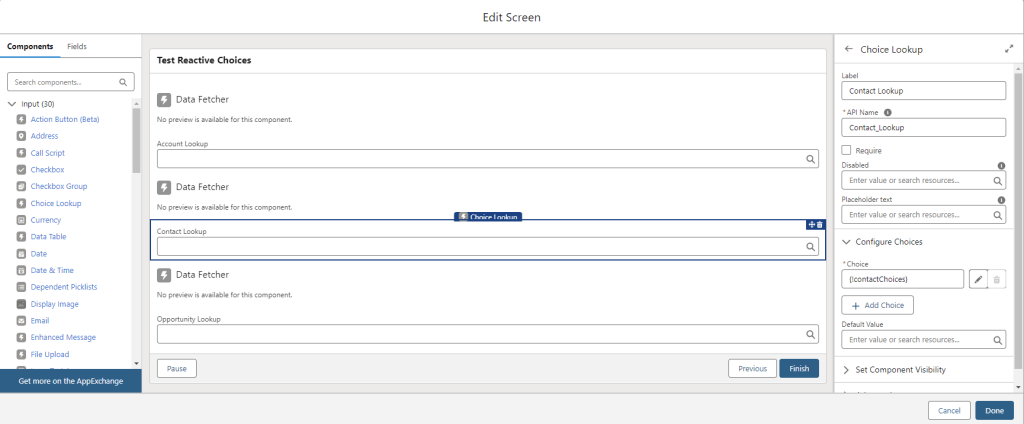
Next, I added another Choice Lookup Component for my users to search the Contact that is related to the Account from the first Choice Lookup Component.
Configuring Opportunities Data Fetcher

Now it’s time for the final Data Fetcher Component to get the Opportunity records for the Opportunity lookup. Once again I am going to use a text template to store my SOQL query.
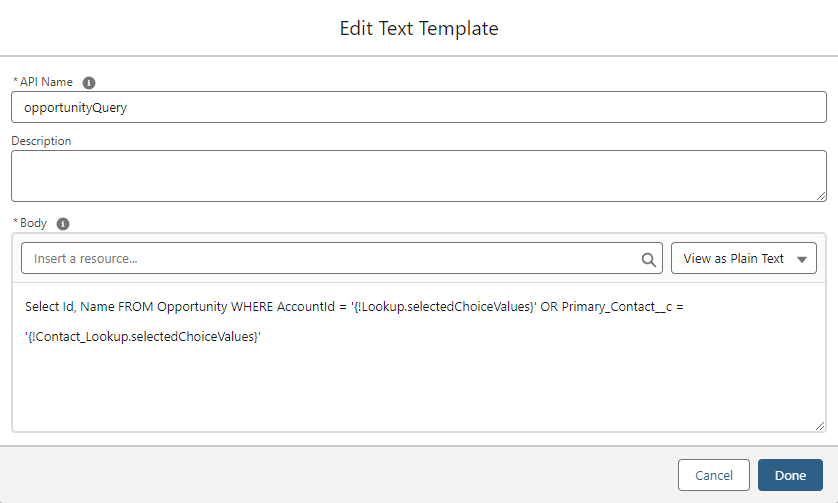
The final SOQL query for my use case is getting more in depth. Here I am going to get all Opportunity records where the AccountId is equal to the value from my first Account Lookup or the Primary_Contact__c is equal to value from my Contact Lookup.
Finalizing Opportunity Choice Lookup
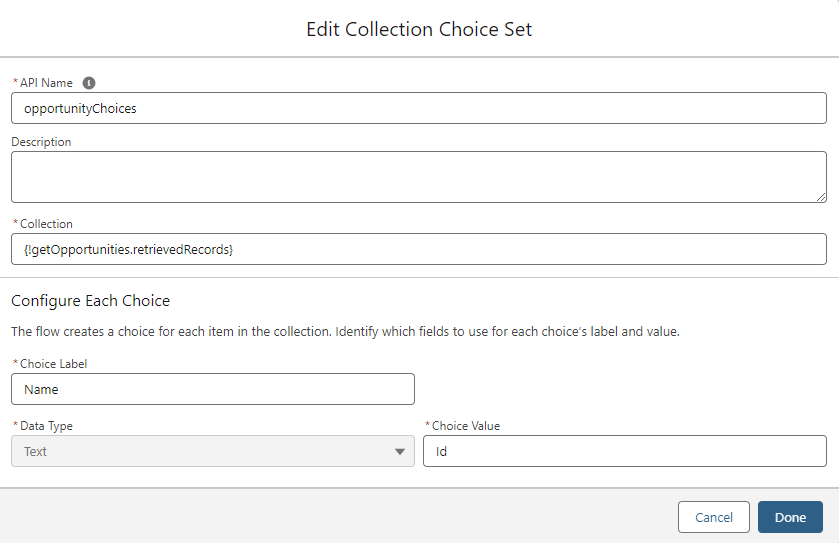
Not that I have all of the Opportunities it’s time to put them into a Collection Choice Set. Keeping it simple here again the collection will be the retrieved Opportunities from my final Data Fetcher component. The label will be Name and Value Id from each record.
Unleashing New Flow Powers

Finally I’ve added my final Choice Lookup Component. My choices will be the opportunityChoices Collection Choice set that is generated from the last Data Fetcher Component.
One final step is to put on your Super Hero cape and fly away for a well deserved break as you have unlocked more Flow Powers to save the day for your users.
Sources
Data Fetcher Trailblazer Community Group
Check out related content:
Streamlining Operational KPI and Trendlines for Optimization


Great post, Josh. I like the use of the Text Template when building the query over the Formula resource. It is less cluttered.