
Dynamically Create Documents Using PDF Butler


I run my business through Salesforce and am the founder of Flow Canvas Academy, which teaches the Salesforce ecosystem how to use flow automation effectively. Recently, several students requested a proof of registration document for my course, as many of them seek course fee reimbursement from their employers.

As most of you know, Salesforce does not offer out of the box document generation capabilities. For the longest time, a popular free method was to generate a Visualforce page that the user could save as pdf. This functionality was very limited, and it did not scale well.
For sophisticated capabilities that scale well, organizations turn to other solutions that work with Salesforce.
PDF Butler is a leading solution for document generation in Salesforce.
I will share with you a practical use case that illustrates their document generation functionality.
Spearheaded by Igor Stuvyer, PDF Butler provides tools for Salesforce admins and users to create, manage, and automate the production of personalized and branded documents. Items such as sales quotes, contracts, and reports can be generated directly from Salesforce. A variety of document formats are supported including PDF, Word, and Excel, making the process uncomplicated and efficient.
For the recording of my live interview with Igor on Building a Successful AppExchange Solution please click HERE.
The Setup
PDF Butler is easy to set up. You can install the AppExchange package HERE. By completing the steps on the “Get Started” tab of the PDF Butler Lightning App, you will automatically be enrolled in a trial on PDF Butler’s servers. PDF Butler uses its own servers to generate documents for you.
PDF Butler also sets you up with an example document generation configuration as part of this process. This document is a Quote for an Opportunity. You can review this configuration to learn how it is done, and generate the Quote document yourself to get started on the platform.
The Document Template
To create the Course Registration Document template, I used Microsoft Word. PDF Butler uses a specific syntax for the merge fields inside the Word Document. The requirement is that you use a string that sits between two square brackets and an exclamation mark such as: [[!REG_ADDRESS!]]
As long as you follow this syntax, it does not really matter what label you use for your merge field. This will be associated with the data source when you set up your document on PDF Butler’s servers.
You can see the document I set up for this purpose below.
 Doc Config
Doc Config is the PDF Butler record in Salesforce where every detail about your dynamic document is housed. See my Doc Config setup below.

Data Source
After you set up your Doc Config, you need to set up the Data Source record that defines the SOQL statement which gets your merge field values. If you’re experienced, you can write your own SOQL statement, or use the SOQL configurator to generate it with just a few clicks.

PDF Butler Side
Once you set up these two records, you can go to your Doc Config record and click on Open PDF Butler, and that will take you to the PDF Butler server page where everything will come together. You will finalize your configuration there.
This is where you upload your Word Template under Doc Config Default Document.
Then, you will need to add your Data Source on the left panel. Then you will need to add Config Types. Config Types are the records that associate the fields in Salesforce with the merge field names you set up in your Word Document.
Here are my Config Types for this document (Student is the name for the Contact on the custom object) :
- REG_FIRST for Student__r.FirstName
- REG_LAST for Student__r.LastName
- REG_ADDRESS for Student__r.AddressNameSINGLE
- REG_DATE for $Today (today’s date, a Cadmus constant in PDF Butler)


When you complete your configuration you will need to upload your settings to the server: Click on Save to Server button on the upper right hand side.
Note: If you make a change on the Salesforce side to the SOQL query you need to go to Edit Data Source and Reload from SFDC button to refresh the PDF Butler side.
PDF Butler Lightning Web Component
Go to the object record, click on edit page, and drag the PDF Butler Convert Component from the left panel to the page. The only parameter you need to set up is the Doc Config Salesforce record Id. Paste that value into the dedicated box on the right side, save activate the page.
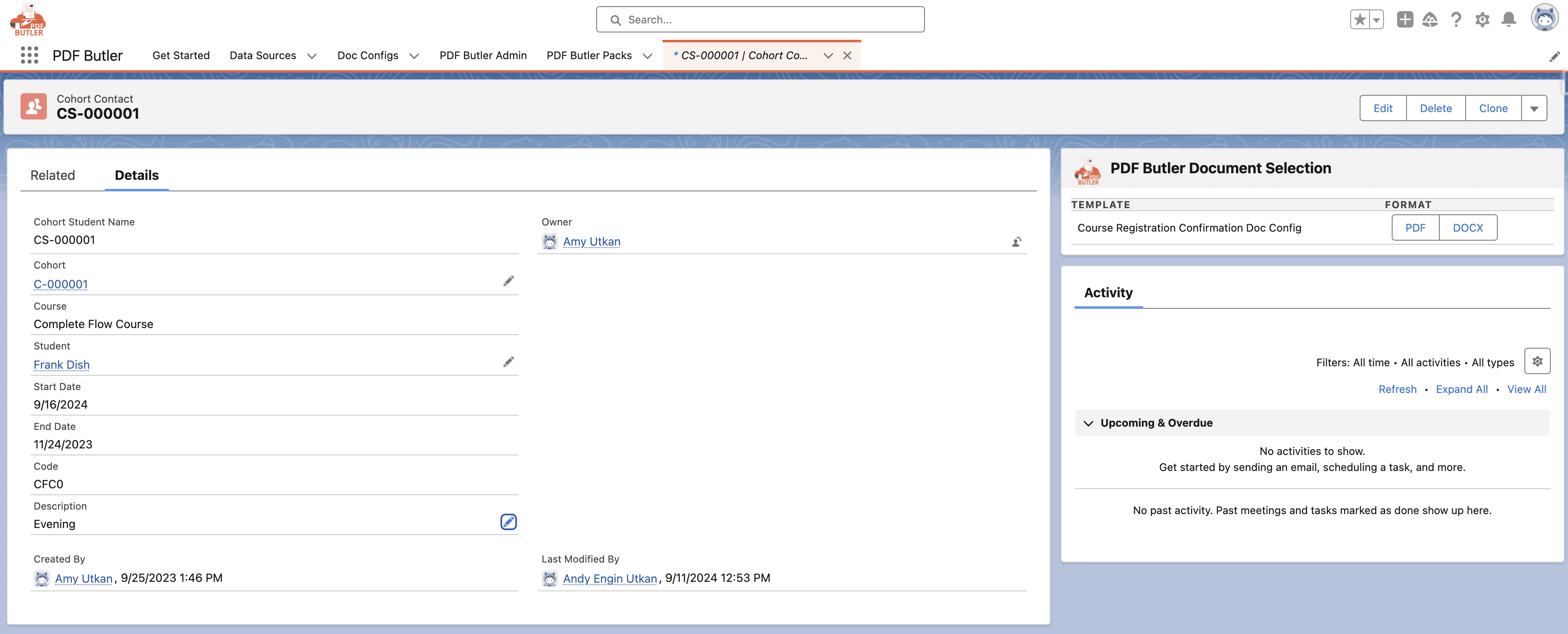
Result
Now you can click the button on any record to generate a pdf or Word document dynamically for the record you are on.

Other PDF Butler Use Cases
- HR Onboarding Documents: Automate the creation and distribution of onboarding kits for new employees. PDF Butler can generate personalized welcome packets, HR forms, and policy documents, streamlining the onboarding process.
- Marketing Collateral: Enable marketing teams to produce customized brochures, product datasheets, and event materials directly within Salesforce. This ensures that marketing collateral is always up-to-date with the latest product information and branding guidelines.
- Customer Service Reports: Facilitate the generation of service and support reports that provide customers with detailed updates and case resolutions. PDF Butler can help create comprehensive service reports that enhance communication and transparency with customers.
- Client Proposals: Automatically generate detailed, personalized proposals for new projects directly from Salesforce data. This ensures that all information is current and accurately reflects services, pricing, and timelines discussed.
- Service Agreements: Create and dispatch customized service agreements to clients. PDF Butler could integrate standard terms with specific client data to produce ready-to-sign documents, saving time and reducing errors.
- Technical Documentation: Generate dynamic technical manuals or documentation for products that require frequent updates based on Salesforce records, ensuring that all distributed documents are the latest versions.
Conclusion
PDF Butler is a versatile document generation solution that also offers form processing, e-signatures, contracts, bulk processing and collaboration. Try it for yourself by visiting their web site HERE. PDF Butler sponsored this post.
Explore related content:
Flow Tool Kit: Calendar & Scheduling Component
How to Improve Your Flows Using the Flow Analyzer


@gatortail interesting how ai's been helping fr. i’ve been testing this workbeaver AI lately, and it takes a totally different approach, it’s literally show-and-tell. you just screen-share or describe what you want like pulling Salesforce data, creating the doc, saving it where you want, and it learns the flow. after that, it runs everything on your pc without extra tools or integrations. zero coding, zero configs. it feels more like training an assistant than building automation.
Remote Reply
Original Comment URL
Your Profile