Einstein Activity Capture: The Guide to Salesforce Email and Calendar Sync


Sales teams live in email and calendars. Salesforce is where leadership expects the truth. The gap between those two places is where deals get messy: reps forget to log calls, meetings disappear into personal calendars, and the “last activity date” becomes a game of chance.

Einstein Activity Capture closes that gap by connecting Salesforce to Microsoft or Google and automatically bringing key engagement signals into the right records. Instead of relying on reps to remember to log activity, EAC captures emails, meetings, and contacts, then links them to the contacts, leads, and opportunities they actually relate to. The result is less manual work, cleaner timelines, and better context for humans and for AI features that depend on real-world engagement data. Let’s break down what it does, what changed recently, what admins need to watch for, and how to make it work.
What Einstein Activity Capture Actually Does
At a high level, EAC connects Salesforce to your company’s Microsoft or Google environment. Once connected, it captures or syncs three main categories of information:
-
Email messages
-
Calendar events
-
Contacts

It then associates that activity to the right Salesforce records (accounts, contacts, leads, opportunities, and more) so reps and managers can see engagement without extra logging.
EAC can be used on its own, or paired with other Salesforce capabilities. When combined with tools like Salesforce Inbox, Sales Engagement, Einstein Conversation Insights, or Agentforce, you get a more complete engagement picture that includes written interactions (emails) and scheduled interactions (events), plus additional intelligence that can be layered on top.
New update: Captured Email Can Now Become Real Salesforce Activity
Historically, one of the most frustrating parts of EAC was that some “captured” email looked like activity in the timeline, but was not actually stored as standard EmailMessage records. That meant it was visible to humans, but not reliably available to reports, automations, APIs, or other platform tools.
Salesforce has been pushing a newer approach: Sync Email as Salesforce Activity. When enabled, captured email is saved as activity data so it can be used by reporting, workflow automation, and AI features that require a true activity record.
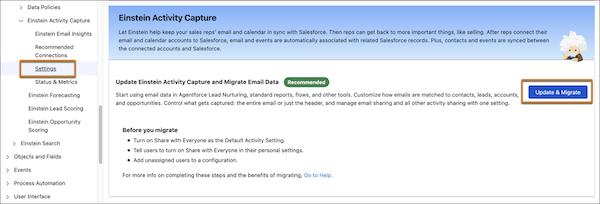
If your org was set up before Summer ’25, or if Sync Email as Salesforce Activity is not enabled, Salesforce recommends updating and migrating older configurations so your captured email becomes usable across the platform. There’s also a rollout note to be aware of: this migration feature is rolling out as a staggered release beginning in early 2026. Therefore, you might not see it in every org at the same time, and that is expected. More on this here.
What Gets Created in Salesforce
Email Messages
When email is saved as Salesforce activity, messages sent and received from the connected mailbox can be stored as EmailMessage and Task records, then surfaced on the activity timeline of related records (account, contact, lead, opportunity, contract, quote).
A few practical implications:
-
Emails sent from inside Salesforce can route through the connected email account, and appear there too.
-
When Inbox or Sales Engagement is enabled, the same email activity can drive engagement indicators shown alongside messages.
-
When Agentforce Lead Nurturing is enabled, agents can use email messages to understand relationships and inform recommendations.
-
Email data can also support email insights features.
If email is only “captured” but not synced as Salesforce activity, you may still see it on timelines, but you will not be able to build reliable reports or automation off it. That is why the migration recommendation matters.
Calendar Events
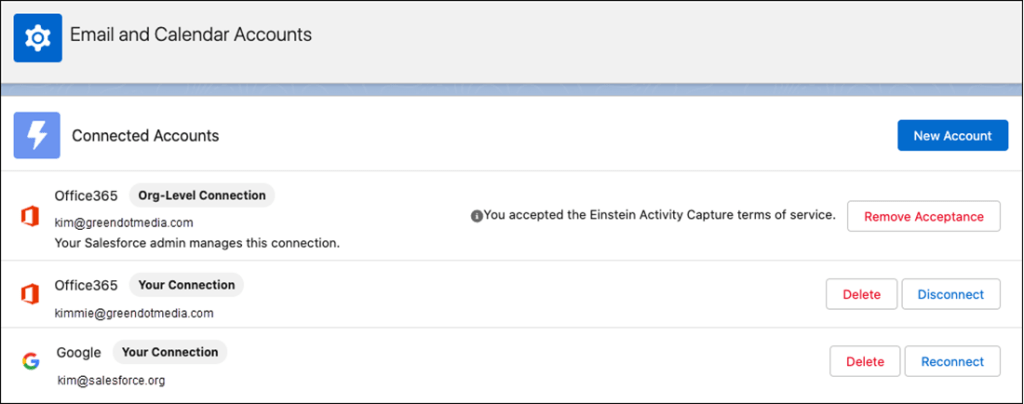
Calendar data can be synced and stored as Event records in Salesforce. Synced events appear in:
-
My Events (Salesforce calendar)
-
Activity timelines on related contacts and leads
-
Standard reporting and other platform tools
Admins choose how event syncing works. For example:
-
Microsoft or Google to Salesforce (recommended)
Manage meetings in the external calendar. Salesforce receives updates continuously, but not in real time. Typical sync is within 5 minutes, but it can take longer. -
Salesforce to Microsoft or Google
You can manage meetings in either place, but changes made in Salesforce can take 15 minutes or more to land back in Microsoft or Google. This is not a great fit for time-sensitive scheduling. -
Both directions
Convenient, but conflict-prone. When conflicts happen, EAC prioritizes changes made in the external calendar.
Contacts
Contacts can sync in both directions between Salesforce and Microsoft or Google. When a user first connects, EAC can scan the external account and create missing contact records. Ongoing emails and events can also trigger creation or updates.
Salesforce’s own recommendation here is important and worth repeating: Treat Salesforce as the source of truth for contacts. Sync from Salesforce to Microsoft or Google, not the other way around, so a rep’s personal edits do not overwrite shared CRM contact data.
Editions, licenses, and why “Standard” is not the same thing
EAC shows up in a lot of packaging combinations, which makes it feel confusing until you boil it down:
-
There is a Standard Einstein Activity Capture option for certain Sales Cloud editions, with some limitations.
-
There are “licensed” EAC experiences available through higher editions or add-ons like Einstein for Sales, Inbox, Sales Engagement, or Revenue Intelligence.
Key differences you should know before you roll it out:
User limits
-
Standard EAC: assignable to up to 100 Sales Cloud users.
-
Licensed versions: available based on edition or add-on licensing.
Data retention
-
Standard-only orgs: captured activity retained for a maximum of about 3 to 6 months (Salesforce notes 6 months max, with storage time varying). You can request a change through Salesforce Support.
-
If you have at least one paid EAC user: retention is 24 months by default, and can be adjusted to a longer window (up to 5 years), also via Support. The retention policy applies to all EAC users.
Analytics and Reporting Shifts After Summer ’25
Salesforce flags an important change starting in Summer ’25: Activity 360 Reporting, Activity Metrics, and the Activities Analytics Dashboard are not available unless they were previously set up. If your org already uses them, you may be able to keep them until retirement, but for anything captured after Summer ’25, Salesforce’s direction is to rely on synced activity records and standard Salesforce activity reports.
The admin takeaway: if your reporting strategy depends on “old EAC dashboards,” you need a plan to move to standard Activity reporting as part of your rollout.
Setup is Shared: Admin First, then Users
EAC setup is not a single click-and-done experience. It’s a coordinated effort:
First, the admin connects Salesforce to Microsoft or Google, which may require coordination with your Microsoft 365 or Google Workspace admin. In some cases, you’ll also need help importing or validating user access permissions.
Next, the admin creates and configures the Einstein Activity Capture settings. Configurations can be tailored to different user groups and roles, and you decide which data types sync, such as emails, events, and contacts. You also control important defaults, including activity sharing behavior and excluded addresses.
Once the configuration is in place, end users connect and personalize their experience. They connect their accounts, accept any required terms, and adjust personal settings, such as adding additional email addresses or domains to their own excluded lists.
From there, you build value on top. Once activity is stored as real Salesforce data, you can create reports, flows, and other automations that rely on accurate engagement signals. This is also where AI features begin to gain meaningful context from actual customer interactions.
Excluded Data: Your Best Friend for Safety and Sanity
One of the most powerful controls in EAC is the Excluded Addresses list, which determines what emails and events are not added to Salesforce timelines or synced.
A few behaviors to know:
-
The admin list applies org-wide and takes priority over user lists.
-
Salesforce automatically excludes the company’s default internal domain so internal back-and-forth does not flood timelines.
-
If your company uses multiple internal domains, you must add them.
-
Emails where all addresses are internal are always excluded.
-
Internal events can be included or excluded based on a setting (Sync Internal Events).
Excluded addresses also impact historical data visibility:
-
New emails and events tied to excluded addresses are not added to timelines.
-
Past ones are removed from timelines, but the underlying captured data may still be stored on EAC infrastructure.
-
Manually logged emails/events are not affected and remain in Salesforce.
Salesforce also describes protections around sensitive or automated emails. Some emails can be flagged and defaulted to “Don’t Share” to reduce accidental exposure of sensitive information, with the ability for the email owner to change sharing later.
If you are rolling EAC out to a cautious org, spend real time on your excluded address strategy. Payroll domains, finance vendors, HR tools, and other sensitive systems often belong here.
Disabling Emails, Events, or Contacts for Specific Groups
EAC configurations let you disable emails, events, or contacts for users. This is useful when certain roles should not sync certain data, or when you need a partial rollout.
What happens varies by data type. Examples:
-
If you disable emails, emails stop being added to timelines and are not available for features like email insights. Previously captured items can remain visible depending on prior capture.
-
If you disable events, events stop syncing and no new Event records are created in Salesforce.
-
If you disable contacts, contact sync stops and EAC no longer creates contact records.
Also important: re-enabling does not rewind time. You do not automatically recover the missing window of activity from the period when capture was disabled, aside from whatever historical backfill occurs during reconnection based on retention rules.
Security Architecture and a Big Microsoft Change
Salesforce positions EAC as running on separate public cloud infrastructure (Hyperforce architecture for the Activity Platform), with encryption at rest (AES-256 server-side encryption) for captured emails and events stored outside the core Salesforce instance.
There are also concrete Microsoft-related changes:
-
Microsoft is retiring Exchange Web Services (EWS) for Office 365 in October 2026.
-
Starting Spring ’26, EAC configured for Microsoft Office 365 is authenticated using Microsoft Graph automatically.
-
If your org was set up before Spring ’26, Salesforce recommends upgrading to Microsoft Graph by August 2026 to avoid disruption.
-
After you upgrade, you cannot roll back to EWS.
If you support a Microsoft environment, treat that timeline as a project, not a footnote. The goal is to avoid being the admin who discovers a service interruption the hard way.
Common Gotchas Admins Should Plan For
Here are the issues that tend to surprise teams:
-
Email aliases are not supported. Expect odd threading behavior and inconsistencies if users rely on alias sending.
-
You cannot use EAC and Lightning Sync at the same time.
-
Multi-org syncing for the same user is not supported. Test in sandbox, but remove users from sandbox configurations before enabling in production.
-
Government Cloud considerations can apply, especially where sending data outside an authorization boundary is a concern.
When Things are Not Working: Where to Start
EAC failures rarely announce themselves clearly. A rep notices emails are missing from a timeline, or an event that should have synced never appeared.
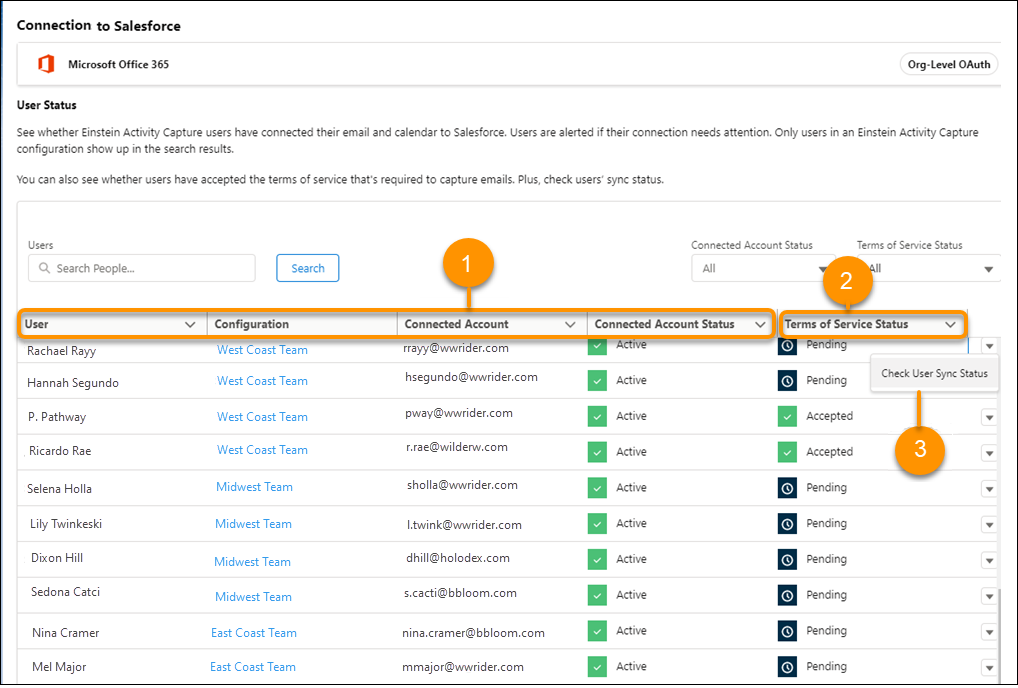
Start with the User Status page (Setup > Einstein Activity Capture > User Status), which shows each user’s assigned configuration, the email address used to connect to Salesforce, and their connection status. If you use org-level OAuth 2.0 or a service account authentication method, you can also see whether users have accepted the required terms of service. For a more detailed look at what’s causing an issue, you can drill into an individual user’s sync status from the same page.
From there, confirm the user is assigned to an active configuration with the right data types enabled. Then double-check your excluded addresses list. It is surprisingly easy to add a domain during setup and forget it is there.
If activity is still missing after ruling those out, open a case with Salesforce Support. They have access to backend sync logs that are not surfaced in the UI. Giving them specific examples (which address, which timeframe, which record) will get you to resolution faster.
Final Thoughts
Einstein Activity Capture is one of those features that feels “optional” until you realize how many downstream things depend on clean activity data: pipeline inspection, coaching, forecasting confidence, and now AI-driven guidance that needs real engagement context to avoid guessing.
Set it up thoughtfully, make sure you are aligned with the newer Sync Email as Salesforce Activity direction, and treat exclusions and authentication changes as first-class requirements. Do that, and EAC becomes exactly what it promises: less manual entry, more accurate timelines, and a CRM that reflects what is actually happening in the real world.
Explore related content:
Einstein Conversation Insights Gets Smarter in Spring ’26
New Trailhead Badge: Accessible Salesforce Customizations
Understanding the Role of Data 360 and Salesforce Architects in the Age of Agentic AI