
How to Set Up Slack Record Alerts Using Salesforce Flows


In 2021, Salesforce acquired Slack, signaling a deeper shift toward embedding collaboration into business workflows. Instead of treating communication as separate from work, Salesforce positioned Slack as a native layer within its ecosystem. Conversations, alerts, and decisions could now live alongside customer data. This integration helps teams stay responsive. Work updates are no longer lost in dashboards but delivered in real time, where people already pay attention.

One of the most practical use cases is sending Slack messages directly through Salesforce Flows. By connecting a Salesforce org to Slack, teams can instantly notify a channel or specific users when a new record is created. Records like Leads, Opportunities, and Cases can all trigger notifications. This reduces lag between data entry and action. Sales reps and stakeholders can respond quickly without constantly monitoring Salesforce. The result is a tighter feedback loop between system events and human response. This article explores one such use case: real-time notifications, both privately and through a Slack channel, whenever a new Lead comes through.
From AppExchange Add-On to Native Platform Feature
In 2025, Salesforce made the move from keeping its Slack integration as an external module that could be installed through AppExchange to providing it natively as a core part of the Salesforce platform. The legacy methods still work, however they are no longer supported and further updates have ceased. This article will be based on the newer version of the integration.
Setting up Slack
To set up the integration on Salesforce, go to Setup → Slack Apps Setup. This will open a page with a multi-step process to enable Slack integration for your org, with an “I’m finished with this step” checkbox beneath every step.
You will be asked to review the documentation and accept the terms and conditions first. Accept them and move on to the “Enable Slack Apps” step.
Enable Slack Apps
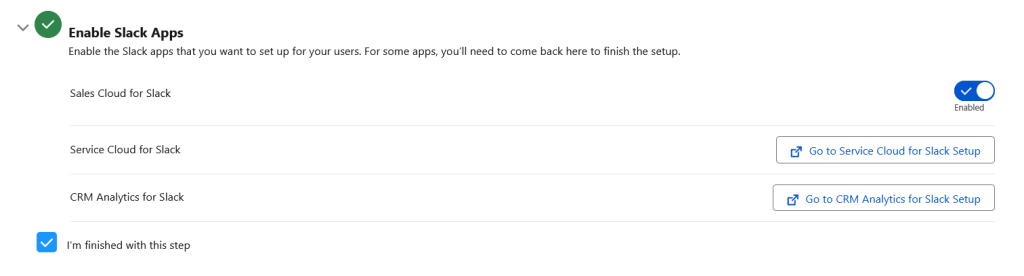
Click the switch corresponding to the “Sales Cloud for Slack” app. For the purposes of this article, we do not need other apps.

In the “Assign Slack App and User Permissions” step, you will be asked to assign Slack-related permissions to appropriate users. Since we are only using the Sales Cloud for Slack app for now, assign your own user profile (or all Admins in your org if there are more) the “Slack Sales Home User” and “Slack permission set. This is not necessary for constructing the Flow described later in the article, but rather to do anything else using Salesforce’s native Slack functionalities.
Configure the data sharing and link unfurling settings under the “Verify Data Sharing Options” step as you see fit.

Installing the Salesforce App in Slack
You will then be prompted to install Slack apps to your workspace in order to connect it with your Salesforce org. This is the essential part in setting up the integration, and the Slack admin of your company must perform these steps. For the sake of simplicity, this article will assume that you are also the Slack admin.
Make sure to install the “Salesforce for Slack” app through its Slack listing. You will be asked to install the “Salesforce Automations (Legacy)”, whose legacy status should be ignored for now. Click the “Open in Slack” button and complete the process that will pop up to successfully install the Salesforce app to your workspace.

Connect Your Slack Workspace to Your Org
Once that is done, what’s left to do for this step is to actually connect your Slack workspace with your Salesforce org.
- Click your Workspace name in the top left
- Go to Tools & settings → Admin tools → Manage Salesforce organizations
- Click Connect Salesforce Org
- Click “Connect through a Salesforce org” (or “Would you rather connect to a sandbox?” if you are using a sandbox org)
- Enter your credentials and allow the app its requested permissions
The Salesforce for Slack app will now be integrated to your org. Finish the rest of the steps in the page and you will be ready to use Slack in your Salesforce Flows.
Creating the Flow
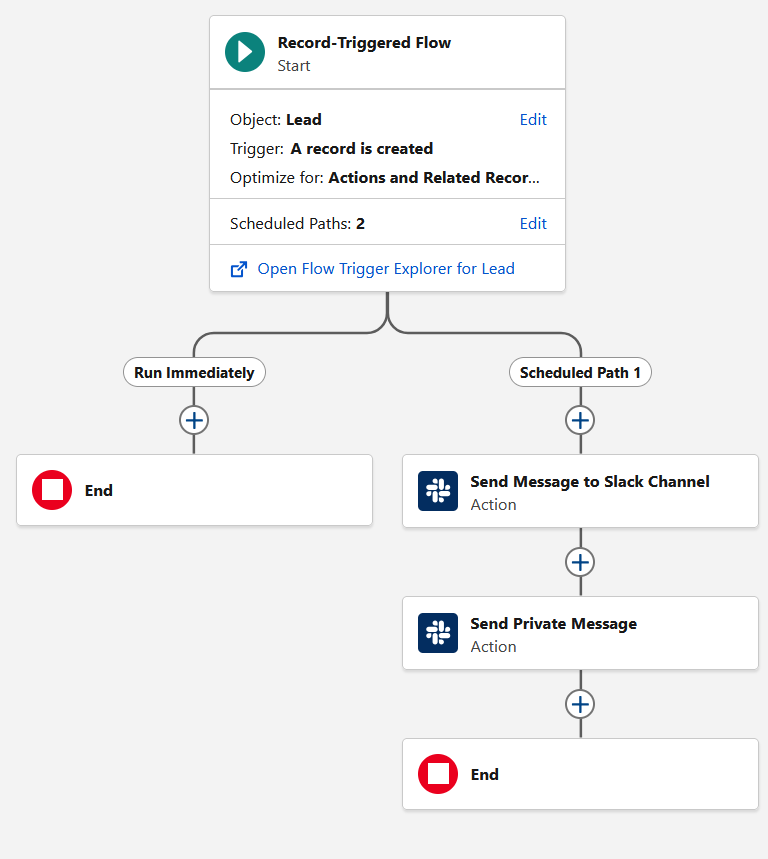
Our first Flow with Slack integration will be simple: it will send a message to a channel and another private message to a person when a new Lead is created. Therefore, our Flow will be a record-triggered Flow.
The Slack actions will be found under the “Actions” category. Here, you can find two subcategories: Slack and Slack Legacy Actions. Since we want a Flow that is up-to-date, we will use the Send Message to a Slack Channel action under the Slack subcategory.
Why Slack Actions Must Run on a Scheduled Path
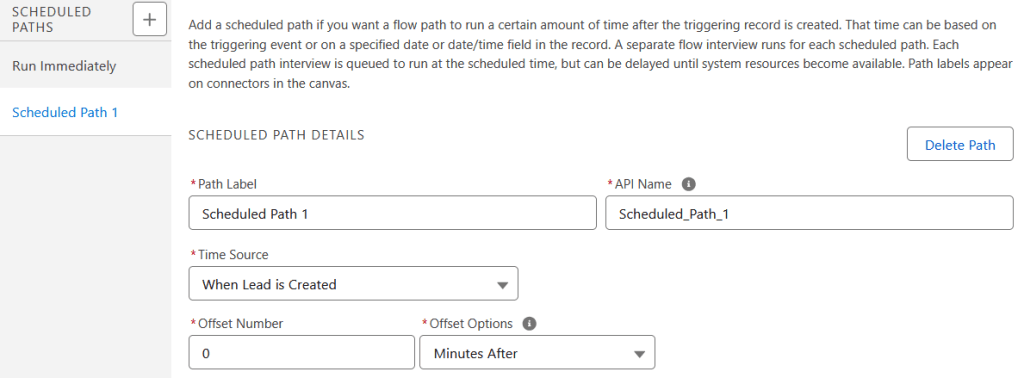
It is important to note that Slack actions in Flows are asynchronous webhook calls. Therefore, they cannot run in a synchronous context and should be on a scheduled path. We still want the actions to run immediately, so the offset time will be 0 minutes after when the Lead is created.
Find Your Slack Channel ID
Create a channel called “leads” in your Slack workspace. This will be the channel to which we will send the notification.
Right click on the channel name in the left panel and click “View channel details”. There will be an ID at the bottom (starts with a “C” or “G”, like C0123456789), which is what we need to send the message to this channel.

Configure the Slack Message
Copy the ID into the Slack Channel ID input of the action. For the Slack message, we will post the URL of the Lead page, therefore we should create a new formula variable of Text data type that stores the org domain along with the Lead ID to create a full URL which should be 'https://yourorgname.my.salesforce.com' & {!$Record.Id}

However, when the Salesforce app posts this to Slack, the URL will not create a hyperlink, it will just be plain text instead. In order to actually create the hyperlink we want, we will need to make use of Slack markdown. That will format the text like we are able to do via the Slack UI.
Use Slack Markdown for Hyperlinks
A full list of formatting options on Slack can be found here. For now, we will just use the hyperlink property, which requires us to wrap the URL around < and > signs: <link>. We can also wrap the URL on text by putting the text after the URL and separating them with a vertical bar: <link|text>. Therefore, if we want the name of our Lead to be linked to the record page URL, it should be written as:
‘<https://yourorgname.my.salesforce.com’ & {!$Record.Id} & ‘|’ & {!$Record.FirstName} & ' ' & {!$Record.LastName} & '>‘
This will be the Slack Message parameter for the action.
Add a Private Message Action
Create another Send Message to a Slack Channel action for your private notification. For the sake of simplicity, use the Channel ID of any user in your workspace (accessible via right clicking the user’s name and clicking “View conversation details”, most likely to start with a “D”) as the Slack Channel ID parameter. Further developments may include alerts depending on who the Lead owner is; in that case one would create a Channel ID field under the User object which would store the Slack Channel IDs for each user in the org. The Slack Message should be the aforementioned formula.
Here’s what the Flow should look like:
Save the Flow. Debug the Flow with a Lead (or create a new Lead if you have already activated the Flow). You should now receive the alert(s). If the link unfurling options are also set to show Lead data and you have the necessary permissions, you will see the URL like this:

If you click the notification, you will also be able to see the values in the Lead fields. It will include Lead Owner, and access Quick Actions such as logging a call and sending an email.
When debugging the Flow, you might see the error message: “We can’t find a Slack bot access token for your connected Slack Team.” If you do, ensure that you have clicked “Connect Salesforce Org” and submitted the request. It can take a few minutes to appear in Salesforce.
Conclusion
Salesforce’s acquisition of Slack opened new ways to keep teams informed about pipeline updates. By integrating Slack directly into its automation interface, notifications can be triggered by events like new Lead creation. The right people get alerted at the right moment, with no complex code or webhook calls required.
Thanks for reading and happy Slacking!
Explore related content:
Clean Data, Smart Flows: Automating Data Cleanup in Salesforce Nonprofit Cloud
Bring Customer Data into Slack with Salesforce Channels

