11 Flow Updates in Summer 26 Release
Summer 26 Brought A Few Key Features Flownatics Have Been Asking For


Salesforce’s Summer ’26 release is packing some serious automation upgrades. Whether you’re managing multi-stakeholder approvals, scaling orchestration across your org, or building complex integrations without code, there’s something here worth paying attention to. This release reflects a clear pattern we’ve been watching for a few cycles now: Salesforce is steadily removing the friction points that have slowed admins down, closing permission gaps, lifting arbitrary limits, and giving teams more control over how their automations behave at runtime. The result is a platform that’s increasingly capable of handling enterprise-grade complexity without requiring enterprise-grade workarounds.

From Flow Approval Processes to Flow Actions, the Summer ’26 automation updates touch a wide range of use cases. Some of these changes are straightforward quality-of-life wins. Others, like Flow Orchestration becoming a standard feature, are the kind of thing that unlocks a lot of value for orgs that have been holding back. Here are the Flow highlights of with Summer ’26.
More of a visual learner? Watch our full walkthrough below:
Flow Builder Updates
Summer ’26 brings a substantial set of improvements to Flow Builder itself, covering everything from AI integration to canvas usability to deployment reliability.

1. Custom Batch Sizes for Scheduled Flows
Scheduled flows now support custom batch sizes ranging from 1 to 200, configurable directly from the flow’s start element. Previously, scheduled flows always processed interviews in the default batch size of 200, which could exhaust resources in complex automations. Smaller batches give you more control over performance and reduce the risk of hitting governor limits, though setting them too low can increase overall processing time. Read the full blog post here.
2. Create and Configure Agentforce Agents Without Leaving Flow Builder
A new Create Agent element lets you add AI-powered agents directly from the Flow Builder canvas. You can select from existing agents or build task-specific ones with custom instructions and actions, all without switching between tools. This makes it considerably easier to build intelligent automation without jumping in and out of multiple setup areas.
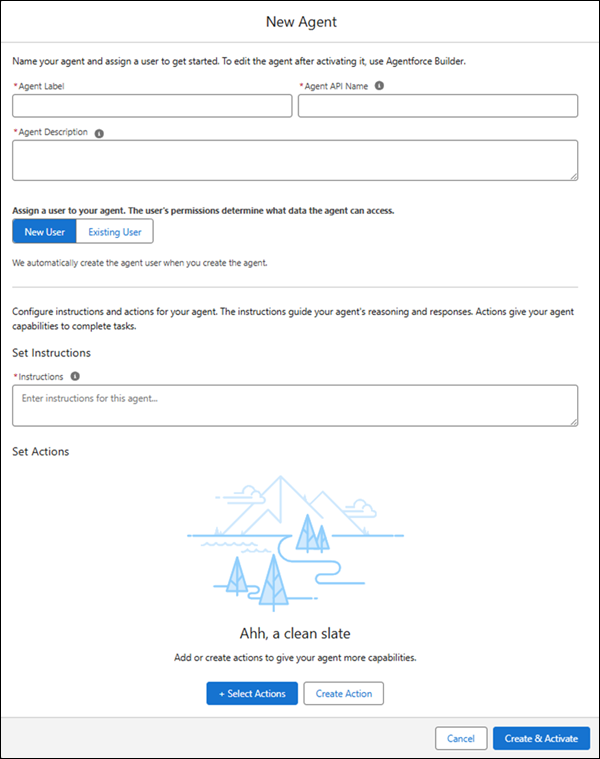
AI Agent Actions Now Use the Create Agent Element: Existing flows that contain AI Agent actions will automatically have those actions converted to the new Create Agent element when opened, with original agent configuration preserved. This aligns the experience with the new way of working with Agentforce agents in Flow Builder.
3. Email Template References That Survive Deployment
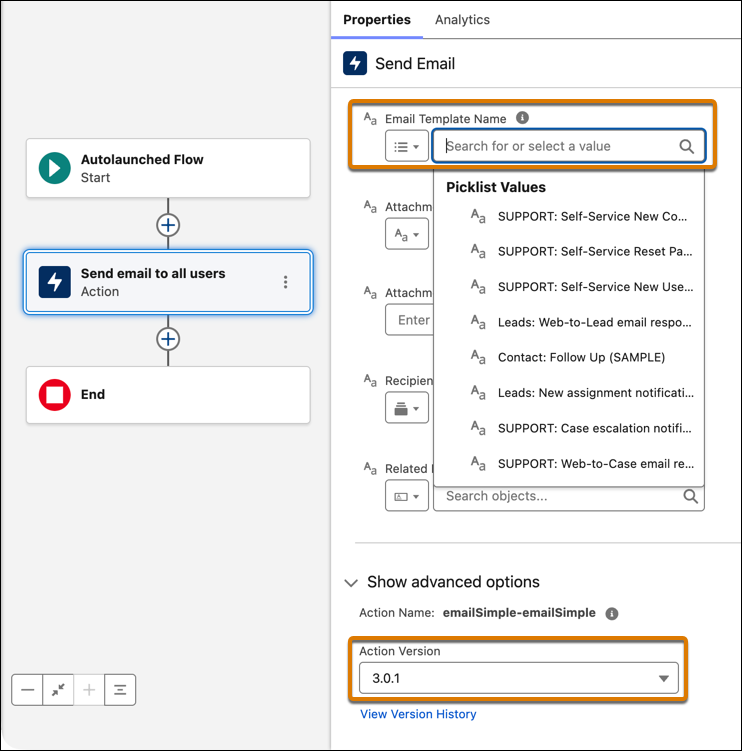
The Send Email action now stores email templates as a persistent reference rather than a template ID. Since template IDs change when a flow moves between orgs, the old behavior regularly broke Send Email actions after deployment and required manual fixes. That problem is gone.
4. Date Operators in Decision Logic
Twenty new date operators are now available for use in Decision elements when a condition uses a date data type. Options include Is Today, Is Tomorrow, Is Yesterday, Is This Month, Is Anniversary of Today, Last Number of Days, Next Number of Months, and more. These let you model recency and milestone logic directly in your decision branches without relying on formula workarounds.
Screen Flow Updates
Screen flows are getting some of the most visible improvements in Summer ’26, from AI-assisted editing to better component styling to long-overdue data table upgrades.
5. Update Screen Flows with Natural Language Prompts
Generative AI support for flow modification is expanding to screen flows. Using the Agentforce panel, you can now describe changes in plain language to add, remove, or modify screen and action elements without manually adjusting logic in Flow Builder. This brings screen flows in line with the other flow types that already supported AI-assisted iteration.

6. Display Record Names and Links in Data Table Lookup Columns
Data table columns tied to lookup fields can now show a human-readable record name at runtime instead of a raw Salesforce ID. You can also configure that name as a hyperlink that opens the related record in a new browser tab. No more workarounds to surface clickable record names in a data table.
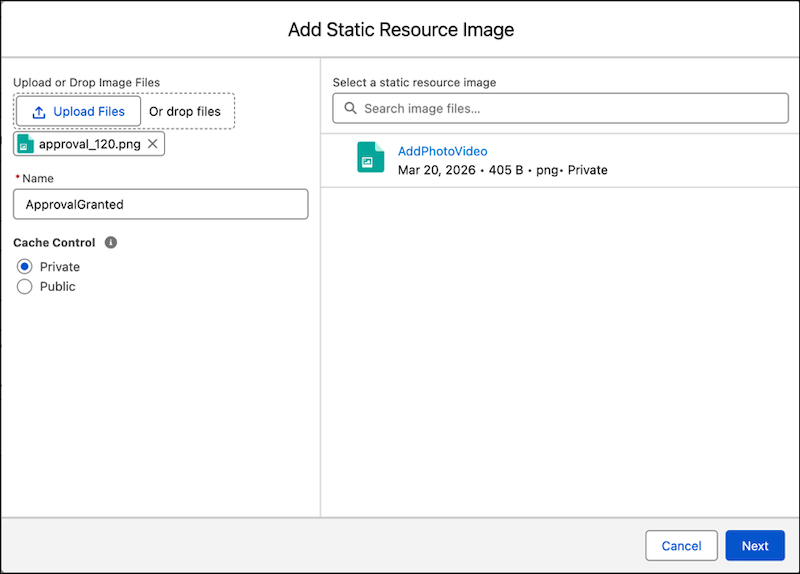
7. Add Static Resource Images Directly from Flow Builder (Now GA)
Previously in beta, the ability to browse and upload static resource images from within the Display Text component is now generally available. The updated two-step process lets you search for existing images, upload new ones, and add alternate text without ever leaving Flow Builder.
8. Radio Button Groups in Screen Flows
A new Radio Button Group component presents choices as horizontally stacked options on desktop and vertically stacked on mobile, offering a more compact and scannable alternative to traditional radio buttons, checkboxes, or picklists. Users still select a single option at runtime, but the layout reduces scrolling and feels more modern.

Flow Actions Updates
Flow actions are getting cleaner, more flexible, and easier to configure across the board in Summer ’26.
9. New Action Input Methods
Formula Mode for Action Inputs
You can now write formulas directly in action input parameters without creating separate formula resources. Select Formula mode in the Action element property panel, preview the formula inline, and edit it at any time. This reduces clutter and keeps your flow canvas easier to read.

Transform Mode for Action Inputs
Similarly, Transform mode lets you define data transformations directly within the Action property panel, eliminating the need to add a separate Transform element for data mapping tasks. Fewer elements, cleaner flows.
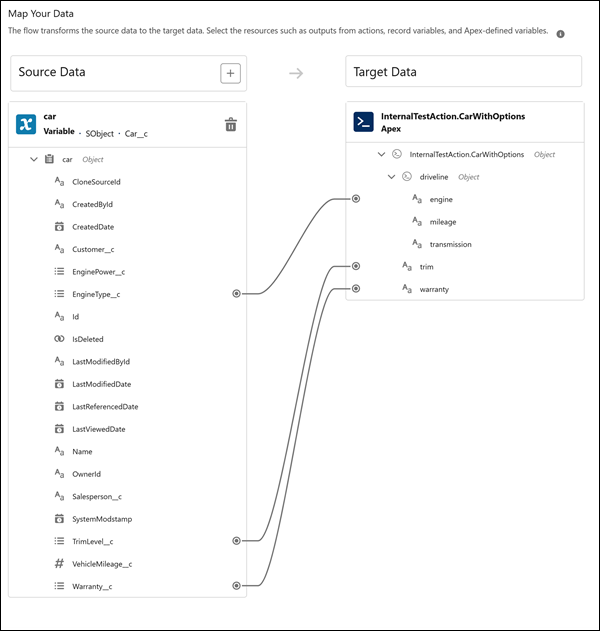
Set Field Values Directly for Apex-Defined Inputs
Apex-defined input parameters can now be set directly in the action property panel, with each field appearing as its own input. This removes the need to create separate variables and assign values to them before passing them into an action.
Optional Apex Action Inputs No Longer Show the Include Toggle
Flow Builder now hides the Include toggle for optional Apex action input parameters, simplifying the configuration experience. Required parameters are still marked with a red asterisk, and parameters with default values still show an Override toggle.
Flow Testing and Debugging
Summer ’26 also brings meaningful upgrades to how you test, debug, and troubleshoot flows.
10. Troubleshoot and Fix Flow Errors with Agentforce (Beta)
A new Ask Agentforce beta feature lets you use generative AI to diagnose both design-time issues in saved flows and runtime failures in active flows. You can identify root causes and understand remediation options in plain language, and use the Fix Issue option to let AI automatically apply the fix.
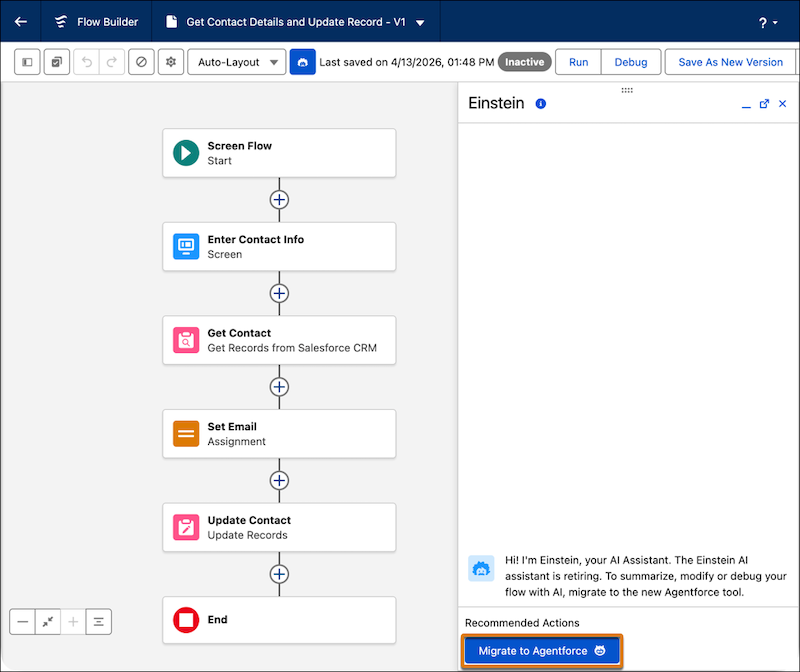
To get started with the Agentforce side panel in Flow Builder, you’ll need to provision and enable Data 360, turn on Agentforce from the Agentforce Agents section in Setup, and enable Einstein generative AI. Once that’s done, open any flow, launch the Einstein side panel, and click Migrate to Agentforce. Note that the Einstein AI assistant is being retired, so if you’re currently using it to summarize, modify, or debug flows, migrating to Agentforce is the path forward.
11. Flow Approvals
Unanimous Approval and Dependency Visibility for Approvals
Two meaningful upgrades are coming to Flow Approval Processes this summer.
First, approval steps assigned to groups can now require unanimous consent before moving forward. When unanimous approval is configured, every group member receives their own work item, and the step only advances if everyone approves. A single rejection closes the step and withdraws any pending work items for other members. This replaces the previous workaround of creating a separate step for each individual approver, which was a real pain point for compliance-heavy or multi-stakeholder review workflows. One thing to keep in mind: work items in unanimous approval steps cannot be reassigned.
Second, dependency visibility is no longer gated behind the Manage Flow permission. Users with the Approval Designer permission can now see flow dependencies for their approval processes directly in the Approvals app. Previously, only admins with Manage Flow had access to that view.
Both changes apply to Lightning Experience in Enterprise, Performance, Unlimited, Einstein 1, and Developer editions.
UI Improvements
Collapse Fault Paths on the Canvas
Following Spring ’26’s ability to collapse Decision and Loop elements, you can now collapse fault paths too. Hide them when you’re focused on the main flow logic and expand them only when you need to review or edit. Canvas layout state is saved per browser, so your view stays personal.
Redesigned Validation Panel
The validation panel has been redesigned to stay closed by default when you open a draft flow, so it’s no longer interrupting you before you’re ready to review issues. When you do open it, errors and warnings are organized into cards grouped by element. Clicking a card title opens that element’s property panel directly, and consistent validation patterns across all elements make error handling more predictable.
Styling Overrides for More Screen Flow Components
The list of screen flow components that support styling customization is expanding. New additions include Action Button, Address, Choice Lookup, Dependent Picklists, Email, Lookup, Name, Phone, Slider, Toggle, and URL.
Visualize the Execution Path When Testing Screen Flows
After manually testing a screen flow, the canvas now highlights the path the flow took, including every element touched during execution. The execution path displays when the flow reaches a Completed, Paused, Waiting, or Error state. Previously, the flow test finished without any visual indication of the path it followed.
Various Other Improvements
- Centralize Value Mapping Management: A new MuleSoft for Flow Integration feature that allows you to manage and track all value translation lookups in one location.
- Visual Flow Version Comparison: The ability to visually identify version changes side-by-side on the canvas, including a detailed breakdown of changes made to Transform element.
- Element Error Rate Column: A new column in the Flows list view that allows admins to triage issues by displaying the percentage of elements that failed during a flow’s last execution.
- Add Prompt Instructions Resource Picker: An enhanced resource picker for template-triggered prompt flows that groups resources and uses intuitive icons.
- Flow Orchestration Is Now a Standard Feature: This one is a big deal. As of the Spring ’26 release (week of February 16, 2026), Flow Orchestration runs are included in applicable editions with no usage-based caps. Previously, orgs were subject to entitlement limits on orchestration runs, which created friction for teams trying to scale multi-step automated processes. That ceiling is gone. Available in Enterprise, Performance, Unlimited, Einstein 1, and Developer editions.
Sneaky Additions to the Summer ’26 Release
Native Toast Messages in Flow
Salesforce snuck a highly anticipated feature into Summer ’26 at the last minute: a native Show Toast Message action for Flow Builder. Admins can now display success, warning, error, and information notifications directly from a flow. No UnofficialSF package, no custom LWC, no AppExchange workaround required. You control the style, whether the message auto-dismisses or stays until the user closes it, and you can even embed dynamic record fields and clickable URLs in the message body. Read the full article for a clever Lightning Record Page trick that keeps your flow canvas clean while handling all the conditional logic in the UI layer.
Open a Page Action
Screen Flows now have a native way to redirect users after flow completion — no custom LWC, no Aura component, no unofficial packages required. The new Open a Page core action lets you send users directly to a newly created record or an external URL as the final step in your flow. It works across Lightning Experience and Classic, and it’s available on all major editions. If you’ve ever watched a user finish a flow and then stare blankly at the screen wondering where their record went, this is the fix. Get the full configuration walkthrough here.
Conclusion
Summer ’26 delivered a few key features flownatics have been asking for. Schedule-triggered flow batch size setting was on my personal wish list. The data table improvements brought the out-of-the-box data table functionality closer to the UnofficialSF screen component. I would love to see more popular updates delivered from the IdeaExchange in the coming releases.
If you’re exploring any of these updates, we’d love to hear what you’re building.
Explore related content:
Get Your Org Ready: Summer 26 Admin Highlights
Beyond the URL Button: The Salesforce Request Approval Lightning Component