
Accounts and Contacts in Salesforce: The Foundation Every Admin Needs to Get Right


Picture a rep heading into a customer meeting. Before they walk in, they need answers. Who works at this company? What have we sold them? Who else on our team knows them? In Salesforce, accounts and contacts hold those answers.
These two objects sit at the center of almost every org. Opportunities, cases, and activities all connect back to them. Get them right, and everything downstream gets easier. Get them wrong, and you have messy reports, duplicate records, and confused reps. In this post, we walk through how accounts and contacts work together.
What Are Accounts and Contacts in Salesforce?
An account represents an organization you do business with. A contact represents a person connected to that organization. One account can hold many contacts. Each contact has one direct account, shown in the Account Name field.
The Account Record: Your Customer Hub
Open any account record, and you see far more than a name and phone number. The related lists gather everything your team knows about that customer. You see contacts, open deals, support cases, past calls, meetings, and files.
This view pays off before a customer meeting. A rep can scan the record in minutes and walk in prepared. They might spot an open support case, a stalled deal, or a new decision-maker.
Reps on the go can find most of the same information in the Salesforce mobile app. That helps when someone reviews notes five minutes before a meeting.

Contacts: The People Behind the Company
Companies don’t buy things. People do. Contacts capture the humans your team talks to: names, titles, email addresses, and phone numbers.
When you create a contact from an account’s Contacts related list, Salesforce fills in the Account Name for you. The contact then appears on the account, and the account appears on the contact. Each contact record also carries its own related lists, including cases and activities.
Business Accounts vs. Person Accounts
Most orgs start with business accounts. These represent companies, nonprofits, schools, or any organization with multiple people inside it.
Some businesses sell directly to individuals instead. Think of a financial advisor, a fitness studio, or a consumer brand. For these cases, Salesforce offers person accounts. A person account combines account and contact fields into one record. It represents a single individual, so you don’t add separate contacts to it.
Plan carefully before you turn person accounts on. Once you enable them, you can’t turn them off. Salesforce recommends previewing the impact in a sandbox first. Your org needs at least one Account record type and Contact sharing set to either Controlled by Parent or Private.

Why Every Contact Needs an Account
Salesforce lets you save a contact without an account. We strongly advise against it. A contact with no account becomes a private contact. Only its owner and users with elevated permissions, like admins, can see it. You also can’t share it with anyone else.
Private contacts pile up quietly. A rep adds someone after a conference, skips the Account Name field, and moves on. Months later, nobody else knows the relationship exists. Build Account Name into your team’s habits. Better yet, enforce it with a required field or a validation rule.
Admin tip: This validation rule on the Contact object blocks any save without an account.
Rule Name: Require_Account_on_Contact
Error Condition Formula:
ISBLANK(AccountId)

Error Message: Every contact needs an account. Please select one before saving.
Error Location: Account Name (field)
Already have private contacts in your org? Run this query in the Developer Console, Workbench, or the Salesforce Inspector Reloaded browser extension to find them.
SELECT Id, Name, Owner.Name, CreatedDate
FROM Contact
WHERE AccountId = null
ORDER BY CreatedDate DESC
Track Customer Interactions with the Salesforce Activity Timeline
Contact details tell only part of the story. The real value comes from a running history of every conversation. The Activity Timeline on contact and account records tracks calls, emails, tasks, and events.
After a customer call, a rep clicks Log a Call and records what happened. The next person who opens the record sees the latest context right away. Nobody has to ask when the team last spoke with this customer.
Contacts to Multiple Accounts
Real relationships rarely fit in one box. A consultant might advise three of your customers. A board member might sit on several companies. A business owner might run two separate firms.
Contacts to Multiple Accounts handles this without duplicate records. Each contact keeps one direct relationship, shown in the Account Name field. You can then add indirect relationships to other accounts.
The Related Contacts list on an account shows both direct and indirect contacts. It can also show relationships that have ended. Admins can customize the Roles picklist on each relationship and add custom fields. For example, a Primary Contact checkbox tells reps who to call first.
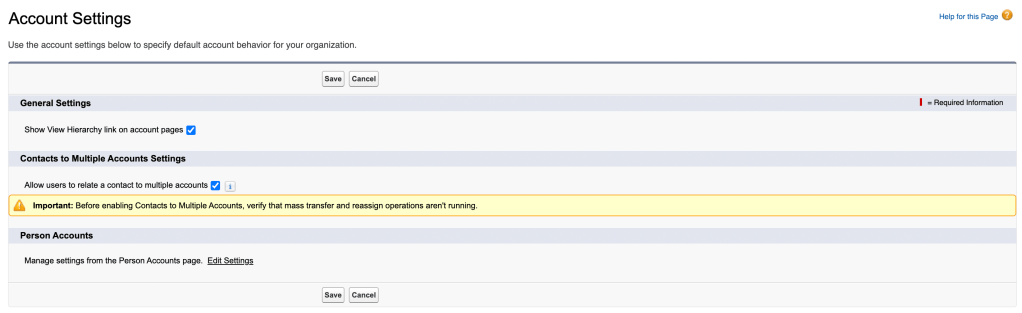
This feature doesn’t come turned on. An admin enables it in Account Settings. Then they add the Related Contacts and Related Accounts lists to the relevant page layouts. Skip that second step, and your users won’t see the new lists.
How to Build a Salesforce Account Hierarchy
Large customers often have multiple locations, divisions, or subsidiaries. Account hierarchies show how these entities connect.
To build a hierarchy, fill in the Parent Account field on each child account. Salesforce then generates a tree view of the whole family. Open the hierarchy from any account in it, and you see the full structure.
This context helps reps spot opportunities. A rep working with one regional office might learn the parent company already buys from you.
Salesforce Account Structure: One Account or One Per Location?
Multi-location customers raise a design question. Should you create one account for the whole company or one per location? Ask these three questions before you decide:
- Do different reps or teams own different locations?
- Do locations buy, renew, or open cases independently?
- Does leadership need reporting by site?
If you answer yes to any of these, separate location accounts usually win. They support ownership by location, more granular sharing, and cleaner per-site reporting. Link them with a hierarchy to keep the company-wide structure visible. Company-wide reporting takes a little extra setup, but the per-site detail is worth it.
A single global account makes sense for smaller customers that buy centrally. It keeps everything in one place. The tradeoff: the record grows crowded over time, and location-specific needs become harder to spot.
Building a Strong Salesforce Account and Contact Foundation
Accounts and contacts look simple on the surface. Underneath, they support nearly every process in Salesforce. Master business accounts, person accounts, and the relationship tools built on top of them. Then you have an org your team can trust. Follow these habits to keep your account and contact data clean.
- Link every contact to an account. Private contacts help no one but their owner.
- Review your duplicate and matching rules. Check how they behave before your data grows.
- Reassign records when people move on. When a user changes roles or leaves, give their accounts and contacts a new owner right away.
- Agree on naming conventions. Consistent names make records easier to find and reduce duplicates. This matters most for franchises and multi-location customers.
- Report on inactivity. Build a report of accounts and contacts with no activity in 30, 60, or 90 days. Then decide whether to re-engage them or filter them out.
- Capture new details as you learn them. A title change or a new phone number belongs in Salesforce the day you hear it.
Start with clean records, and the rest of your org gets easier to build. Add hierarchies and multi-account relationships as your customers grow more complex. Revisit your setup whenever your business changes, like a new sales region or a shift toward selling to individuals. The accounts and contacts you manage today become the foundation for every report, forecast, and automation you build tomorrow.
Explore related content:
Using Record Type Developer Name in Flow Start Criteria

