Building Agentic RAG: Connecting Data Cloud to Agentforce Studio (Part 2)


In Part 1 of this series, we set up the data foundation in Data Cloud by configuring a web content crawler, establishing the Data Lake Object (DLO) and Data Model Object (DMO). We vectorized our external web data into searchable chunks. If you need to go back and start from the beginning, go read Part 1 here.

Now, in Part 2, we will take those indexed data chunks and connect them to the intelligence layer. This post will show how to build a custom retriever in Agentforce Studio, craft a dynamic Flex Prompt Template in Prompt Builder, and deploy an Agentforce subagent to deliver real-time, grounded answers to our users.
Configuring a Custom Retriever in Agentforce Studio
The first task is to set up the retriever, which acts as the search mechanism fetching relevant data chunks from your vector index based on user queries. Before moving on to build the prompts and the agent, we would need a custom retriever that returns the Chunk__c field on SFBreak_Airlines_Destinations_chunk__dlm.
Open the App Launcher and go to Agentforce Studio. Expand the Data pane, and click Retrievers. Then, click the New Retriever button. Let’s create an Individual Retriever for our use case.
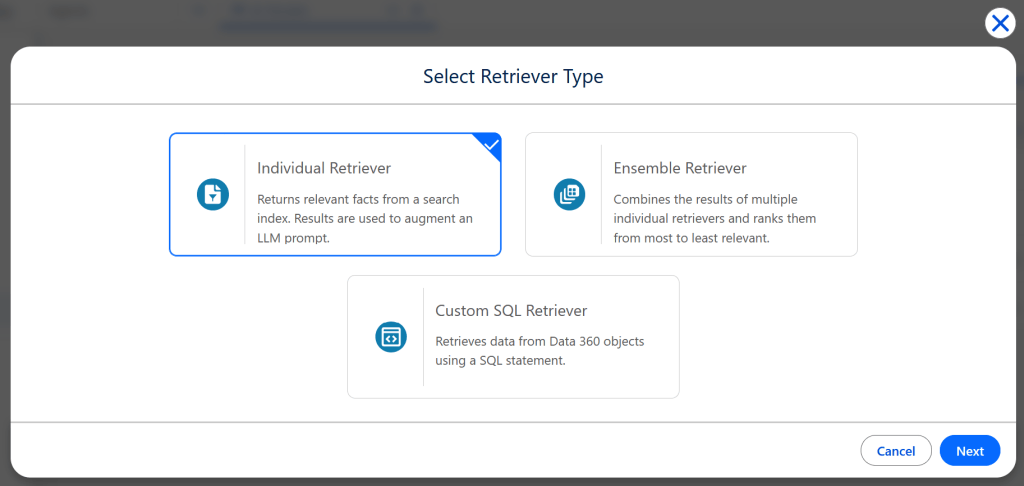
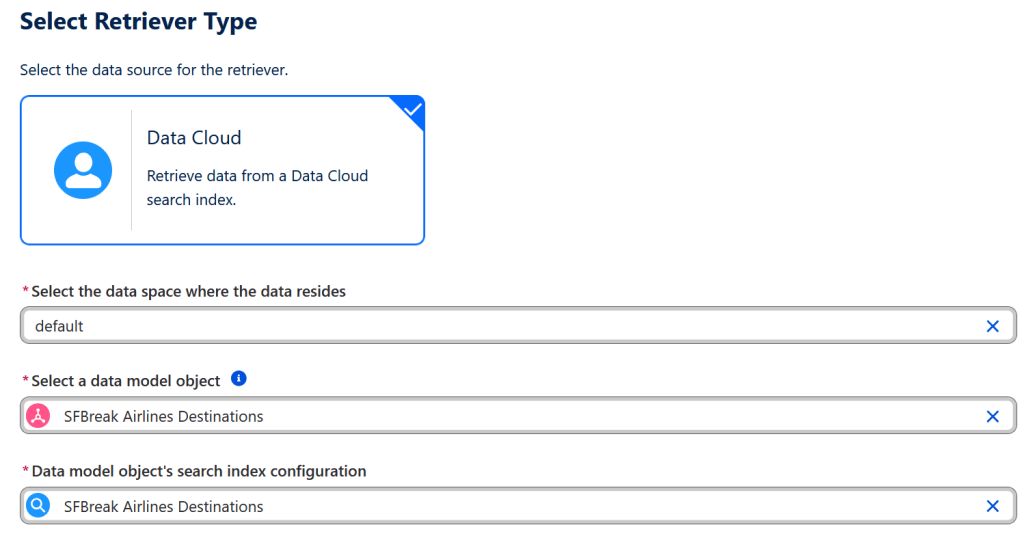
The data source will be Data Cloud, and the data model object and search index configuration will be the ones we just created. In our case, they will both be SFBreak Airlines Destinations. Click Next.

You will be met with a screen that will ask you to define retriever filters. You could use dynamic filters if your use case requires fetching data from a specific data source, narrowing the search results from the DMO for your agent. Since we already filtered out the data we don’t want to feed our agent with, you can just leave this with All Documents selected and proceed.
Configuring Retriever Results and Target Data Fields
You will then be prompted to configure retriever results. Leave the number of results as 20, since it is a good number of results to be retrieved from a query that won’t overburden the system. Next, configure your custom retriever to fetch data chunks by selecting the Chunk field under your DMO’s Related Attributes.

You will also want the Data Source field values for debugging purposes, should something go wrong and you have to check which field provided the chunk.

Leave Citations off and click Next. You will be asked to review your settings. If you’re satisfied, click Save.
The retriever will have to be activated to be usable in Prompt Builder. Click the Activate button on the top right. We are now one step closer to building our agent.
Creating a Custom Flex Prompt Template in Salesforce Prompt Builder
Next, build a custom Flex Prompt Template from scratch to handle your specific input parameters. You can base its structure on the standard “Answer Questions with Knowledge” prompt template.
Go to Setup → Prompt Builder and click New Prompt Template. Give it a name of your choosing. We will be using the Flex prompt template type with only one input: the query to be sent to the agent. This will be a Free Text parameter.

Also open the Answer Questions with Knowledge prompt template, you will copy the instructions from there. Essentially, the prompt will look like this:
You are an agent for SFBreak Airlines, an airline company.

###
INSTRUCTIONS
1. Analyze the query: Carefully read and understand the user's question or issue from the QUESTION section.
2. Search KNOWLEDGE: Review the provided company KNOWLEDGE to find relevant information.
3. Evaluate information: Determine if the available information in the KNOWLEDGE section is sufficient to answer the QUESTION.
4. Formulate response: To generate a reply <generated_response> to the user, you must follow these rules
a. Find the article-chunk(s) that is most relevant to answer the user query and VERBATIM extract the ID of the article to set <source_id> field in the response JSON. If you are unable to find the relevant article, set <source_id> to NONE.one;">
b. Use the relevant article-chunk to generate the response that exactly answers the user's question and set the <generated response> field.
c. If the user request cannot be answered with the knowledge provided, set the <source_id> to NONE and <generated_response> to "Sorry, I can't find an answer based on the available articles."
5. Refine and deliver: Ensure your response is polite, professional and concise.
6. Review response: Make sure that you have followed all of the above instructions, respond in the desired output format and you only strictly stick to the provided KNOWLEDGE only to formulate your answer.

###
KNOWLEDGE:
[RETRIEVER GOES HERE]

###
QUESTION:
{!$Input:Query}

###
Response:
You might have noticed the [RETRIEVER GOES HERE] clause. Replace it with the retriever you built earlier. However, before your prompt template can use the retriever, you must add it as an action within Prompt Builder.
Navigate to the Resources tab under Template Details, then click the button with the plus sign, which will list the actions you can add to your prompt template. Select Retrievers, and then the retriever you just created. Leave everything except the search text as is; the search text should take the value of our Query parameter: {!$Input:Query}. Fill it in and click Apply and Insert. The retriever reference should replace [RETRIEVER GOES HERE] and the prompt template should look similar to the one below.
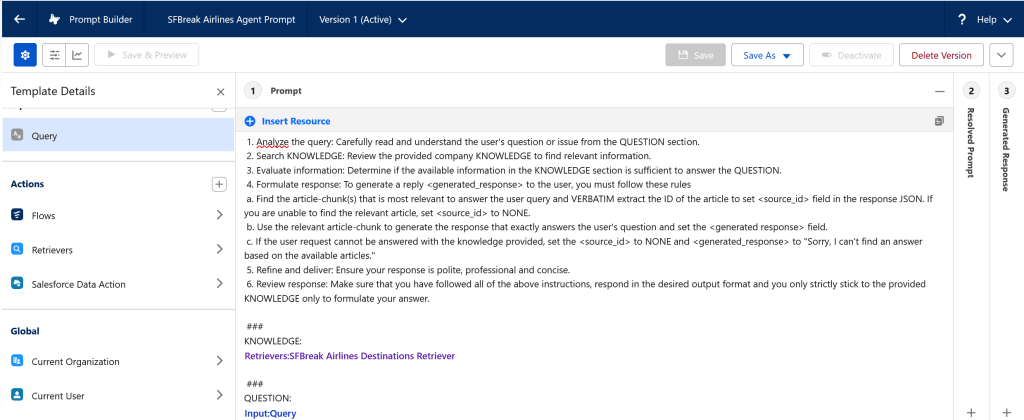
This will conclude the process with building the prompt template. If you want, you can test your prompt using the Preview functionality and asking the same questions you would ask the agent (“To which cities in Austria do you fly?”).
Building and Configuring Your Agentforce RAG Agent
This is the final step in your setup: building the agent. Your agent will use the custom prompt template to generate responses, fetching relevant knowledge via the retriever built on your Data Cloud DMO and DLO, which ultimately ingests data from your web crawler.
To start, open Agentforce Studio, select Agents from the left pane, and click New Agent. While Salesforce provides a variety of base templates, select Agentforce Service Agent to get started.
Configuring Agentforce Subagents and System Reasoning Instructions
When you create the agent, you will see several default subagents. You only need to keep Agent Router to direct queries, along with Off Topic and Ambiguous Question to handle edge cases or non-relevant inputs (such as “Hi!” or off-topic prompts). You can delete the irrelevant ones if you wish.
Next, create the subagent that will handle your specific use case: answering queries based on your custom knowledge base, such as destination questions like “To which cities in Germany do you fly?”. Click the + button at the top to add a new subagent, then assign it a name and description.
Finally, define your subagent’s Reasoning Instructions. Agent Router uses these rules to decide when to route conversations to this subagent. To ensure destination-related questions reach your new subagent, provide clear, targeted routing rules. You can start by tailoring the standard General FAQ subagent instructions to fit your specific data.
Your job is solely to help with issues and answer questions about SFBreak Airlines (which can be referred to as the airline or the company) and the destinations to which it flies by searching knowledge articles.

If the customer's question is too vague or general, ask for more details and clarification to give a better answer.

If you are unable to help the customer even after asking clarifying questions, ask if they want to escalate this issue to a live agent.

If you are unable to answer customer's questions, ask if they want to escalate this issue to a live agent.

Never provide generic information, advice or troubleshooting steps, unless retrieved from searching knowledge articles.
Linking Your Custom Prompt Template Action to the Subagent
The subagent won’t do anything until we add the action it needs to take as well: the prompt template we created. Hover over your subagent on the left pane with your mouse and click the plus sign next to it, then click New Action. You should be able to see Prompt Template under Reference Action Type and your prompt template under Reference Action. Enter the rest of the details and click Create and Open.
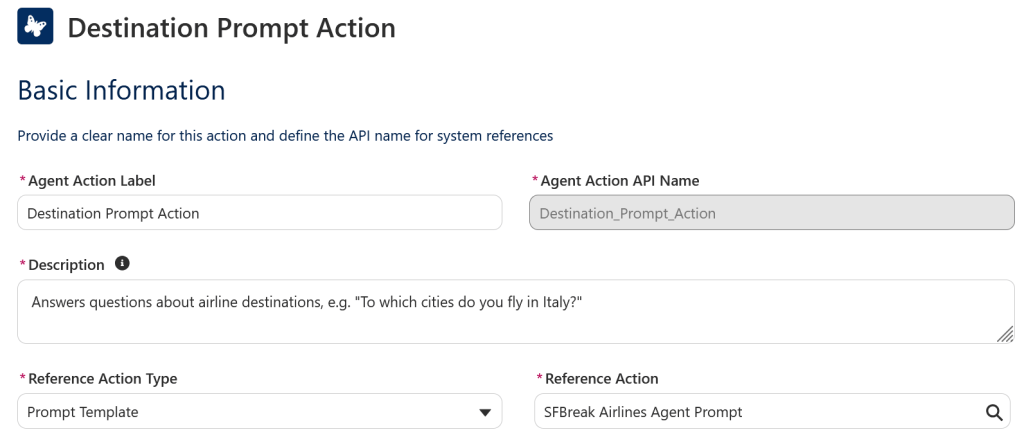
Fill in the remaining required fields, such as the Description field for the input parameters. Once you successfully save your agent, it will now be ready to answer your questions and this journey of ours will finally bear fruit.
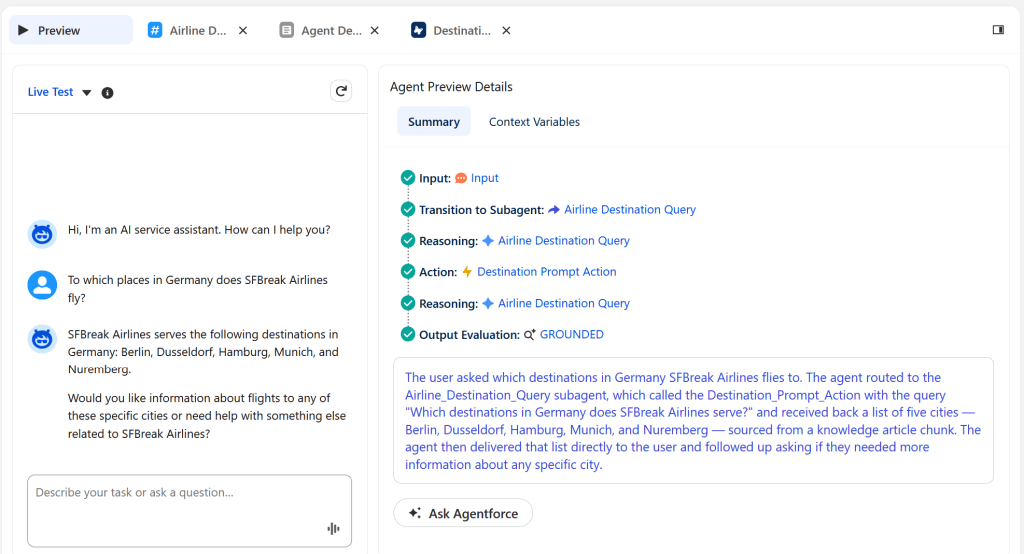
You can double check the values from the easyJet destination list: as of October 2026, their destinations in Germany are Berlin, Dusseldorf, Hamburg, Munich and Nuremberg. Therefore, we can safely conclude that our RAG experiment is successful and our agent is ready for the road ahead.
Mastering Agentic RAG in Salesforce Data Cloud and Agentforce
You have successfully built an end-to-end agentic RAG pipeline in Salesforce using Data Cloud, custom retrievers, and prompt templates. Your Agentforce subagent now leverages this complete foundation to answer destination queries with real-time accuracy.
Because the agent retrieves its knowledge from a live source rather than static grounding data, its answers stay accurate as the underlying information changes, which is exactly what fast-moving industries like aviation require. From here, you can extend the setup with deeper crawls, additional data sources, citations, or retriever filters to fit your own use cases.
Explore related content:
Collection Filter Criteria Resource in Salesforce Flow
Salesforce Winter ’27 Admin Highlights: Top Data, Security and UX Gems

