
Mastering Get Elements in Salesforce


Let’s dive into the Get element in flow: Get element, similar to SOQL queries in code, fetch one or more values from the Salesforce database. These values can be used later in our flow.

Understanding Variables
Before we go deeper into the Get element, we need to talk about variables. Variables are containers in Salesforce that keep values for us temporarily. This process is kind of like writing something on a napkin rather than in the address book. To save values permanently, we write them to the database. In other words, we write save and commit them to a record so that we can retrieve the values any time we want. On the other hand, variables are available only in the flow we are in, and they vanish after we complete our flow interview. There is a process we can make variable values available outside our flow. That is done when we mark our variable available as output at the time of creation.
Creating and Using Variables in Flows
In Salesforce flows, we create most variables on the left panel in the resource manager. Some variables are automatically created for us by the Flow builder. These show up in the resource picker along with the ones we created before. I will explain this further down in the blog.
The Dynamics of Record Variables
When we use the Get element to fetch a complete record, Salesforce creates a record variable automatically and holds all the field values of the record in this variable.
You can add a Get element to your flow to fetch an Account record. You decide whether you want to get only the first record that fits the criteria you define in the get element, or all the records. If you decide to fetch one record and label your Get element as “Get Account”, Salesforce auto-creates a record variable with all the field values that belong to that record. As flow builders, we can refer to one or more field values in that record variable later in our flow. For example, we can use {!Get_Account.Id} for the recordId in a formula.
Executing a Successful Get Step
What are the parameters we need to set to execute a successful get step?

Typical scenario: We would like to find all Accounts with the Name ACME.
Setup: Configure your Get element to fetch a record of Account object type. Set the filter criteria to look for Accounts where the Name equals ACME. Specify that you want all the records that fit the criteria that you configure in the Get element.
Possible Outcomes of a Get Step
We may find:
- No records
- One record
- More than one records
Let’s look at these possibilities:
No records: Your get step won’t fail. However, you will have a record variable automatically created with the value null assigned to it.
One record: You will have one record in your record variable complete with its recordId, name, and all other field values. You can use these later in your flow. Note that the created output variable is still a collection with one member. You will need to loop to reach the field values.
More than one record: All records will be included in the collection record variable. You will need to loop to access each record in the collection. Remember that your Get element offers the functionality of sorting your output collection variable by a field value: Most recently updated record for example.
Handling The No Records (Null) Outcome
When there are no records that can be fetched in your org based on the configuration of your Get element, then your output variable will be null. You won’t see an error at the Get step, but you will see a fault if you refer to this variable later and use it for various actions. Therefore it is important for you to catch the “No records” outcome.
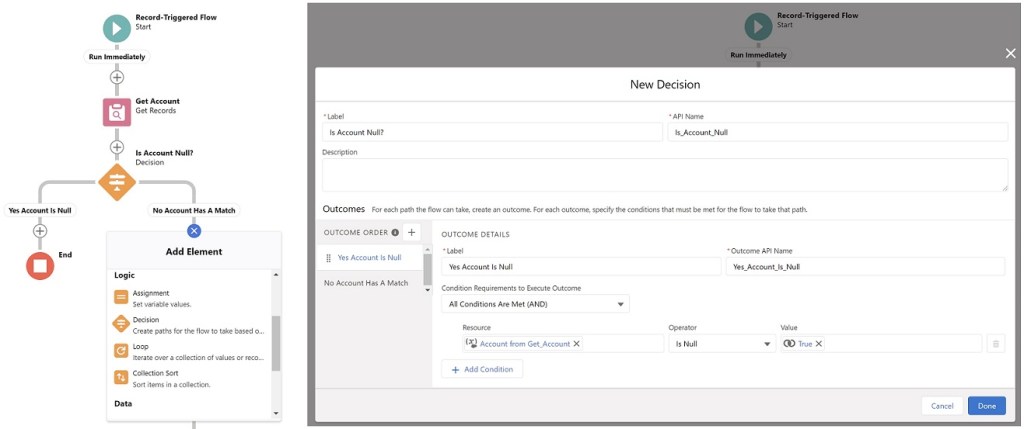
To catch the null scenario, insert a decision step right after your Get element and check whether {!Get_Account} is null equals to true. If that is the case, either stop all operations and exit the flow gracefully, or modify your path to handle this relevant scenario. In screen flows, you can insert a screen element to show the user a message explaining what happened, and possibly offer alternative paths to finish the flow.
Conclusion
Use the filter criteria wisely because if your get element returns more than 50K records, you will hit the relevant governor limit, and your flow will fail.
Explore related content:
Keep Salesforce Data Clean With Before Save Flows
6 Things You Can Do With The Transform Element
Popular Validation Rules for Salesforce Flows including Phone, Email and Address Fields


Very well explained Andy, thank you. Two totally unrelated questions. How did you create the emoji of you (I want one!). Second, what’s the background of your name, Engin Utkan (I’m interested in people’s names)
Hello Gustavo, the emoji is done from a real picture, you can see the picture here https://medium.com/@gatortail/about . You can find artists that do this on freelancer platforms. I used bionluk.com (full disclosure: I am an angel investor). I am Turkish-American. My first name Engin means vast & broad as in knowledge. My last name Utkan means successful. As opposed to the famous dialogue in the movie Pulp Fiction, our names mean sonething in Turkish. Lol. Thanks for writing. And I am happy you liked this newsletter issue.