
Open a Page Action: Redirect Users After a Screen Flow
Salesforce Summer 26 New Functionality Update

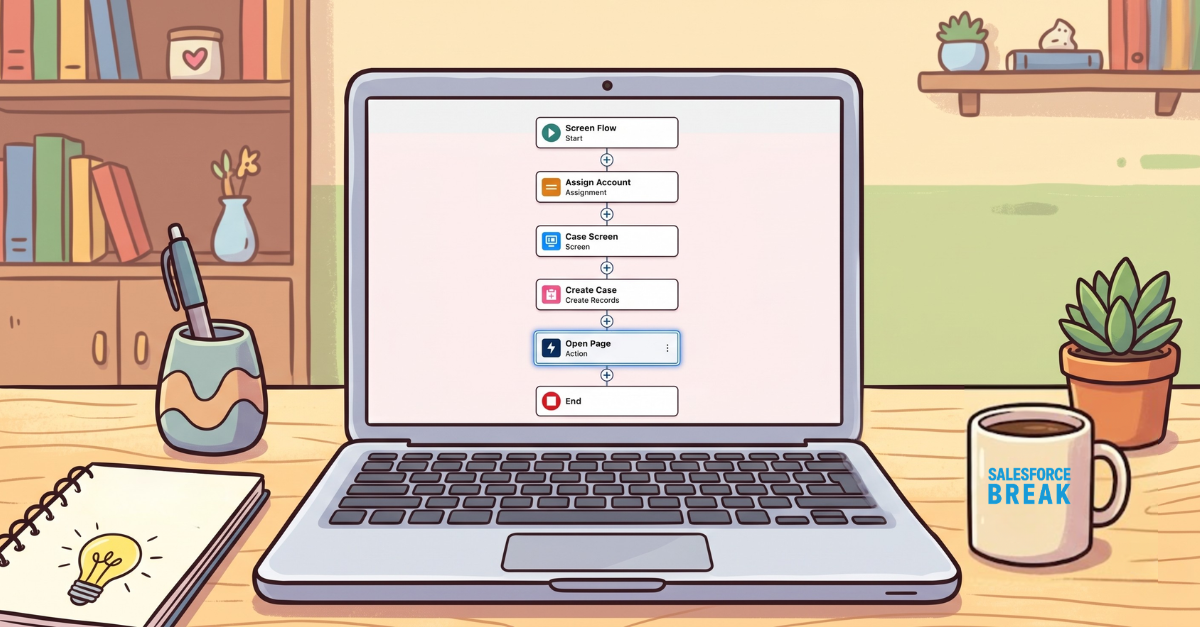
For years, Salesforce administrators and developers building Screen Flows have run into a familiar, frustrating wall: the post-flow navigation gap.

Picture this scenario: Your user opens a flow on an Account record. They carefully fill out a series of screens to log an issue or create a related record, clicks “Finish,” and then… nothing. They are left sitting exactly where they started. To see their work or continue their task, they are forced to manually scroll down to a related list, hit refresh, or use global search to find the record they literally just spent two minutes creating.
How Admins Can Solve Screen Flow Navigation Issues
The ecosystem relied on custom Aura components, LWCs, or unofficial open-source extensions like UnofficialSF. These handled simple browser redirects but came with real tradeoffs. Code maintenance, package dependencies, and unnecessary complexity piled up fast. What should have been a standard declarative process required custom development instead.
With Salesforce’s introduction of the native Open a Page core action, that workaround era is officially over. You can now dynamically launch Salesforce records or any external URL directly from your flow, seamlessly bridging screen transitions or gracefully redirecting users upon flow completion. Let’s dive deep into how this feature works, its availability, and step-by-step instructions on implementing it using a real-world, high-impact use case.
Use Case: Instant Case Redirection from an Account Page
Instead of forcing the agent to hunt for the new case in the related lists, we will use a Screen Flow that captures the context, creates the Case record, and uses the Open a Page action to automatically pop open the newly created Case record in a clean browser window or tab upon completion.

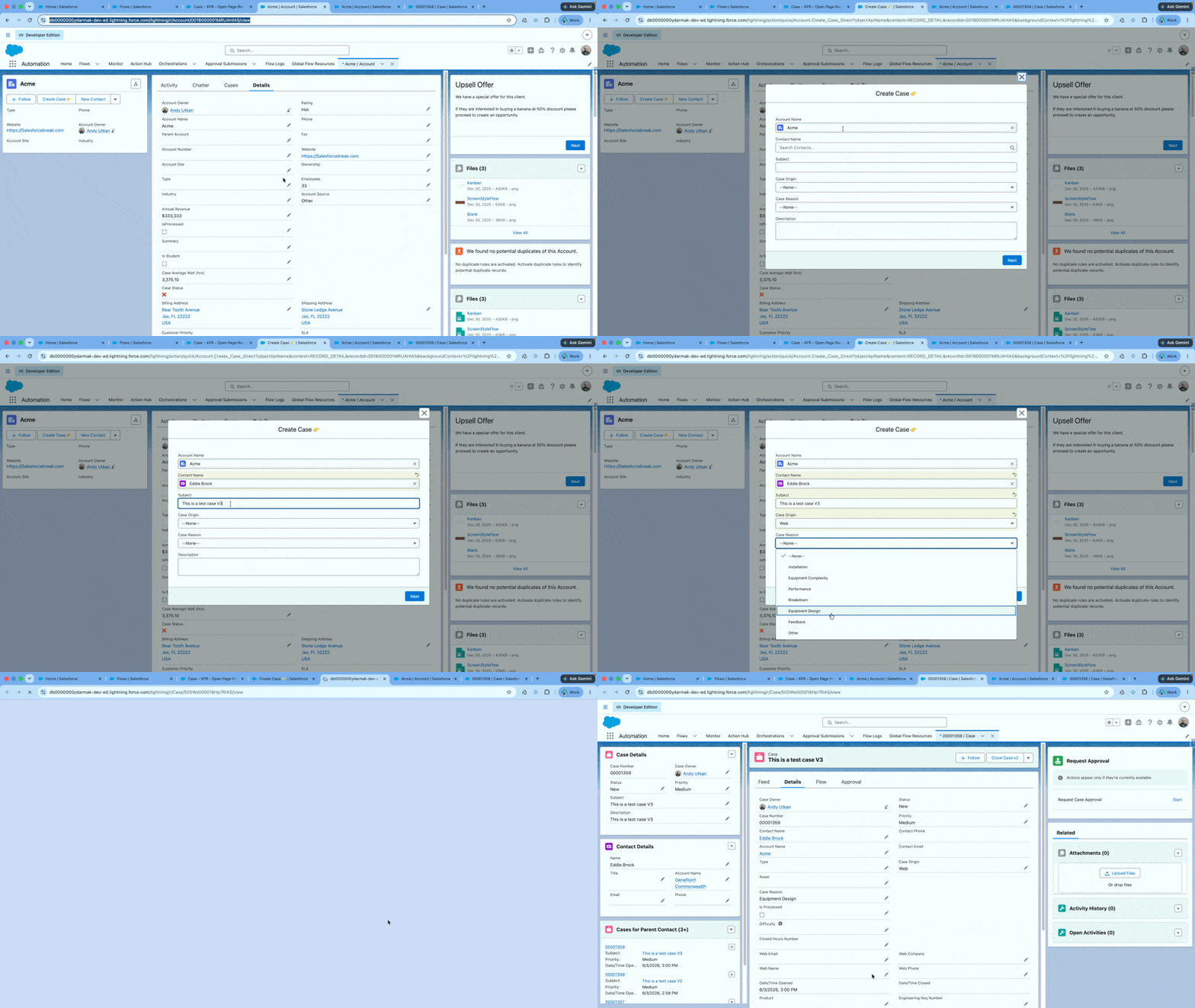
Flow Configuration
As visualized in our Flow Builder layout, the architecture of this solution is exceptionally clean and entirely declarative, requiring only five steps from start to finish:
-
Start (Screen Flow): Initiated directly via an action button or embedded component on the Account record page. It establishes a context variable,
recordId, to automatically pull the parent Account’s ID. -
Assign Account (Assignment Element): Maps the inbound
recordIdto a structured record variable (CaseRecordVar.AccountId). This ensures that the newly created Case is perfectly related back to the calling Account from day one. -
Case Screen (Screen Element): A clean user interface containing input components where the service agent fills out essential details such as the Subject, Description, and Priority.
-
Create Case (Create Records Element): Takes the values collected in the Case Screen alongside the mapped Account ID and writes the new Case record directly to the Salesforce database. Crucially, this element stores the resulting Case ID back into our single record variable (
CaseRecordVar.Id). -
Open Page (Action Element): The magic step. Positioned right before the end node, this core action consumes the freshly minted Case ID and redirects the agent’s browser focus instantly.
Why it works: The action executes directly within the flow transaction and acts as the ultimate user-friendly transition point. The user experiences a logical, smooth progression from gathering details to reviewing the finalized record.

How to Configure the “Open a Page” Action Step-by-Step
Setting up the action inside your Flow properties panel requires minimal configuration but yields incredible utility. Once you drag a new Action element onto your canvas or click the plus sign below your Create Records element, search for and select Open a Page. Fill out the parameters as follows:
-
Label: Open Page (or a highly descriptive name like “Redirect to New Case”)
-
API Name:
Open_Page -
Page Type: Select Salesforce Record Page from the dropdown. (Note: You can also choose External Page for arbitrary web URLs).
-
Record ID: Bind this dynamically to your case creation variable:
{!CaseRecordVar.Id} -
Object Name: Type or select
Caseto tell the framework which layout style to load. -
View Mode: Select the radio button for View (loads the standard record detail view) or Edit (pops open the record in edit mode). For this use case, choose View.
-
Where to Open the Page: Select New Browser Window to open the record in an independent tab, keeping the original Account window pristine and undisturbed. Our tests for this use case showed that all options produced the same result opening the case on a new browser tab and changing the focus of the browser to the case (tested on MacOS using Chrome).
Availability & Deployment Scope
This enhancement isn’t locked behind premium tiering. Salesforce has made it widely available across the platform ecosystem to immediately improve user experiences:
-
Environments: This change applies fully to both modern Lightning Experience and classic desktop layouts (Salesforce Classic).
-
Editions: Supported across a massive suite of tiers, including Essentials, Professional, Enterprise, Performance, Unlimited, and Developer editions.
Pro-Tips for Salesforce Admins
Use Stored Record Id: If you use a record variable to create the record, your brand new Id will be populated in the record variable. For all other methods you can refer to the create step to use the new Id.
Leverage External URL Redirection: Don’t limit your thinking entirely to standard Salesforce records! By switching the Page Type parameter to an external configuration, you can dynamically pass parameters via a query string. This launches third-party legacy ERPs, internal document management portals, or customized external tracking systems right inside your flow sequence.
Don’t Over-Rely On “Where to Open the Page”: OS and browser settings often dictate what happens next. Your outcome may not match what is listed as a choice in the pulldown.
Why Better Flow Navigation Drives Salesforce User Adoption
Small friction reductions transform a CRM into a platform users actually enjoy. For years, the post-flow navigation gap was a persistent pain point for admins. The common fix involved Aura components, LWCs, and community-built extensions. These workarounds got the job done, but they were never the right long-term answer.
The Open a Page action delivers a seamless experience with zero custom code. Use it to redirect users to a new record, launch an external portal, or guide next steps. The use case we walked through is just one of dozens of high-impact scenarios where this action can eliminate confusion and keep your users moving forward.
Let me know, if you plan on using this action: Where will you use it?
Explore related content:
11 Flow Updates in Summer 26 Release
Choices, Choices: What Are Radio Button Groups Best Used For
How to Create, Customize, and Share List Views in Salesforce

