


When you’re just starting out learning the basic foundational concepts in Salesforce, it helps to break them down like this: one object, one purpose, and then a set of rules for how objects connect to each other. Object relationships are exactly that connective tissue. They let you link records together so users can see related data without hunting for it across the org.

Think about a school tracking student enrollment. A staff member opens a student’s record and needs to see every course that student is enrolled in, right there on the page. That visibility doesn’t happen automatically. Someone has to define a relationship between the Student object and a custom Course object first. Once that relationship exists, the data shows up together, and the whole team works faster.
We’re going to walk through the main relationship types, what each one is good for, and the tradeoffs for each choice.
Master-Detail Relationships
A master-detail relationship ties two objects together so tightly that the master record controls the detail record’s behavior. Delete the master, and Salesforce deletes every related detail record with it. Undelete the master, and those detail records come back too.

This tight coupling shows up in a few other ways. Detail records don’t have their own Owner field. Instead, they inherit ownership from the master record. That also means custom objects sitting on the detail side can’t use sharing rules, manual sharing, or queues, since all of those depend on an Owner field being present.

Security works the same way. Detail and subdetail records inherit their permissions from the master, so you can’t set access on the detail record independently. The relationship field itself is required on the detail record’s page layout, and by default, records can’t be reparented to a different master. An admin can turn on reparenting for custom objects if the business need calls for it.
There’s a practical limit worth remembering here too: Salesforce recommends keeping master-detail relationships under 10,000 child records, and each custom object can have a maximum of two master-detail relationships along with 40 total relationships.
One more thing to flag: once you save a master-detail relationship, you can’t change what it’s related to. Get the object selection right before you commit. As a general rule, lookup relationships are the safer starting point. Default to lookup relationships unless you have a specific reason to need the tighter coupling master-detail provides.
Lookup Relationships
Lookup relationships connect two objects in a much looser way. They work similarly to master-detail relationships, but they skip sharing inheritance and roll-up summary fields entirely. You can link two different objects, or you can link an object to itself, as long as that object isn’t the user object (which has its own special hierarchical relationship type, covered below).
Roll-Up Summary Fields and the Standard Object Exception
One nuance worth flagging, especially for custom objects: roll-up summary fields require a master-detail relationship. You can’t add a roll-up summary field on top of a lookup relationship, only master-detail supports it.
Standard object relationships bend this rule, though. Relationships between standard objects like Contact, Lead, Account, Case, and Opportunity are sometimes called special relationships. They behave like a hybrid of master-detail and lookup, but they aren’t strictly either one.
The Opportunity-to-Account relationship is a good example. Account is optional on Opportunity, which is normally a lookup trait. Yet you can still create a roll-up summary field from Opportunity up to Account, something that isn’t available for a true lookup relationship between two custom objects.
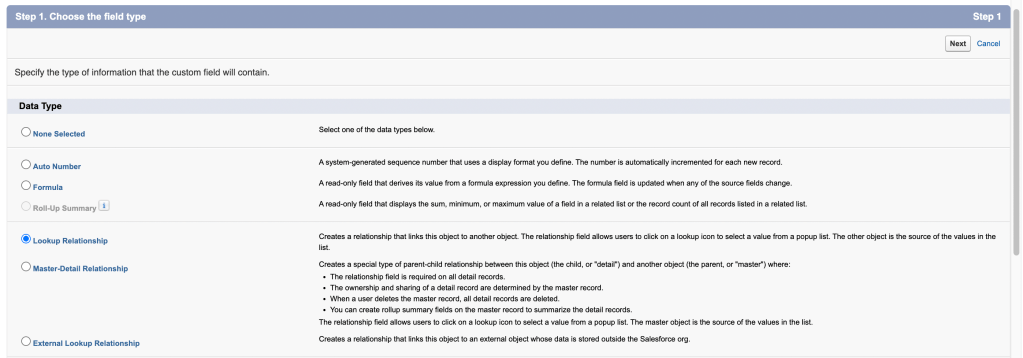
Because the coupling is looser, lookup relationships give you more configuration choices. You decide whether the field is required. If it’s optional, you choose what happens when someone deletes the linked record: clear the field automatically, block the deletion outright, or delete the child record along with it.
That last option, deleting the child record too, deserves real caution. Salesforce calls this a cascade-delete, and it bypasses normal security and sharing settings. A user could end up deleting records they wouldn’t otherwise have access to, simply because the parent record they do have access to got deleted. For this reason, cascade-delete is turned off by default, and you need to request it from Salesforce before it becomes available as an option.
Lookup relationships also come with volume considerations. If the combined record count across both linked objects exceeds 100,000, you can’t delete an object or record involved in that relationship until you bring the count down.
Many-to-Many Relationships and Junction Objects
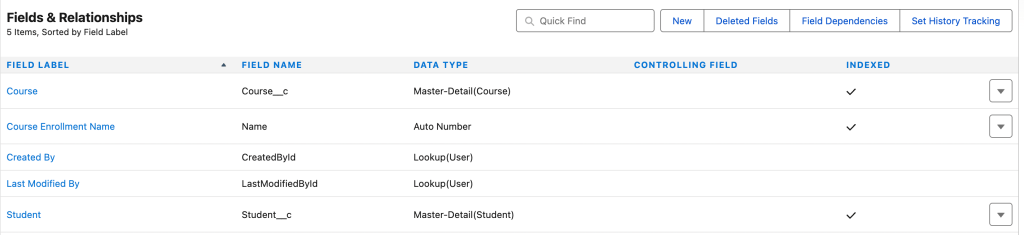
Sometimes one master-detail relationship isn’t enough to model how your data actually works. Picture that Student and Course example again, but now imagine a single student enrolls in multiple courses, and a single course has multiple students enrolled. That’s a many-to-many relationship, and Salesforce handles it through a junction object.
A junction object is simply a custom object holding two separate master-detail relationships, one to each of the objects you’re connecting. Build the junction object first, then create both master-detail fields on it, one at a time.
Order matters here more than you might expect. The first master-detail relationship you create becomes the primary relationship, and it determines the look, icon color, and inherited ownership of the junction records. The second one becomes secondary, and it only takes over as primary if you later remove the first relationship.
Renaming Related Lists Doesn’t Remove the Extra Click
Once both relationships exist, you’ll want to rename the related list labels on each master object’s page layout. This step is easy to misunderstand, so it’s worth being precise about what it actually changes.
Renaming the label doesn’t change what’s inside the related list. The related list still shows junction object records, the actual Course Enrollment records, not Course or Student records directly. Renaming the label just changes what that list is called on the page. So instead of a generic label like “Course Enrollments,” you might rename it to something that hints at the other side of the relationship, but clicking into any row still opens a Course Enrollment record first. From there, you’d click again to reach the actual Course or Student.
That two-step path, from Student to Course Enrollment to Course, is normal for junction objects. It’s built into how master-detail relationships work, and renaming labels doesn’t remove that extra click.
Some standard Salesforce objects hide this navigation on purpose, at least visually. Opportunity Products is a good example. When you add a product to an opportunity, it looks like you’re selecting products directly. In the background, Salesforce is still creating a junction object record connecting the two.
Junction objects come with their own deletion behavior worth knowing. If either master record is deleted, the junction record moves to the Recycle Bin. If both master records get deleted, the junction record is gone permanently and can’t be restored.
Hierarchical, External, and Indirect Lookups
A few more specialized relationship types round out the picture. Hierarchical relationships exist only for the user object, and they let you build something like a manager chain, where one user links to another without any circular references back to itself.
External lookup and indirect lookup relationships come into play when Salesforce Connect is involved. An external lookup connects a child object to a parent that lives in an external data source. An indirect lookup flips that, connecting a child external object to a parent that lives inside your Salesforce org, matched through a unique external ID field. These are less common in day-to-day admin work, but they matter a lot once external data sources enter the conversation.
Converting Between Relationship Types
Relationships aren’t always permanent decisions. You can convert a master-detail relationship to a lookup, as long as no roll-up summary fields exist on the master object. You can also go the other direction and convert a lookup to a master-detail relationship, but only if every record’s lookup field already contains a value.
There’s one blocker worth knowing before you try that second conversion. A lookup relationship can’t be converted to master-detail if the child object’s organization-wide default is already set to Controlled by Parent. You’ll need to change that setting first before the conversion will go through.
Converting a lookup to master-detail changes the organization-wide default to Controlled by Parent, and it updates the sharing model to public read/write. Converting the other way, from master-detail to lookup, changes the organization-wide default on the detail object to public read/write as well.
Reports depend on these relationship types too, so a conversion can break custom reports that relied on the old structure. Test your reports right after any conversion, before anyone downstream notices something looks off.
Choosing the Right Salesforce Relationship Type
Object relationships aren’t just a technical detail buried in Setup. They shape how users see data and control record deletion and restoration. They determine ownership and which reports are possible. Getting the relationship type right from the start saves rework later. Some decisions, like the Related To field on a master-detail relationship, can’t change once saved.
Start with the business question first: does one record truly control another, or are they simply connected? That question alone points you toward master-detail or lookup. From there, the rest of the configuration choices get a lot easier to reason through.
Explore related content:
Standard or Custom Object – The Importance of the Data Model

